

New Custom Fields on Shelf


Managing assets isn't one-size-fits-all. Your camera equipment needs different data than your office furniture. Your lab instruments require different tracking than your vehicles. That's why we've built seven powerful custom field types that let you capture exactly the information that matters for your unique assets.
Quick Overview: All 7 Custom Field Types
Here's what you can track with Shelf's custom fields:
Single-line text – Serial numbers, model codes, short notesMulti-line text – Detailed descriptions, setup instructionsNumber – Quantities, measurements, technical specsAmount – Costs, values, financial data (with currency formatting)Option – Dropdown menus for consistent categorizationBoolean – Yes/no checkboxes for quick status checksDate – Schedules, expiration dates, milestones
Let's dive into when and how to use each one.
Text Fields: The Foundation of Asset Information
Single-Line Text: Quick Identifiers
Best for: Any short piece of text that identifies or describes your asset.
Perfect when you need to track:
Serial numbers and asset tagsModel numbers and SKU codesEmployee names and user assignmentsRoom numbers and location codesVendor names and contact information
Pro tip: Use single-line text for any information you might need to search for quickly. It's perfect for creating your own naming conventions.
Multi-Line Text: Detailed Information
Best for: Longer descriptions that need formatting and line breaks.
Essential for capturing:
Setup and operating instructionsMaintenance history and service notesTechnical specifications and requirementsTroubleshooting guidesSpecial handling proceduresReturn policies and conditions
Real-world example: A film production company uses multi-line text to store camera setup configurations for different shoots, so any crew member can quickly recreate the exact settings.
Numeric Fields: Measurements and Money
Number Field: Technical Specifications
Best for: Any numeric value that isn't money – measurements, quantities, ratings, specifications.
Track important metrics like:
Power consumption and voltage ratingsWeight, dimensions, and capacity limitsQuantities in stock or availablePerformance ratings and specificationsTemperature ranges and environmental limitsScreen sizes, memory capacity, storage space
Amount Field: Financial Tracking
Best for: Any monetary value – automatically formats as currency for clarity.
Essential for financial oversight:
Purchase prices and current market valuesDaily, weekly, or monthly rental ratesMaintenance costs and service expensesInsurance coverage amountsReplacement and depreciation valuesLease payments and financing costs
Why separate Number and Amount fields? Amount fields automatically format with currency symbols and proper decimal places, making financial reports cleaner and more professional.
Selection and Status Fields: Consistency and Control
Option Field: Standardized Choices
Best for: When you need consistent, standardized data entry across your team.
Create dropdown menus for:
Equipment categories (lighting, audio, video, computing)Condition status (excellent, good, fair, needs repair)Manufacturers and brandsPriority levels (low, medium, high, critical)Project phases and workflow stagesRental periods (hourly, daily, weekly, monthly)
Data consistency tip: Option fields prevent typos and variations in your data. Instead of getting "Canon", "canon", "CANON", and "Canon Inc." – you get exactly what you defined.
Boolean Field: Quick Status Checks
Best for: Simple yes/no or true/false conditions that you need to check at a glance.
Perfect for tracking:
Certification status (calibrated, certified, compliant)Safety requirements (requires training, hazardous material)Insurance and warranty coverageMaintenance needs (needs service, up to date)Special conditions (waterproof, fragile, temperature-sensitive)
Date Field: Time-Based Management
Best for: Any time-sensitive information that affects asset management decisions.
Critical for tracking:
Purchase and installation datesWarranty and insurance expirationScheduled maintenance datesCalibration and certification due datesExpected replacement timelinesLease and contract renewals
Automation opportunity: Combined with Shelf's reminder system, date fields can automatically notify you before important deadlines.
Advanced Configuration Options
Every custom field can be fine-tuned with these powerful options:
Required Fields
Make certain information mandatory to ensure your team captures critical data every time.
Help Text
Provide clear guidance and examples for data entry – especially useful for complex or technical fields.
Category Linking
Apply specific fields only to relevant asset categories. For example, show "Calibration Date" only for lab equipment.
Active/Inactive Control
Temporarily disable fields without losing data – perfect when requirements change or you're testing new workflows.
Example: Setting Up an Option Field
Here's how you might configure a status tracking field:
{
  "name": "Equipment Status",
  "type": "option",
  "options": ["Available", "Checked Out", "In Repair", "Retired"],
  "helpText": "Current operational status - updates automatically with bookings",
  "required": true,
  "categories": ["Audio Equipment", "Video Equipment"]
}
Real-World Success Stories
Event Production Company
"We use Option fields for equipment types and Boolean fields to track which gear needs special transport cases. Date fields remind us about gear that needs annual safety inspections. It's transformed how we prepare for shoots."
Research Laboratory
"Amount fields track the cost of each instrument for grant reporting, while Date fields manage calibration schedules. Number fields store technical specifications that our researchers need for experiment planning."
IT Department
"Single-line text for asset tags, Boolean fields for warranty status, and Date fields for replacement planning. Our IT asset tracking has never been more organized."
Getting Started with Custom Fields
Step 1: Plan Your Data
Before creating fields, ask yourself:
What information do we need to make decisions about this asset?What data would help during audits or inspections?What questions do we frequently ask about our equipment?
Step 2: Start Simple
Begin with the most essential fields. You can always add more as your needs evolve.
Step 3: Get Your Team Involved
The people who use the assets daily often know what information would be most valuable to track.
Step 4: Test and Refine
Create a few assets with your custom fields and see how they work in practice. Adjust as needed.
Ready to Customize Your Asset Management?
Custom fields transform Shelf from a basic asset tracker into a powerful database tailored specifically for your operation. Whether you're managing camera equipment, educational resources, or construction tools, the right custom fields make all the difference.
Ready to get started?
Try Shelf free and experiment with custom fieldsBook a demo to see custom fields in actionRead our step-by-step guide to creating custom fields
Questions about which field types work best for your industry? We'd love to help you design the perfect custom field setup for your assets.
Ready to organize your assets?
Join thousands of teams who trust Shelf to manage their physical assets. Free forever, or try the Team plan free for 7 days.
Out in the field? Shelf Companion is free on iPhone & Android.
More from the blog
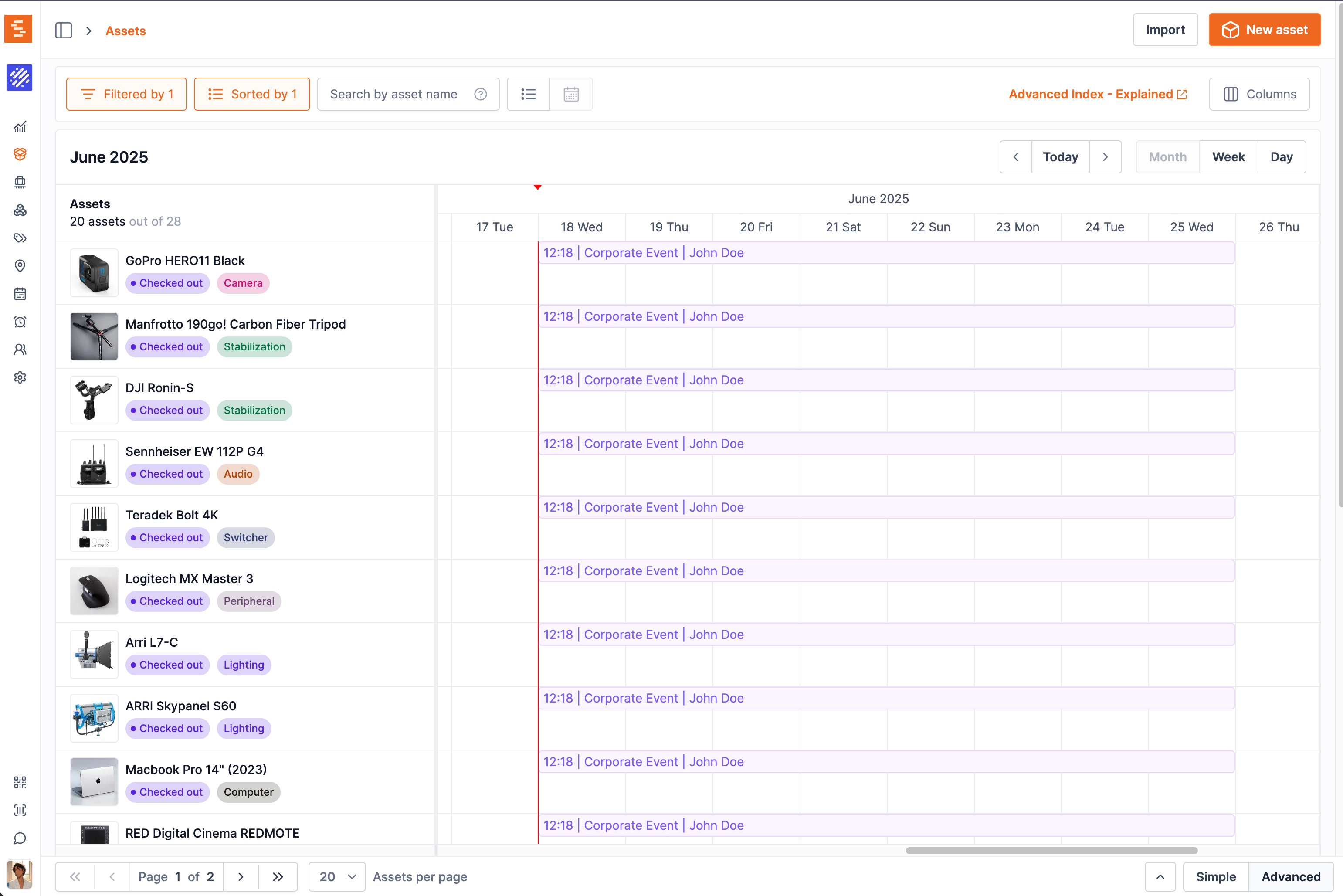
Why We Built Availability View: When Customers Show You What's Missing
How a single customer email changed our roadmap and taught us about real-world asset management

The Importance of Equipment Usage Agreements for Asset Protection
If you manage valuable assets for your business, equipment agreements are a crucial component of a comprehensive security strategy. However, for those new to formal asset management, these legal documents can seem like overkill.

Introducing Custodians: A New Feature for Effortless Asset Management
Discover how our latest feature can help you assign team members as custodians of specific assets, promote accountability, enhance security, streamline audits, and optimize collaboration.