

Archiving Bookings
Move finished bookings out of your active list, manually or automatically. Covers which bookings can be archived, the auto-archive settings, and what archiving means for reporting.

Over time your bookings index fills up with reservations that are done with. Archiving files them away without deleting the record: archived bookings stay in your workspace and remain searchable through the status filter, they just stop cluttering the default view.
This guide covers which bookings can be archived, how to archive them one at a time or in bulk, and how to let Shelf archive them for you.
Which Bookings Can Be Archived
Two kinds of bookings are eligible:
- Completed bookings: the gear went out and was checked back in. The classic case.
- Reserved bookings whose end date has passed: reservations that were never checked out. Their assets were never taken out of circulation, so archiving simply files the booking away.
Bookings that are Ongoing or Overdue cannot be archived. Their assets are physically checked out, so hiding the booking would leave equipment in someone's hands with no active booking to trace it to. Check the booking in first, then archive it.
Draft, Cancelled, and future-dated Reserved bookings are not archivable either. A draft or a cancelled booking is already out of the active flow, and a reservation that hasn't happened yet is still live.
Archiving is not the same as completing. A reserved booking that is archived was never checked out, and Shelf does not pretend otherwise: it is never recorded as a returned booking. See What archiving means for reports below.
Archiving a Single Booking
- Open the booking
- Click Actions in the top right
- Select Archive
If Archive isn't in the menu, the booking isn't eligible. Check its status against the list above.
Archiving Several Bookings at Once
- Go to the Bookings index
- Tick the checkboxes for the bookings you want to archive
- Open the bulk actions dropdown and choose Archive
- Confirm in the dialog
Completed bookings and past-due reserved bookings in your selection are moved to the archive together. If your selection includes a booking that can't be archived, Shelf tells you rather than archiving part of the batch.
Bulk actions respect who owns a booking. An administrator or the workspace owner can archive, cancel or delete any booking in the workspace this way. A self-service or base user acts on their own bookings only, including when they use Select all, and including in workspaces where an admin has switched on booking visibility so they can see everyone else's. Seeing a booking has never meant being able to change it, and the bulk actions follow the same rule as the buttons on a single booking.
Cancelling or deleting in bulk leaves other commitments alone
When a selection contains bookings that are Ongoing or Overdue, the gear on them has physically left, so each asset gets its own answer rather than the whole selection being swept back onto the shelf together. Shelf takes the strongest commitment that survives the batch:
| What still holds the asset | Where it lands |
|---|---|
| Another Ongoing or Overdue booking outside your selection | Stays Checked out for that booking |
| No other live booking, but a team member holds it in custody | In custody |
| Nothing at all | Available |
Bookings leaving in the same batch are not counted as each other's commitment, so two bookings that share an asset both genuinely let go of it. A custody record is left in place either way — it is a separate hold, and a booking exit has no business deleting it.
This is the rule the single-booking Cancel and Delete buttons have followed for a long time. The bulk actions now match them, where before they wrote Available across the whole selection and could put an asset someone still had back into the pool for anyone to book.
Auto-Archiving
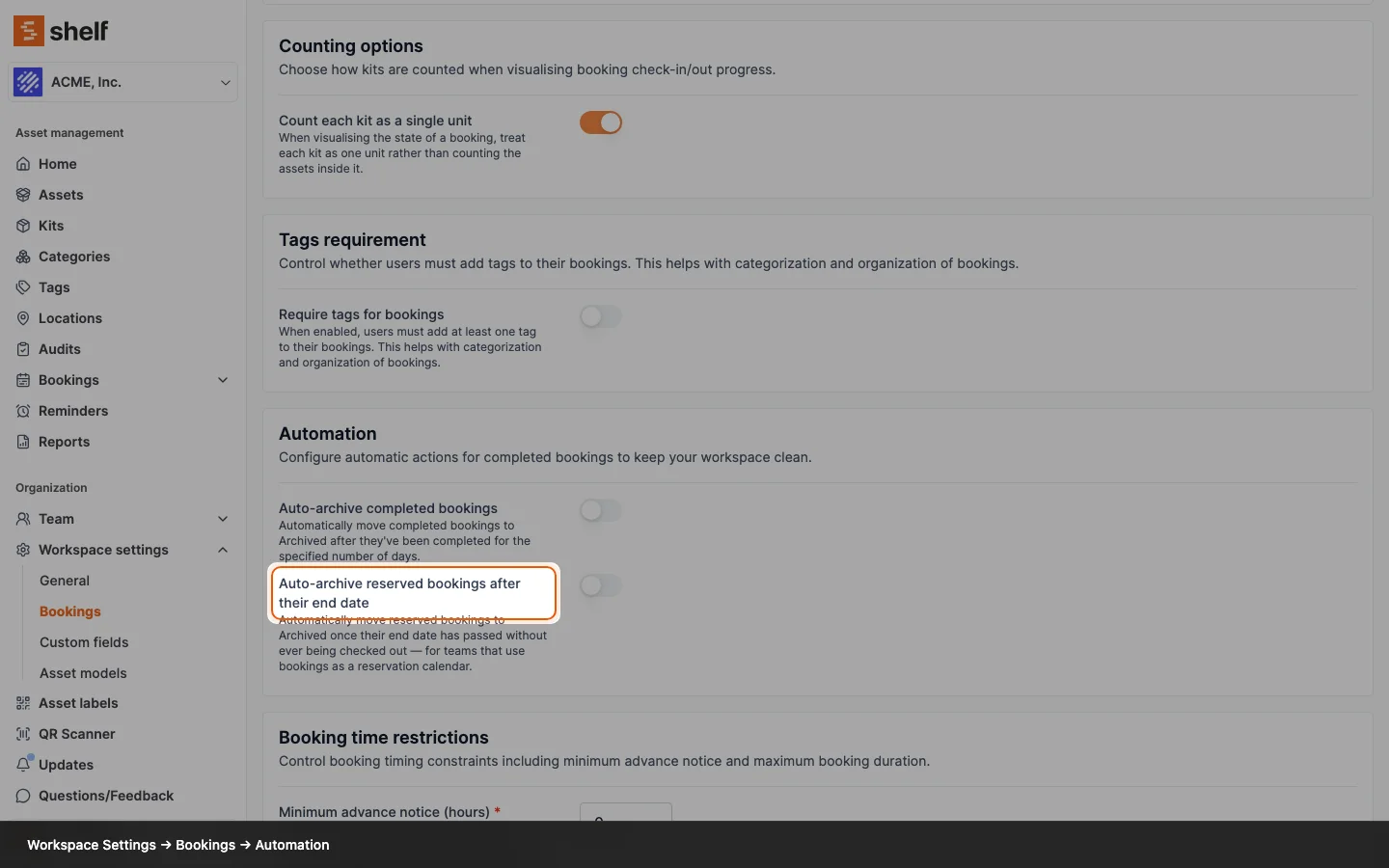
Instead of archiving by hand, you can have Shelf do it on a schedule. Both options live in Workspace Settings → Bookings → Automation, and both are set by an administrator.
Auto-archive completed bookings
Moves a booking to Archived a set number of days after it is checked in.
Auto-archive reserved bookings after their end date
Moves a reserved booking to Archived a set number of days after its end date passes. This is the one for teams who use Shelf as a reservation calendar, booking gear ahead of time without ever running a formal check-out. Those bookings never reach Completed, so before this setting existed the only ways to clear them were to cancel them (which emails the custodian and reads as "cancelled") or delete them (which loses the record).
Turning the toggle on also schedules the existing backlog, so past-due reservations already sitting in your index get cleaned up too. You don't have to work through them by hand first.
Days before auto-archiving
Both toggles share one Days before auto-archiving value: the grace period Shelf waits after a booking is completed, or after its reservation's end date passes, before archiving it. Set it to whatever matches how long your team needs finished bookings visible.
Shelf re-checks each booking at the moment it's due to be archived. If the booking has since been checked out, cancelled, or had its end date extended, it is left alone.
What Archiving Means for Reports
Archiving rewrites a booking's status, and the reports have to see through that. Two rules cover every case.
A booking archived straight from Reserved was never checked back in, because it was never checked out. Counting it as an on-time return would inflate your numbers, so Shelf leaves these bookings out of Booking Compliance entirely. They neither help nor hurt your on-time rate, and they are not counted as a use anywhere else either.
A booking archived from Completed still counts as a completed, returned booking. It keeps counting toward compliance exactly as before, and it now also keeps counting in the two places that used to lose it:
- Monthly Booking Trends counts it under "Completed" for its month, so tidying your bookings index no longer flattens last quarter's completion figures.
- Idle Assets counts it as the asset's last use, so archiving a booking no longer makes the gear on it look untouched since the day before that booking existed.
That was not true until recently. Both reports matched on the Complete status alone, so a completed booking dropped out of them the moment it aged into the archive, including through auto-archiving. If your idle list has been longer than it should be, or a month's completions looked oddly low, this is why, and the figures correct themselves as soon as the report is re-run.
See Getting Started with Reports for the full reporting reference, including what counts as a booking in each report.
Finding Archived Bookings
Archived bookings are hidden from the default bookings index, not removed. Use the Status filter on the bookings index and select Archived to bring them back into view.
Related Articles
- Introduction to Bookings: the full booking lifecycle and every status
- Use Case Scenarios for Bookings: how different teams run bookings
- Getting Started with Reports: booking compliance and the other reports
Ready to try Shelf?
Put what you're learning into practice. Free plan available — no credit card required.