

Configure What Self Service and Base Users Can See
Administrators can customize permission settings in Shelf to control what Self Service and Base users can see regarding custody and booking information for assets, allowing for precise control over team member access.

What's New
Customizable Visibility Settings
Administrators can now configure:
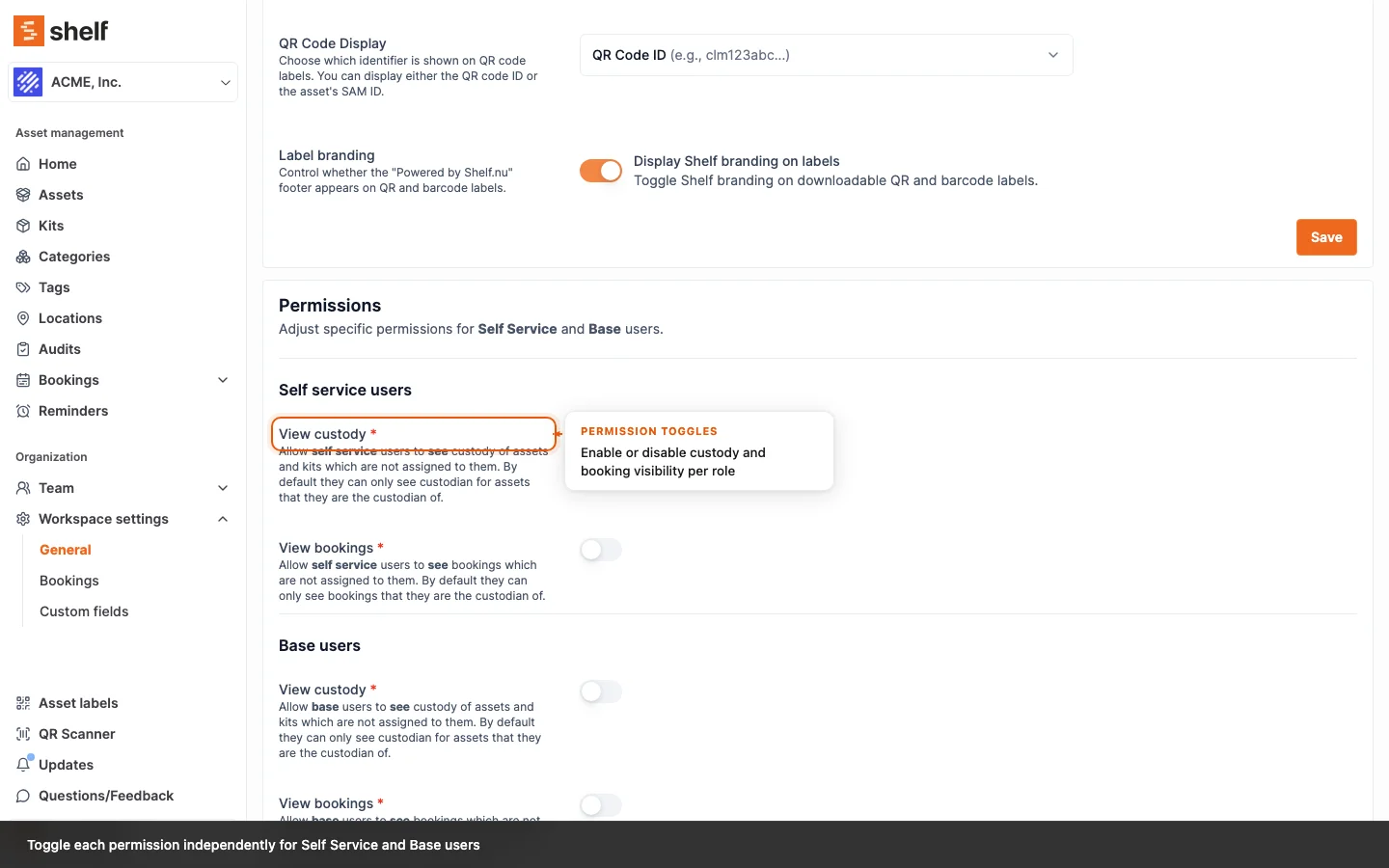
- Custody Visibility: Choose whether Self Service and Base users can see custody information for assets not assigned to them.
- Bookings Visibility: Choose whether Self Service and Base users can see bookings created by other team members.
By default, Self Service and Base users can only see custody and booking information for assets where they are directly involved. With these new settings, you can create a more transparent environment where team members can see who has which assets and when they're scheduled for use.
How It Works
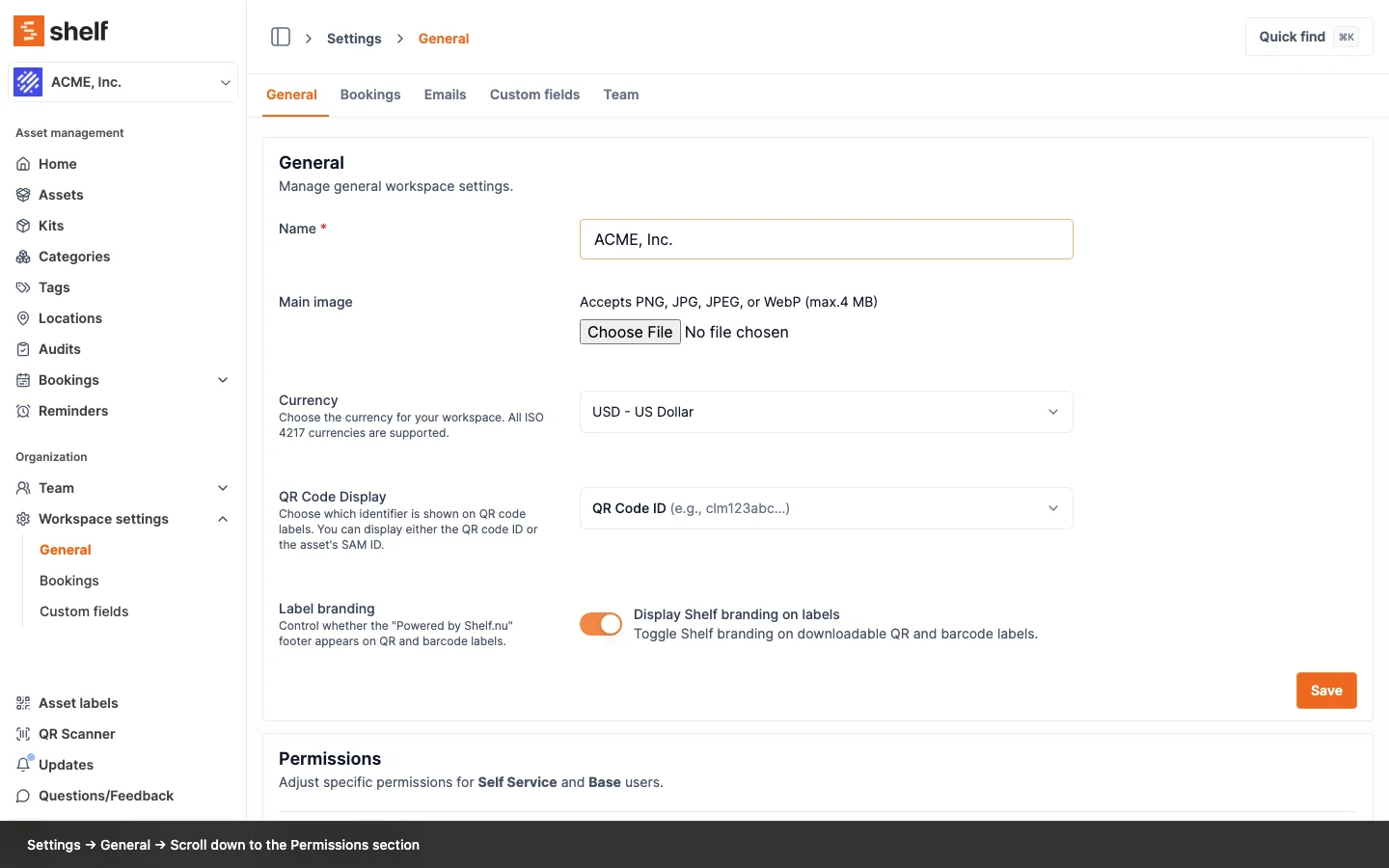
The new permission settings can be found in Settings > Workspace under the Permissions section. Each permission can be toggled on or off independently, allowing for precise control over what your team members can access.
Special Cases
This feature has been carefully designed to handle special cases:
- Users can always see custody and booking information for assets assigned to them, regardless of their role.
- When custody visibility is disabled, Self Service and Base users will see a "Private" badge instead of custodian names on asset lists.
- Without booking visibility permissions, users will only see their own bookings. That applies everywhere bookings are listed or searched: the Bookings index, the calendar, the command palette, a workspace data export, and the Add to booking picker on an asset or kit page. Turn the toggle on and all five surfaces open up together, so a booking a user can find in one place is a booking they can find in the others.
- The Shelf Companion app follows the same setting. The phone's Bookings tab, its calendar, the booking detail screen, and the booking sections on Home all read the toggle now. Before, none of them did: they decided from the role alone, so a Base or Self-service user in a workspace that had switched the setting on saw every booking on the website and an empty Bookings tab on their phone, at the same moment. Opening a booking they were allowed to see now answers rather than reporting it as missing.
- Draft bookings are the one exception the toggle never reaches. A booking still in Draft is visible only to the person who created it, whatever the setting says. This is true on the phone as well as in the browser.
What the Toggles Never Reach
Both settings govern what a person can see. Neither one changes what they are allowed to do, and the two are easy to conflate because they meet in the same dropdown.
- Custody visibility opens the custodian filter, not the Assign custody dropdown. With it on, a Self-service or Base user can see who holds what and filter a list by custodian. Who they can hand an asset to is still set by their role: a Self-service user can only take custody themselves, and a Base user cannot assign asset custody at all, so the Assign custody dropdown comes back empty for them. Turning the toggle on does not add a single name to either list.
- Seeing a booking on the phone is not seeing who holds it. The two toggles stay independent on mobile exactly as they do on the web. With booking visibility on and custody visibility off, the phone's booking list, calendar and Home sections show the booking and print the word private where the custodian's name would be. That is the same word the web badge renders. A booking with nobody assigned shows no custodian at all, which is a different thing and reads differently.
- A booking's custodian is not asset custody. Base and Self-service users can name themselves as the custodian on a booking they create, which is how a booking request works, even though neither can be handed custody of an asset by themselves. Administrators and Owners see everyone in all three lists. The rule belongs to the server rather than to any one form, so the custodian picker in the Shelf Companion app offers a Base or Self-service user the same single name the web form offers them, and an Administrator or Owner the whole team. Neither toggle adds a name to it.
- Searching a picker never widens it. Typing into a custodian or booking dropdown searches inside what that person is already allowed to see. It cannot surface a name or a booking the list would not have shown on its own, and email addresses are never part of what a search returns.
- Booking visibility does not grant editing. Seeing other people's bookings is not the same as being able to change them. A Self-service or Base user still acts only on their own. That holds on the phone too: the app opened up what those users can read, and every write path on a booking (reserve, check out, check in, cancel, archive, delete, add or remove gear) keeps the ownership guard it already had.
- The custody restriction is not just the badge. With custody visibility off, the custodian's name and email are withheld from the page data itself rather than hidden in the display, and the custodian filter is refused rather than answered. That holds everywhere the filter can be applied, including Select all and the bulk actions and QR label downloads that run on a selection, so a filtered list cannot be used to work out who holds what. Administrators and Owners are unaffected and keep the filter.
- It reaches every surface, not just the lists. The same rule applies on an individual asset's page and a kit's page, in the Shelf Companion app on the asset list, the kit list and a kit's detail screen, and in the team-member list inside the Assign Quantity Custody dialog on a quantity-tracked asset. Opening one item at a time gets a Self-service or Base user no further than the index does, and neither does opening a picker on the phone rather than in the browser.
- A checked-out item's holder is covered too. When an asset is out on a booking it has no custodian in the usual sense — the person responsible is the booking's custodian, which Shelf shows in the same place. That name follows the same rule, so turning custody visibility off does not leave it readable on checked-out gear. The exception is a booking that is yours: when you are its custodian, the asset page and the kit page show you In custody of your name via the booking, whatever the setting says. If an asset sits on more than one active booking, the card names the one it actually went out on.
- Your own custody is always yours to see. Every one of these surfaces still shows a person their own holdings, including on a kit whose other members are held by colleagues. The restriction hides other people, never the item in your own hands.
- Neither toggle opens Reports. The Reports area reads across every booking, custodian and asset value in the workspace at once, which is a wider question than either toggle answers. It stays with Administrators and Owners whatever the toggles are set to, and the report pages and their CSV and PDF exports are refused for Self-service and Base users even by direct link.
Why This Matters
This update addresses feedback from many organizations that needed finer control over information sharing within their teams. Some benefits include:
- Enhanced Privacy: Restrict sensitive asset assignment information when needed
- Improved Transparency: Option to create a more open environment where everyone can see equipment status
- Tailored Experience: Create the perfect balance of access rights for your specific team structure
How to Get Started
This feature is available to all Team plan customers. To configure these permissions:
- Log in as an Administrator or Account Owner
- Navigate to Settings > Workspace
- Scroll to the Permissions section
- Use the toggles to enable or disable specific permissions
Looking Ahead
This update is part of an ongoing commitment to make Shelf more flexible and customizable for teams of all sizes. Additional permission settings are being developed to give you even more control over your workspace.
Ready to try Shelf?
Put what you're learning into practice. Free plan available — no credit card required.