

Duplicating Assets in Shelf
Shelf's duplicate feature enables rapid creation of multiple copies from an existing asset. This guide explains proper usage and important considerations regarding custom fields and unique identifiers.

How to Duplicate an Asset
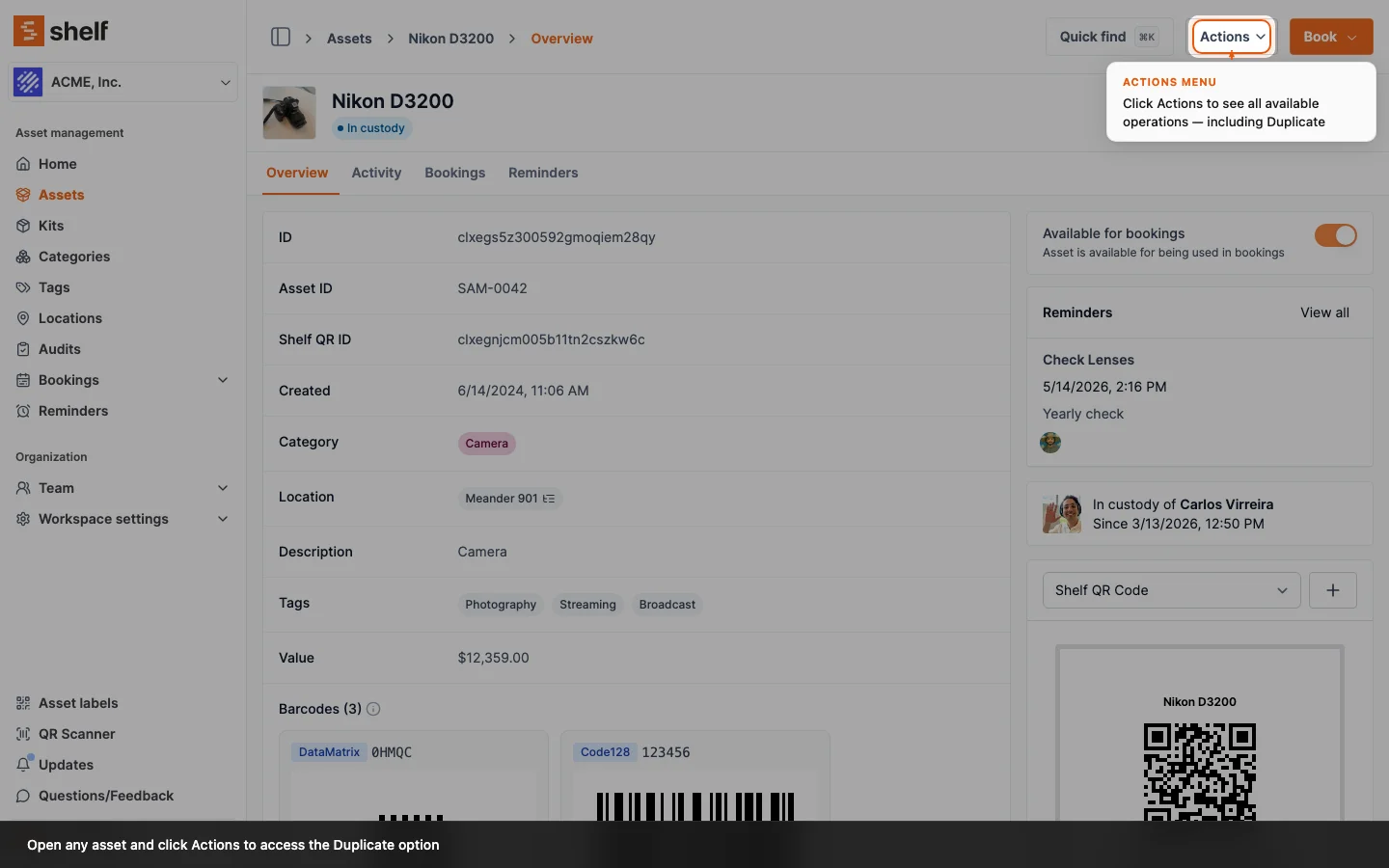
- Navigate to the asset page you want to duplicate
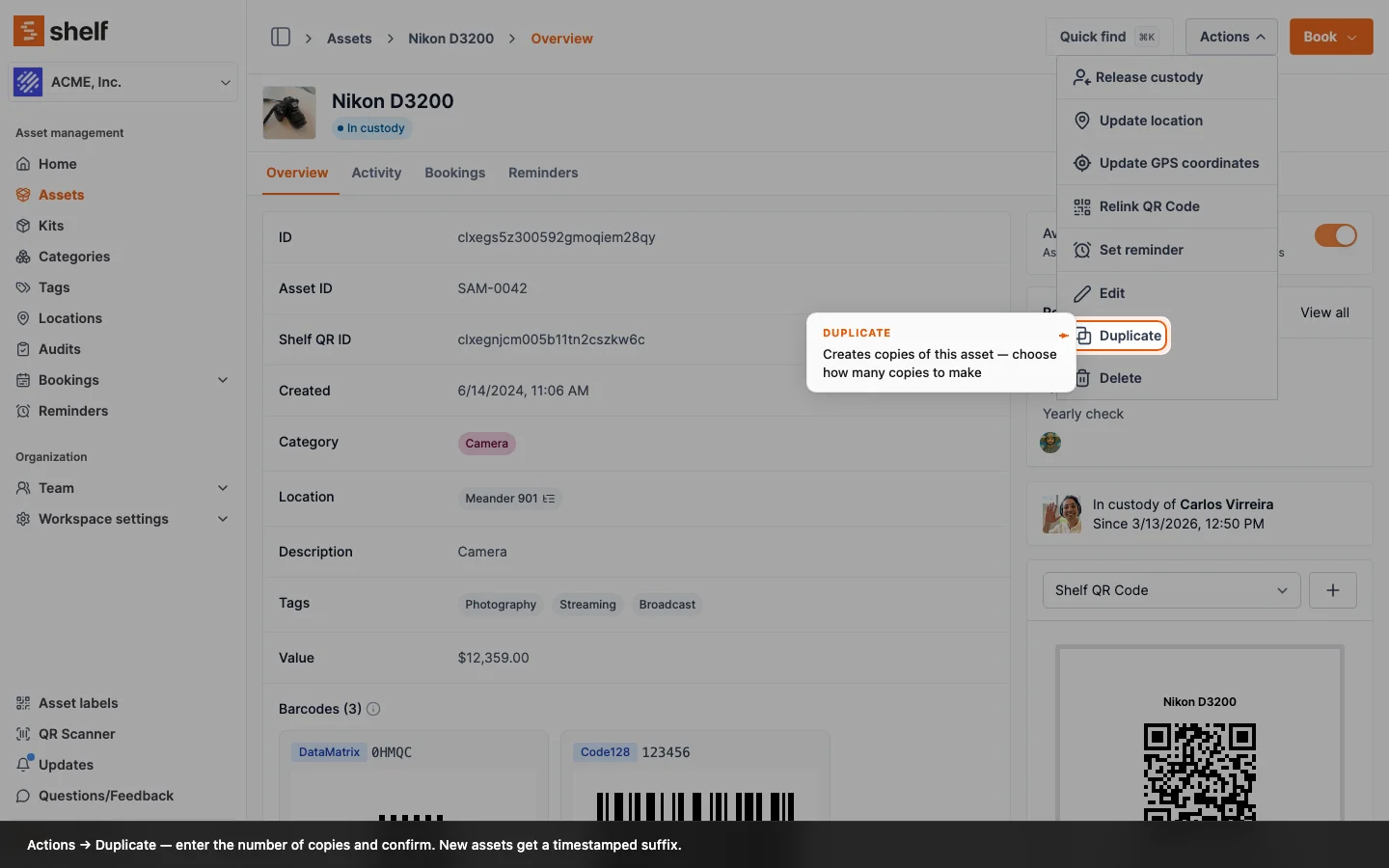
- Click the "Actions" dropdown menu
- Select "Duplicate"
- Enter the number of duplicates you want to create (up to 10 at a time)
- Click "Duplicate" to confirm
 A single copy is named after the original with "(copy)" added, for example "Shimadzu GCMS-QP2020 NX (copy)". Several copies are numbered: "Shimadzu GCMS-QP2020 NX (copy 1)", "Shimadzu GCMS-QP2020 NX (copy 2)" and so on. One copy opens its new asset page; several take you back to the asset list.
What a Copy Keeps
Every copy keeps the original's description, category, tags, value, custom fields, main image and whether it is available for booking. An individually tracked asset's copy also keeps its asset model and its location.
Quantity-Tracked Assets
A copy of a quantity-tracked asset is quantity-tracked too. It keeps the same quantity, unit of measure, behaviour (one-way or two-way) and low-stock threshold. It starts unplaced, because the original's units may be spread over several locations, so the copy's asset page shows how many units are unplaced and offers Place them.
A quantity-tracked asset with no units in stock cannot be copied. The duplicate dialog says No units to copy and keeps Duplicate switched off. Add stock with Adjust quantity first, then duplicate it.
If a Copy Fails
Shelf creates several copies one after another. If one copy fails, Shelf removes the copies it already made and the dialog shows the error. In the rare case that a removal also fails, that copy stays. After an error, check the asset list for leftover copies and delete them.
Important Considerations
Custom Fields and Unique Data
When duplicating assets, all custom fields -- including those requiring unique values like serial numbers, MAC addresses, or asset tags -- will be copied from the original asset. This means:
- All duplicates will initially have identical custom field values
- You'll need to update unique identifiers manually for each duplicate
- Required fields with unique constraints may need immediate attention
Best Practices
- Bulk Asset Creation: While duplicating can be efficient for creating multiple similar assets, it's not recommended for assets that require unique identifiers
- Inventory Accuracy: Ensure you update any unique fields immediately after duplication to maintain accurate records
- Asset Tracking: Consider using the CSV import feature instead of duplication when adding multiple assets with unique attributes
When to Use Duplication
- Creating multiple identical assets without unique identifiers
- Setting up template assets for future use
- Quick creation of similar assets where unique fields can be updated later
When to Avoid Duplication
- Adding assets that require unique serial numbers
- Creating inventory items that need distinct identification
- Managing regulated equipment requiring unique tracking
Alternative Approaches
For adding multiple assets with unique identifiers, consider:
- Using the CSV import feature
- Creating assets individually
For additional assistance, contact support at hello@shelf.nu.
Ready to try Shelf?
Put what you're learning into practice. Free plan available — no credit card required.