

SSO with Google Workspace
Shelf supports single sign-on (SSO) using Google Workspace (formerly known as GSuite). Available as an add-on on the Team plan and included on Enterprise.

Works with any SAML 2.0 identity provider. This guide uses Google Workspace as the example, but Shelf's SSO is IdP-agnostic — the same setup applies to Microsoft Entra ID, Okta, Shibboleth, and other SAML 2.0 providers. The group-to-role mapping described below works identically across all of them. Step-by-step guides for the other providers are in the Shelf docs: Okta, Microsoft Entra ID and Shibboleth. If you use a different provider, share its metadata with your Shelf contact and follow the equivalent steps in your IdP's admin console.
Before You Start: Prerequisites
SSO changes how accounts on your domain are created and managed, so a few things must be in place before the connection is activated. Most setup confusion comes from skipping these — please read them carefully.
1. You need one non-SSO account to own the workspace
Shelf SSO needs one non-SSO user to own the workspace to set it up. This account's job is to own the workspace and configure the SSO settings (the group-to-role mapping); it is not used for daily work. Owners typically sign in only during the initial setup or when adjusting the configuration later. Because the owner keeps password login, it is also your administrative fallback if your identity provider is ever unavailable. If you prefer, Shelf can convert the owner to SSO as well once setup is complete (see Moving existing accounts to SSO).
Important: This account must be created before SSO is activated. Once your domain is configured as an SSO domain, no more non-SSO accounts can be created on that domain. If you don't have this owner account ready beforehand, you will be locked out of administrative changes.
2. Decide the fate of any existing workspace
If you already have a workspace that was used for testing or trials (for example, one created with a few standard accounts), decide whether you want to keep it together with all the assets inside it, or start fresh. Let your Shelf contact know so the right workspace is connected to SSO.
3. Existing standard accounts on the SSO domain
Existing standard (non-SSO) accounts that use the SSO domain — for example jane@yourdomain.com and joe@yourdomain.com — do not need to be deleted or recreated. Shelf converts them to SSO, and each account keeps its identity, data and workspace memberships (see Moving existing accounts to SSO).
Once the domain is an SSO domain, no new standard accounts can be created on it. Once SSO is also enabled for the workspace that uses your domain, existing standard accounts can no longer sign in with a password, an email code or a password reset (the owner of your SSO workspace excepted, and unless SSO-only login is temporarily relaxed during setup). Share the list of these accounts with your Shelf contact: they are converted once your identity provider is configured, and before you announce SSO to your team.
4. Plan your group-to-role mapping
Shelf decides which role a user gets by matching the groups they belong to in your identity provider. You map those groups to Shelf roles (Administrator, Self service, Base) in the workspace settings. You only need to map the roles you actually use — a single group mapping is enough for SSO to work. You do not need to create a group for every role.
Set Up SSO with Google Workspace
Shelf supports single sign-on (SSO) using Google Workspace (formerly known as GSuite). To set up SSO with Google Workspace, follow these steps:
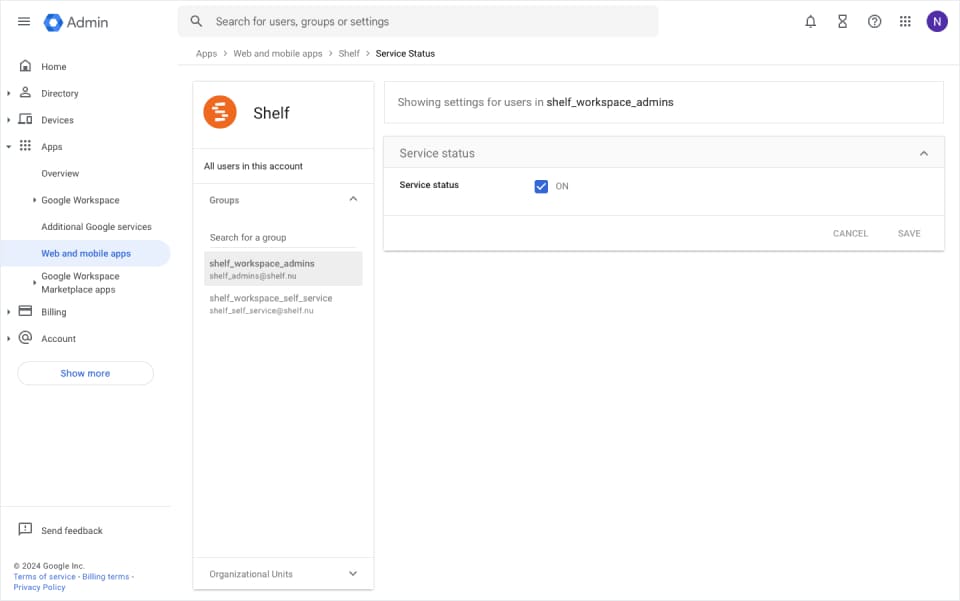
Step 1: Open the Google Workspace Web and Mobile Apps Console
Navigate to the Google Workspace console.
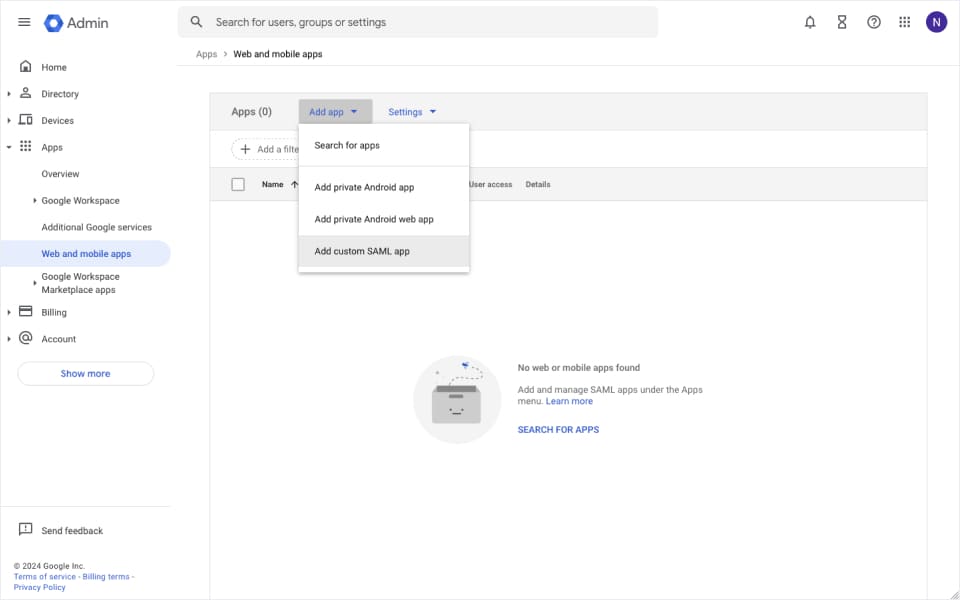
Step 2: Choose "Add custom SAML app"
From the Add app button in the toolbar choose Add custom SAML app.
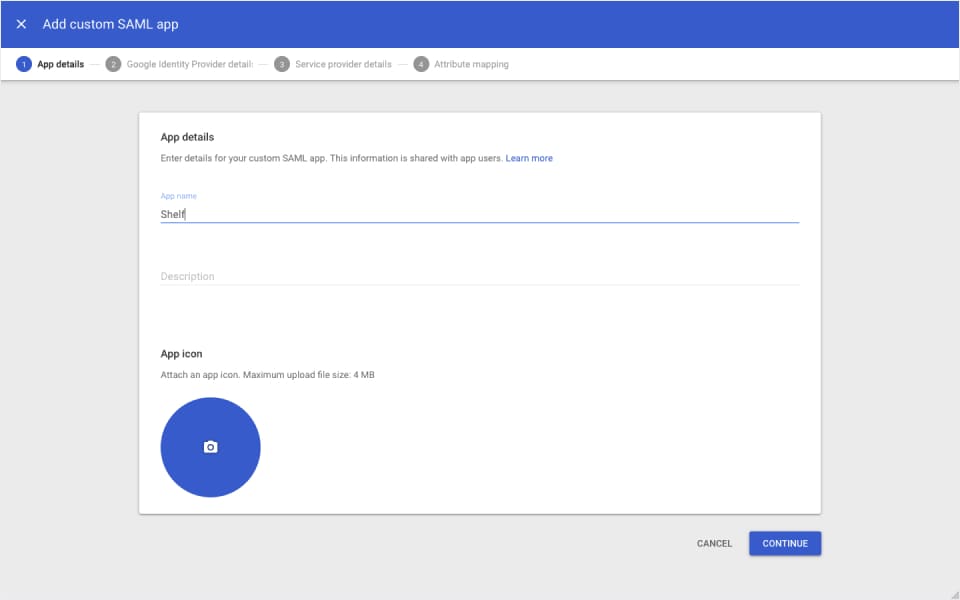
Step 3: Fill Out App Details
The information you enter here is for visibility into your Google Workspace. You can choose any values you like. Optionally enter a description.
Step 4: Download IdP Metadata
This is a very important step. Click on DOWNLOAD METADATA and save the file that was downloaded.
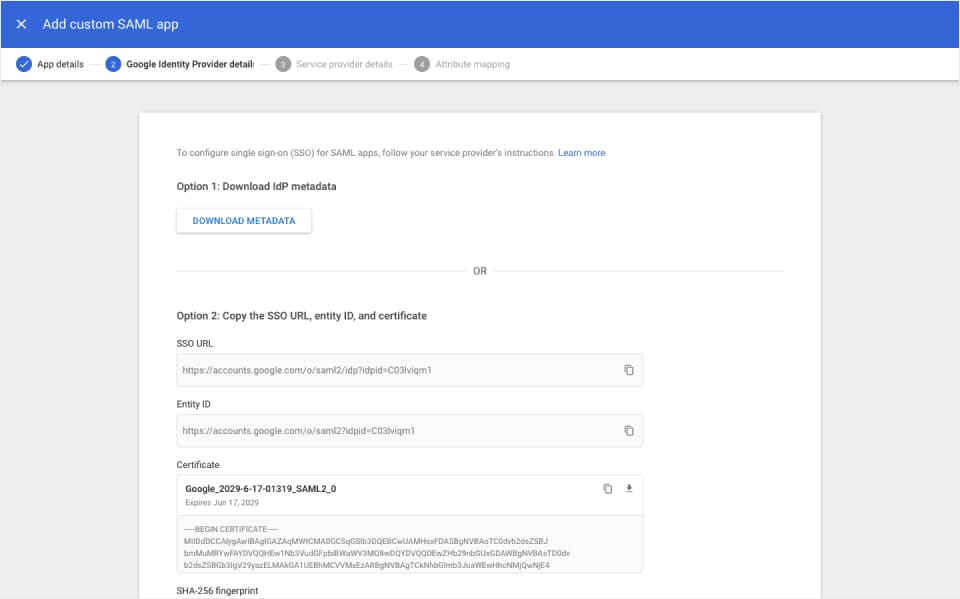 It is very important to send this file to your support contact at Shelf to complete the SSO setup process. If you are not sure where to send this file, you can always reach us at hello@shelf.nu.
Important: Check the expiration date of the certificate in the metadata. Ensure there is at least 1 year left before it expires, and mark the date in your calendar to remind yourself to update the certificate without causing downtime for your users.
Step 5: Add Service Provider Details
Configure the Service Provider Details on the next screen:
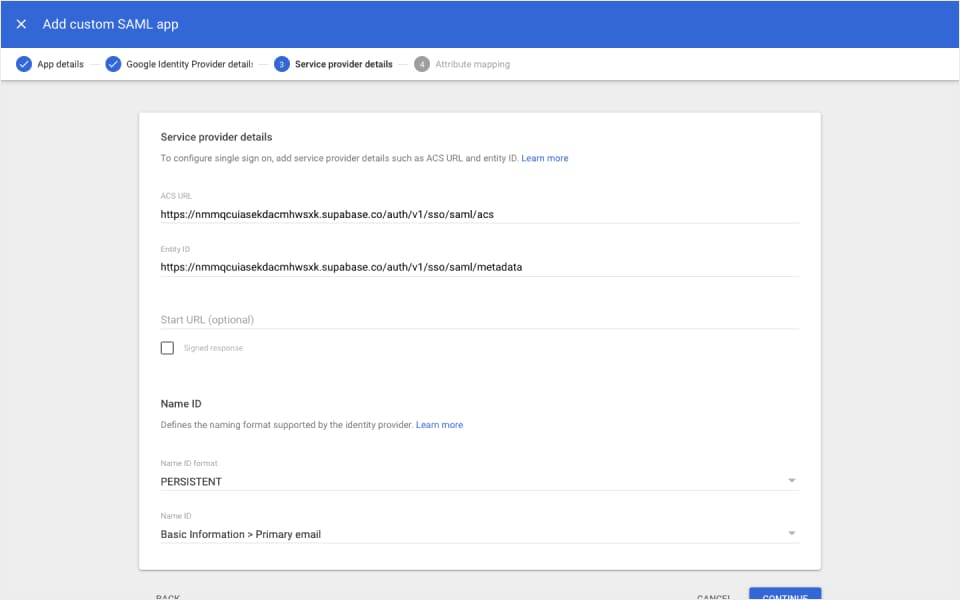
| Detail | Value |
|---|---|
| ACS URL | https://nmmqcuiasekdacmhwsxk.supabase.co/auth/v1/sso/saml/acs |
| Entity ID | https://nmmqcuiasekdacmhwsxk.supabase.co/auth/v1/sso/saml/metadata |
| Name ID format | PERSISTENT |
| Name ID | Basic Information > Primary email |
Step 6: Configure Attribute Mapping
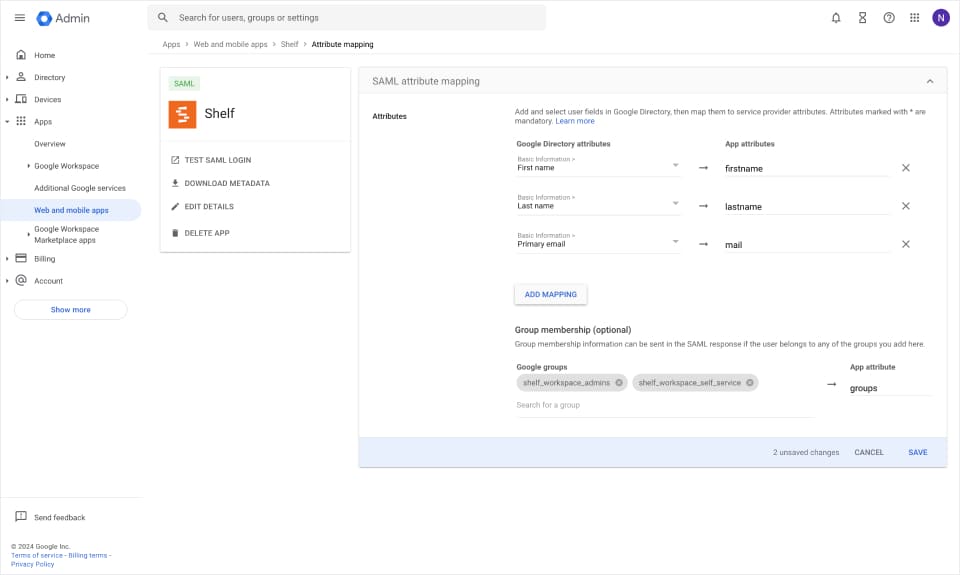
Attribute mappings allow Shelf to get information about your Google Workspace users on each login.
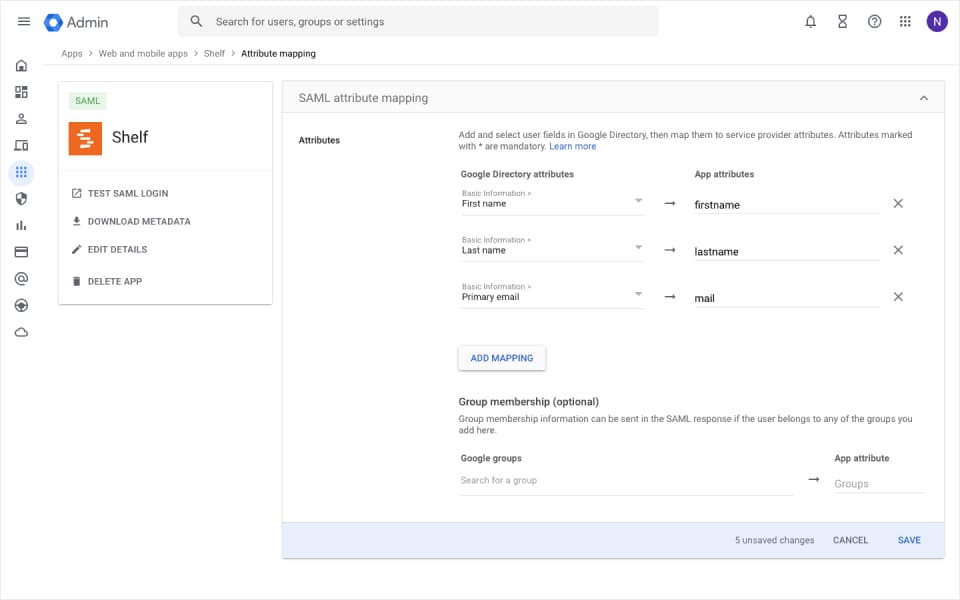 All attribute mappings are required. If in doubt, replicate the same config as shown in the documentation.
NOTE: You will come back to this step at a later stage once you have your groups created and users assigned.
Step 7: Wait for Confirmation
Once you have configured the Google Workspace app as shown above, make sure you send the metadata file you downloaded to your support contact at Shelf.
This information needs to be entered into Shelf before SSO is activated end-to-end.
Wait for confirmation that this information has successfully been added to Shelf. It usually takes 1 business day to configure this information for you.
In the meantime, you can continue with the next steps that will show you how to setup your groups and users.
Step 8: Create Groups and Assign Users
In order to manage which users get access to which workspace and with what role, Shelf uses groups for the mapping. Shelf has three roles you can map a group to:
- Admin group
- Self service group
- Base user group
You only need to create a group for the roles you actually use — mapping a single group is enough for SSO to work. For example, if everyone on your team should have the same role, one group is all you need. Create additional groups only if you want different users to get different roles.
8.1: Create Your Groups in Google Workspace
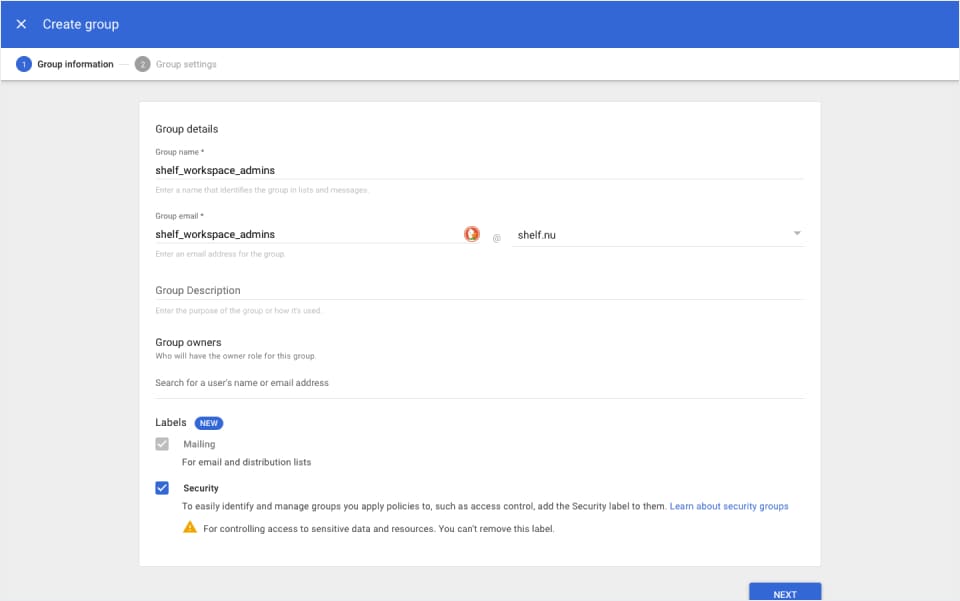
First step is to create the groups in the Google Workspace. Inside your admin panel, navigate to Directory > Groups > Create group.
Add a name, email and make sure the group is labeled as security. Optionally fill in the other fields as well. Create one group per Shelf role you want to use (you need at least one).
Note: Due to how Google Workspace works, it returns group names instead of IDs when a user logs in. Shelf matches these case-insensitively and ignores any surrounding spaces, so capitalization differences won't cause a mismatch. Using simple, consistent group names still keeps the mapping easy to read.
8.2: Assign Members to Each Group
Assign members to respective groups through your Google Workspace administration panel. Ideally, members should belong to one group within the same workspace. If they are part of both groups, the admin role will take priority.
8.3: Allow Groups Access to Shelf App
Configure Google Workspace user access to grant permission to the Shelf application for selected groups:
- Click on the "User access" card or the down-arrow
- Follow the on-screen instructions
Google system changes might require waiting for at least 15 minutes for full propagation.
8.4: Map Groups to App Attributes
Once you have created all your groups, you have to make sure to add them to the attributes returned by the app.
Make sure to add all groups that you want to access Shelf. The App attribute name should be groups.
Step 9: Map Google Workspace Groups Inside Shelf
Once you have the groups ready, you need to add their names in the workspace settings inside Shelf. If you have multiple workspaces, you will need to map each one.
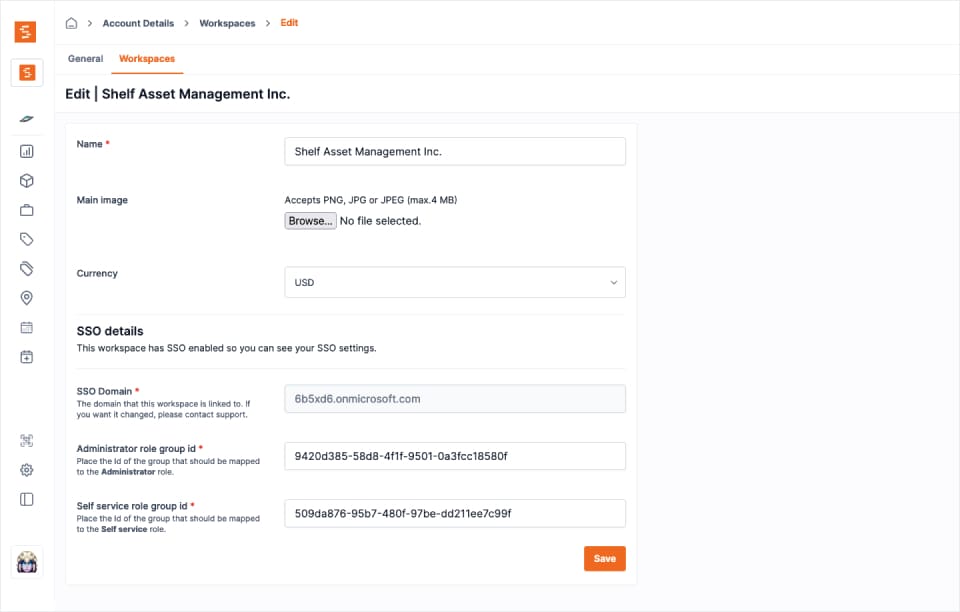
 Go to the workspace settings and place the name of each group next to its matching role (Administrator, Self service, Base). You only need to fill in the roles you use — leave the others blank, but at least one group must be mapped.
Each role field accepts one or more group names, separated by commas, so several identity-provider groups can map to the same Shelf role — useful when different departments or affiliations should all land on, for example, Self service. If a user belongs to groups that map to more than one role, the higher role wins (Administrator > Self service > Base).
Important: Matching is case-insensitive and ignores surrounding spaces, so you don't have to match capitalization exactly. Still, paste each group name as it appears in your identity provider to avoid typos. Values containing an
=(such as an LDAP distinguished name likeou=staff,dc=example,dc=edu) are treated as a single group value and are never split on commas.
Step 10: Test Single Sign-On
Once you have completed all the steps above, ask one of those users to help you out in testing the setup.
It often helps to ask them to log out of their Google account and log back in.
Ask them to enter the domain in the Login with SSO page.
If sign in is not working correctly, reach out to your support contact at Shelf.
Moving Existing Accounts to SSO
If people on your domain already have standard (email/password) Shelf accounts, for example from earlier testing, they do not need to be deleted or recreated. Shelf converts them to SSO. The account keeps the same identity, data and workspace memberships: custody records, bookings, notes and report history stay where they are, and only the login method changes.
- Conversion is done by Shelf staff once your identity provider is configured for the domain. Ask your Shelf contact. Accounts can be converted one at a time, or every eligible account on the domain at once so nobody is missed.
- Converting an account signs the person out everywhere and removes their password. From then on they sign in only through SSO.
- The first SSO sign-in lands in the existing account, with all its data and workspaces. Nothing needs to change in your identity provider.
- If someone tried SSO before their account was converted, that attempt was refused and asked them to contact support. Their first SSO sign-in after conversion then shows Your account is now on single sign-on with a Sign in with SSO button; in the Shelf Companion app it asks them to close the window and sign in with SSO again in the app. They sign in with SSO once more and land in their existing account. After that they sign in once, as usual. Convert accounts before announcing SSO to your team and this extra step never appears.
- Group mappings decide the role. If the workspace's SSO settings map groups to roles (Step 9), every SSO sign-in sets the person's role from their groups. A converted user whose groups map to no role loses access to that workspace at their first SSO sign-in. The workspace owner is the exception: their role stays Owner and they keep access whatever their groups say, because ownership only changes through a transfer. If no group mappings are configured, existing memberships and roles are kept as they are. Set up your groups, or leave the mappings empty, before the accounts are converted.
- The owner of your SSO workspace can keep standard login. An owner who is not converted keeps signing in with their password, which is your administrative fallback if your identity provider is unavailable. Converting the owner is optional and done individually, on request; converting all accounts on a domain always skips them. Owning some other workspace, such as one an employee created for themselves, does not exempt an account.
Once SSO Is Live, Password Login Is Refused on Your Domain
SSO is live when your domain is configured with your identity provider and SSO is enabled for the workspace that uses the domain. From then on, password login, email codes (OTP) and password reset stop working for every account on the domain, in the web app and in the Shelf Companion app. The two exceptions are the unconverted owner of the workspace that uses SSO, and the setup period described below.
- Someone still signed in with a password from before is signed out on their next page load, and the login page says This email address signs in with single sign-on. Please use Login with SSO.
- A wrong password typed for an address on an SSO domain adds a reminder to use Login with SSO under the form. The one-time code page shows the same reminder, because an address that must use SSO is sent no code. These reminders depend only on the domain, so the login screens never reveal whether a particular account exists.
- In the Shelf Companion app a password sign-in on such an account is refused as well: the app answers with the same message and ends the session. Sign in with SSO instead.
- An account on a domain where SSO is required can no longer change its own email address in Account settings. Shelf answers Your account signs in with single sign-on; ask your administrator to change your email.
- Configuring the domain alone changes nothing for existing accounts: they keep their password until SSO is enabled for the workspace. Convert accounts before or right when SSO is enabled, so nobody is locked out in between.
Piloting SSO With a Few Users First
SSO-only login is on by default. If you want to set up and test SSO with a few users first, Shelf staff can temporarily relax it. While it is off for every workspace that uses SSO for your domain, accounts that are not converted yet can still sign in with their password (converted accounts always use SSO). If any of those workspaces keeps it on, it applies to the whole domain. Ask for it to be turned back on once everyone is converted.
Keeping SSO and password users side by side on the same domain for good, apart from the workspace owner, is not supported: the relaxation is for setup and testing, and new accounts on the domain can only join through SSO. If you need a permanent mix, contact support.
If Your Identity Provider Becomes Unavailable
Shelf support can revert a converted owner of the workspace that uses SSO back to standard login. The owner then sets a new password with Forgot password? on the login page and signs in with it. Other accounts can be reverted only while SSO-only login is relaxed for every workspace linked to the domain, or once the domain no longer uses SSO; otherwise they would still be refused a password login.
Personal Workspaces and SSO
When you sign in via SSO, your personal workspace is hidden — you only see the team workspaces your administrator has assigned to you. This ensures SSO-managed users always operate in the correct organizational workspace rather than their personal space.
No Workspace Assigned?
If your SSO account has not been assigned to any team workspace, you will see a "No workspace assigned" page after login.
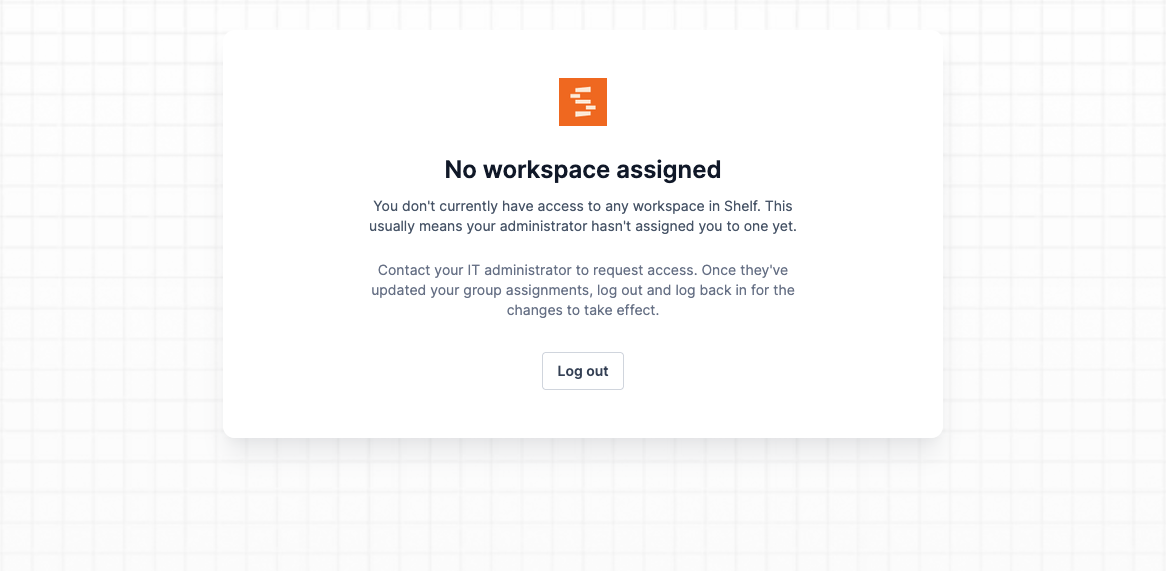
This happens when:
- You've just signed up via SSO for the first time and your administrator hasn't assigned you to a group yet
- Your group access has been revoked by an administrator
What to do: Contact your IT administrator and ask them to assign you to the appropriate workspace group in your identity provider (e.g., Google Workspace). Once assigned, log out and log back in — Shelf will redirect you to your workspace automatically.
Note: Your personal workspace still exists in the background, but it is not accessible while you are signed in via SSO.
Removing Someone From a Group
Shelf reads a person's groups each time they sign in with SSO. When they no longer belong to any group mapped to a workspace, that sign-in removes their access to it, the same way revoking access from the workspace does:
- they can no longer open the workspace, and Shelf stops landing them in it;
- they stop receiving its booking emails and can no longer be picked as a booking email recipient;
- their name stays on the custody records and bookings they already have, so the history still reads correctly.
The change is applied at their next SSO sign-in, so removing someone from a group in your identity provider takes effect in Shelf the next time they sign in.
Signed In, but Nobody Can Give You Custody?
A rare failure used to leave an SSO account half-created: the user could sign in and see the workspace, but no team-member record existed for them, so they could not be given custody of an asset and did not appear where custodians are chosen. Nothing the user or the administrator could do from the interface fixed it, because every later sign-in saw the workspace access already in place and assumed the rest was too.
Both halves are now closed. The two records are written together, so the state cannot be created in the first place, and any account already in it repairs itself the next time that person signs in — as long as their group still maps to a role. Nothing needs to be re-invited or re-created.
If someone is affected, ask them to sign out and sign back in. If they still do not appear as an available custodian afterwards, that is a group mapping problem rather than this one — check Step 9.
Setting a Custom Display Name (SSO Users)
When you sign in via SSO, Shelf uses the first and last name provided by your identity provider (e.g., Google Workspace). If your colleagues know you by something else, set a custom Display Name and Shelf uses it instead wherever it names you.
How to Set Your Display Name
- Navigate to Account Settings (click your avatar in the top right)
- Go to the General tab
- Find the Display Name card
- Enter your preferred display name and save
Where Your Display Name Appears
Everywhere the web app names a person, it now names you by your display name. That covers:
- The custodian and creator chips on the assets, kits, bookings and locations lists, on calendar cards, and on an audit's asset list
- The Custody column on the advanced asset index, including its simple-mode equivalent
- Notes and activity entries on assets, bookings, kits, locations and audits, on the entry you have just typed as well as on older ones
- The dashboard's custodian widgets, the command palette, reports, and audit PDFs
- The greeting at the top of emails Shelf sends you, which uses your display name where you have one and your first name otherwise, so it stays a greeting rather than reading out a full name
Searching and sorting follow it too. Typing a colleague's display name in the asset search finds what they are holding, and sorting a team list by name orders by the display name where one is set. A name you can see but cannot search for would not be much of a name.
Where It Deliberately Does Not Appear
Four places keep the legal name on purpose, and each is doing a job the display name would break:
- The Shelf Companion app still shows the name your identity provider supplied. The mobile API sends your display name now, but the app's own screens pick it up in a future release rather than the shipped one.
- Invoices and billing documents carry the name registered for billing. An invoice is a financial record.
- Directory sync (SCIM) exchanges the
givenNameandfamilyNameyour identity provider owns, because that is the protocol's contract with your IdP rather than a screen anyone reads. - The Team page shows both, which is the point of it. See below.
Note: The Display Name card is only shown for SSO users. Users who signed up with email/password manage their name through the standard first name and last name fields.
Display Name on the Team Page
Workspace administrators can see SSO users' display names on the Team page. Display names appear in brackets next to the SSO-provided name, making it easy to identify who has customized their display.
SSO in the Shelf Companion Mobile App
Single sign-on works in the Shelf Companion app too, on both iPhone and Android. When you tap Sign in, the app opens your organization's SSO flow in a secure in-app browser — the same login screen you use on the web. Your identity provider handles the password, one-time code, and any multi-factor step, then returns you to the app signed in. No separate mobile credentials are needed.
This means SSO-managed field teams can scan, run audits, manage custody, and handle booking check-in/check-out from their phones using the same single sign-on the organization already requires. See Getting Started with Shelf Companion for the full mobile sign-in walkthrough.
Ready to try Shelf?
Put what you're learning into practice. Free plan available — no credit card required.