

Imports Check the Whole File First
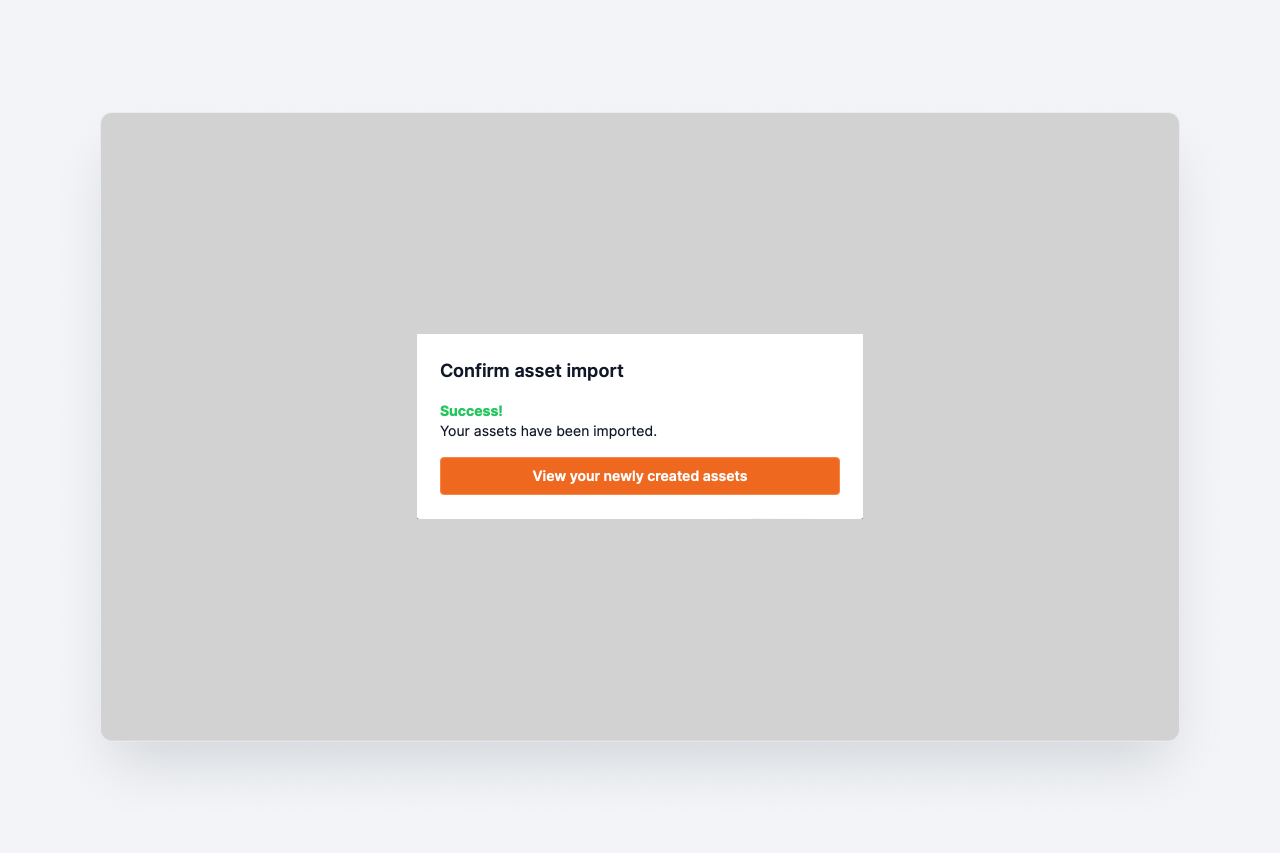
A CSV import now checks every row before it creates anything. A file with problems imports nothing and lists the problems it found, by spreadsheet row.
When you import assets from a CSV, Shelf now reads the whole file before it writes anything. If a row has a problem, nothing is imported, and the import page lists the problems it found in a Row / Problem table, numbered the way your spreadsheet numbers them.
That changes two things you can rely on:
- Most problems show up in one upload. A file with a bad quantity on row 4 and an invalid custom field value on row 19 reports both, not just the first. Messages about quantity-tracked rows also name every column such a row needs, so you are not taught the format one upload at a time. The table shows up to 100 problems at a time. QR codes, barcodes and kit custody are checked after that and report one problem at a time, so a file with more than 100 problems, or with problems in those columns, can take another upload.
- A rejected file leaves nothing behind. No assets, categories, tags, locations, kits, custom fields or asset models are created from it, so you can fix the file and upload it again without cleaning up or creating duplicates.
Import now takes up to 1,000 assets per file, the same limit as updating assets by CSV. Split a larger file and import the parts one at a time.
Ready to organize your assets?
Join thousands of teams who trust Shelf to manage their physical assets. Free forever, or try the Team plan free for 7 days.
Out in the field? Shelf Companion is free on iPhone & Android.