

Bookings: How to Export Booking Information and Assets Checked Out
Shelf's booking export feature allows users to extract comprehensive booking information in CSV format, facilitating equipment usage tracking, cost allocation, reporting, and asset movement documentation.

Introduction
Shelf's booking export feature enables you to extract comprehensive information about your bookings in CSV format. This functionality makes it easier to track equipment usage, allocate costs to projects, generate reports, and maintain accurate records of asset movements.
How to Export Bookings
- Navigate to the Bookings page in your Shelf workspace
- Filter your bookings using the search bar or filter options (optional)
- Select the bookings you want to export by:
- Checking individual booking checkboxes
- Using the master checkbox to select all visible bookings
- Click the "Export selection" button in the top-right corner
- The system will generate and download a CSV file containing your selected bookings
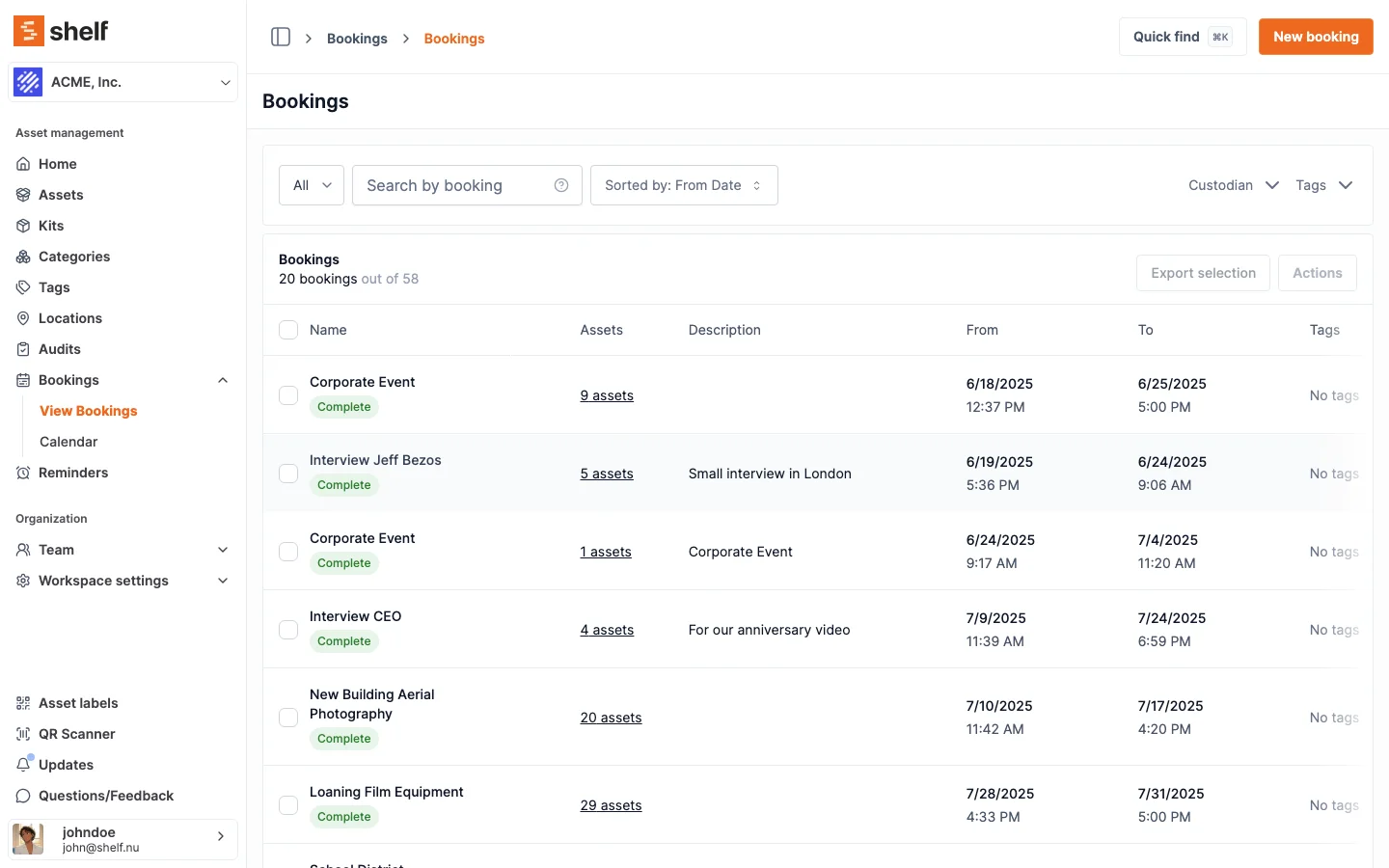 Select your bookings (in any state) and then click on export selection.
What's Included in the Export
The CSV export contains the following information for each booking:
- Booking URL: Direct link to view the booking in Shelf
- Booking ID: Unique identifier for the booking
- Name: Title of the booking
- Start date: When the booking begins (check-out date)
- End date: When the booking ends (check-in date)
- Custodian: Person responsible for the assets during the booking period
- Description: Any notes or details about the booking
- Tags: Tags applied to the booking
- Assets: The assets included in the booking, one per row
Per-asset check-in status
Beyond the booking-level details, the export now breaks down which items in a booking are still out versus already returned — the same partial check-in information shown by the progress bar on the booking detail page. Two columns are populated on each asset row:
- Item check-in status:
Checked inif the asset has been returned,Checked outif it's still out on an active (Ongoing or Overdue) booking. Bookings that never checked their assets out — Draft, Reserved, and Cancelled — leave this blank. Completed and Archived bookings show every asset asChecked in. - Check-in date: When that asset was checked in, for assets that have been returned.
Two further columns summarize each booking on its main row:
- Checked in: How many of the booking's assets have been returned.
- Total assets: How many assets are on the booking.
Because these are columns rather than row filters, the export stays complete — every asset is still listed — and you can sort or filter on your end (in Excel or Google Sheets) to isolate exactly what's outstanding.
Practical Applications
This export functionality is particularly valuable for:
- Tracking outstanding returns: For Checked-Out and Overdue bookings, filter the Item check-in status column to
Checked outto see exactly which items haven't come back — ideal for driving end-of-period return reminders. - Financial Reporting: Allocate equipment costs to different departments or projects
- Usage Analysis: Track how frequently specific assets are booked and by whom
- Audit Preparation: Maintain comprehensive records of equipment movements
- Resource Planning: Identify patterns in equipment usage to optimize your inventory
- External System Integration: Import booking data into other tools and systems
Carrying Your Own Reference Into the Export
Bookings do not have a dedicated reference ID field. Two fields you already have travel into the CSV and cover the same job:
- Tags export in their own Tags column. Create a tag per project, client, cost center, or external system ID, apply it when you create the booking, and you can group or pivot the export by that value. Tags are also filterable on the bookings index, so the same identifier narrows the list before you export.
- Description exports in the Description column. It is free text, so it is the right place for a purchase order number, a job number, or a note that only matters to your own downstream system.
A common setup is a tag for the thing you report on (the project or department) plus the description for the one-off identifier (the PO or ticket number). Both are set at booking creation, so nothing has to be reconciled afterwards.
Related Articles
Need Help?
If you have any questions about exporting booking information or need assistance with the process, please contact our support team.
Ready to try Shelf?
Put what you're learning into practice. Free plan available — no credit card required.