

Partial Check-ins: Efficiently Handle Incomplete Returns
Partial check-ins in Shelf allow you to process asset returns flexibly, even when not all items from a booking are returned at once.

What Are Partial Check-ins?
When someone returns only some of the assets from their booking, partial check-ins let you:
- Check in available assets immediately without waiting for missing items
- Keep bookings active until all assets are returned
- Maintain accurate inventory status with context-aware asset states
- Track which assets are still outstanding with real-time progress monitoring
- Handle complex multi-booking scenarios where assets exist in multiple bookings
The system functions similarly to a library loan where you can return some books while keeping others checked out under the same loan, with intelligent tracking of each item's status across all active loans.
How Partial Check-ins Work
Three Ways to Perform Partial Check-ins
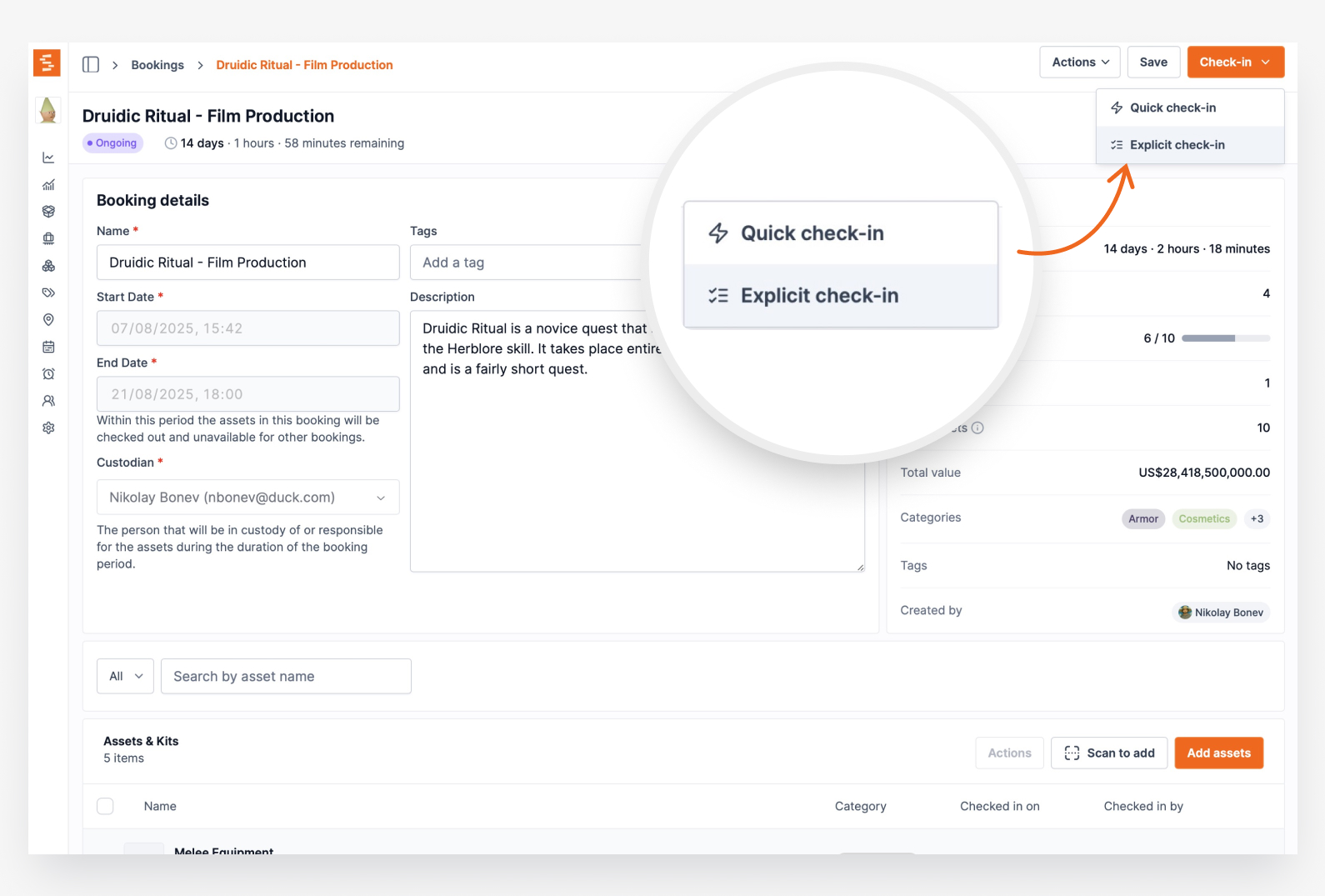
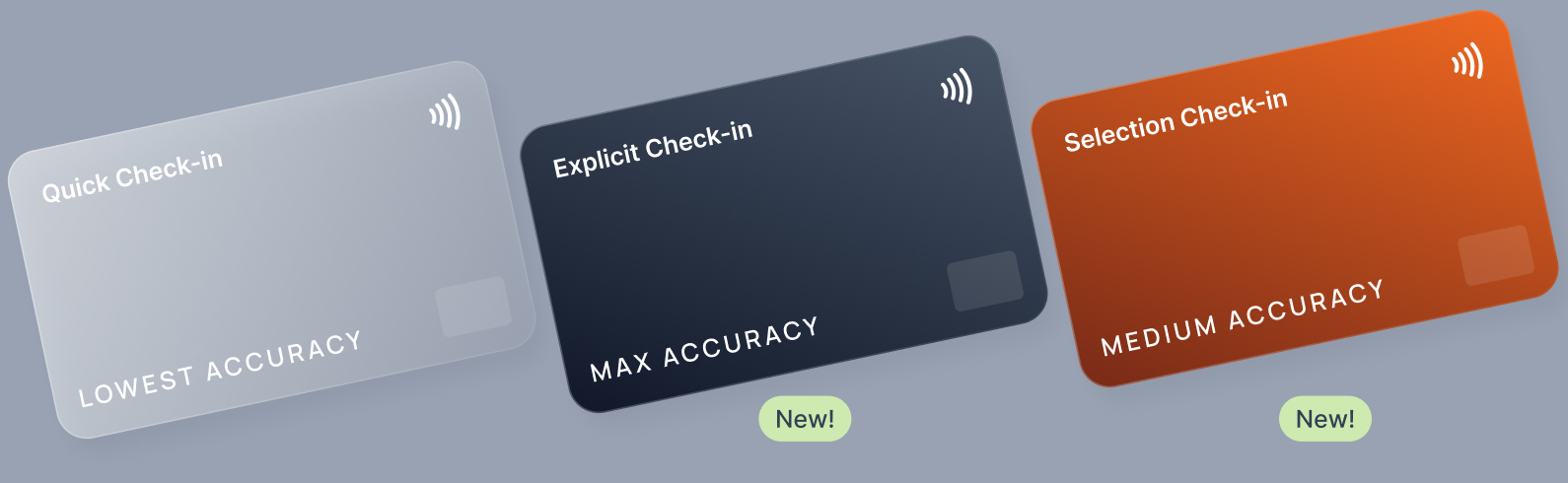
Quick Check-in (Dropdown)
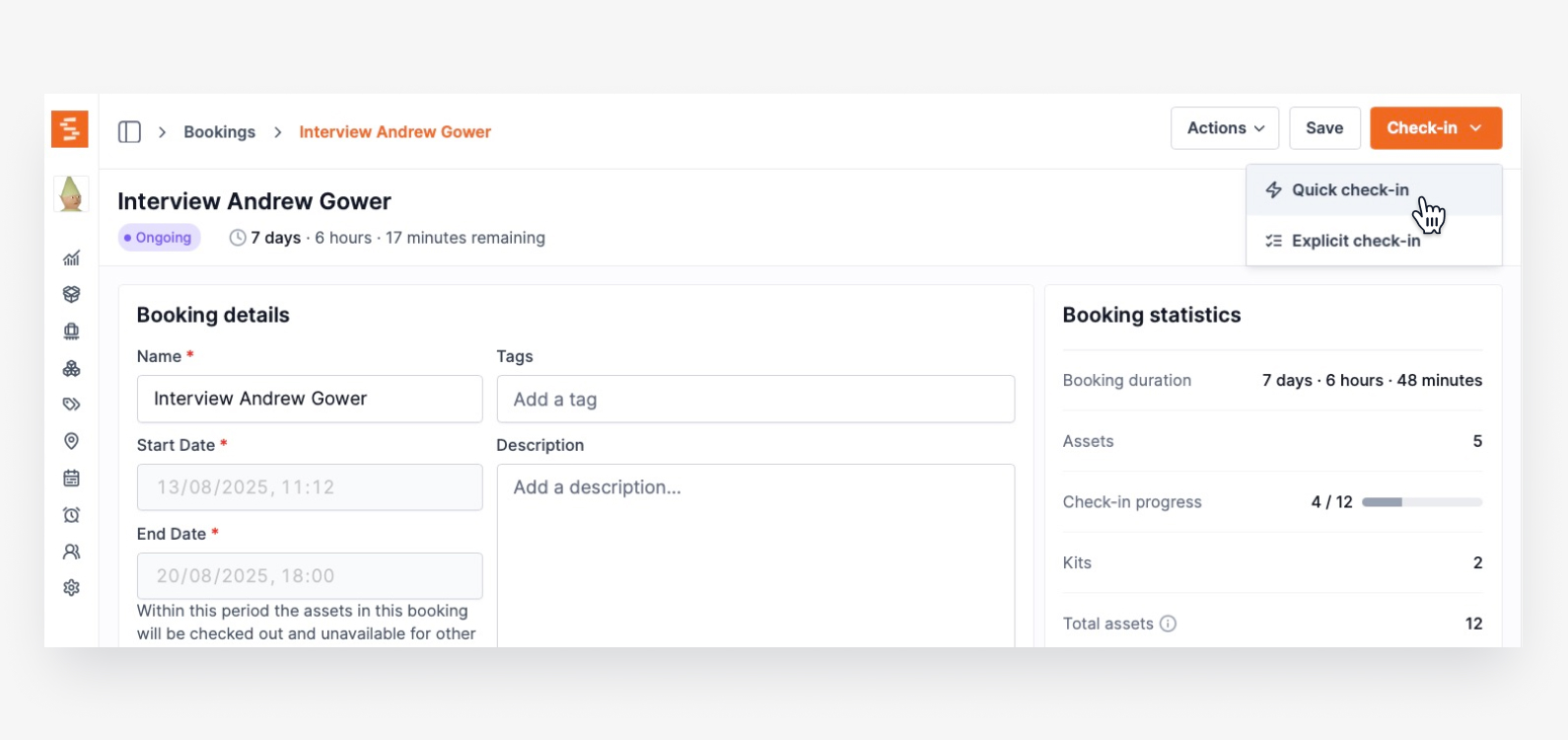
- Checks in all remaining assets at once (traditional method)
- Intelligently skips assets already checked in from previous partial sessions
- Use this when all remaining assets are being returned together
Explicit Check-in (Scanner)
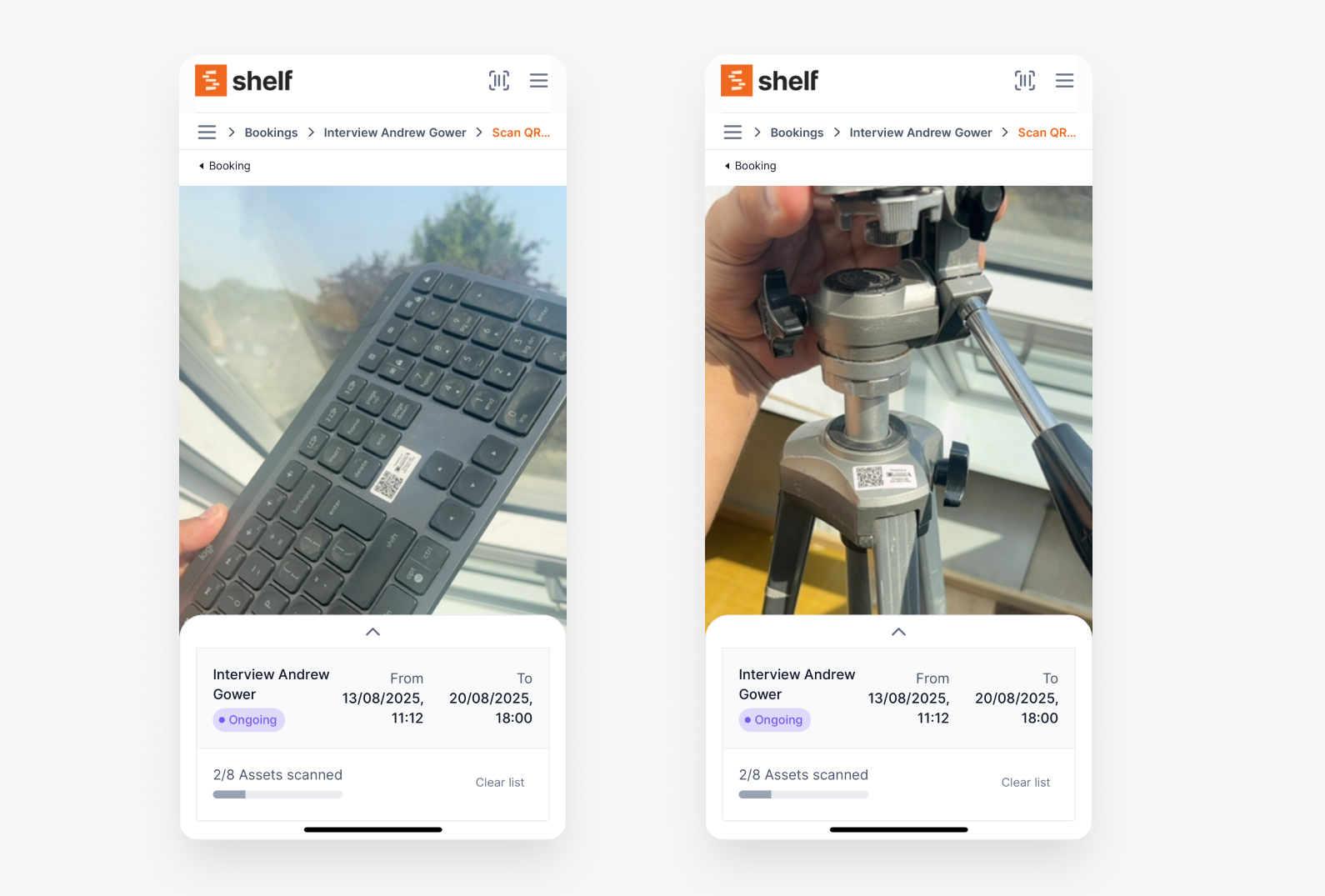
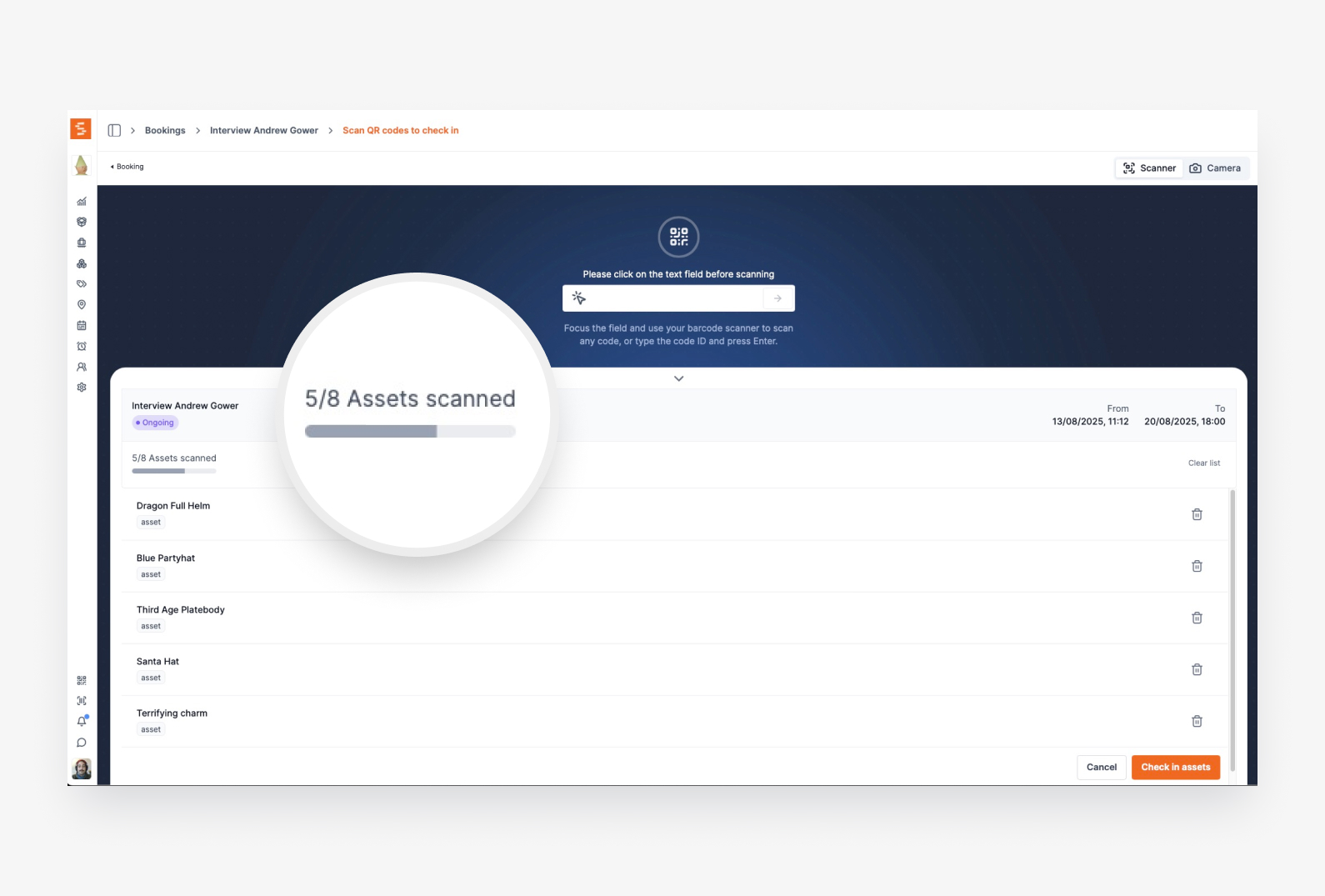
- Opens a dedicated scanner interface for selective asset check-in
- Features real-time progress tracking and booking context
- Perfect for partial returns with physical verification of each item
- Mobile-optimized with responsive progress display
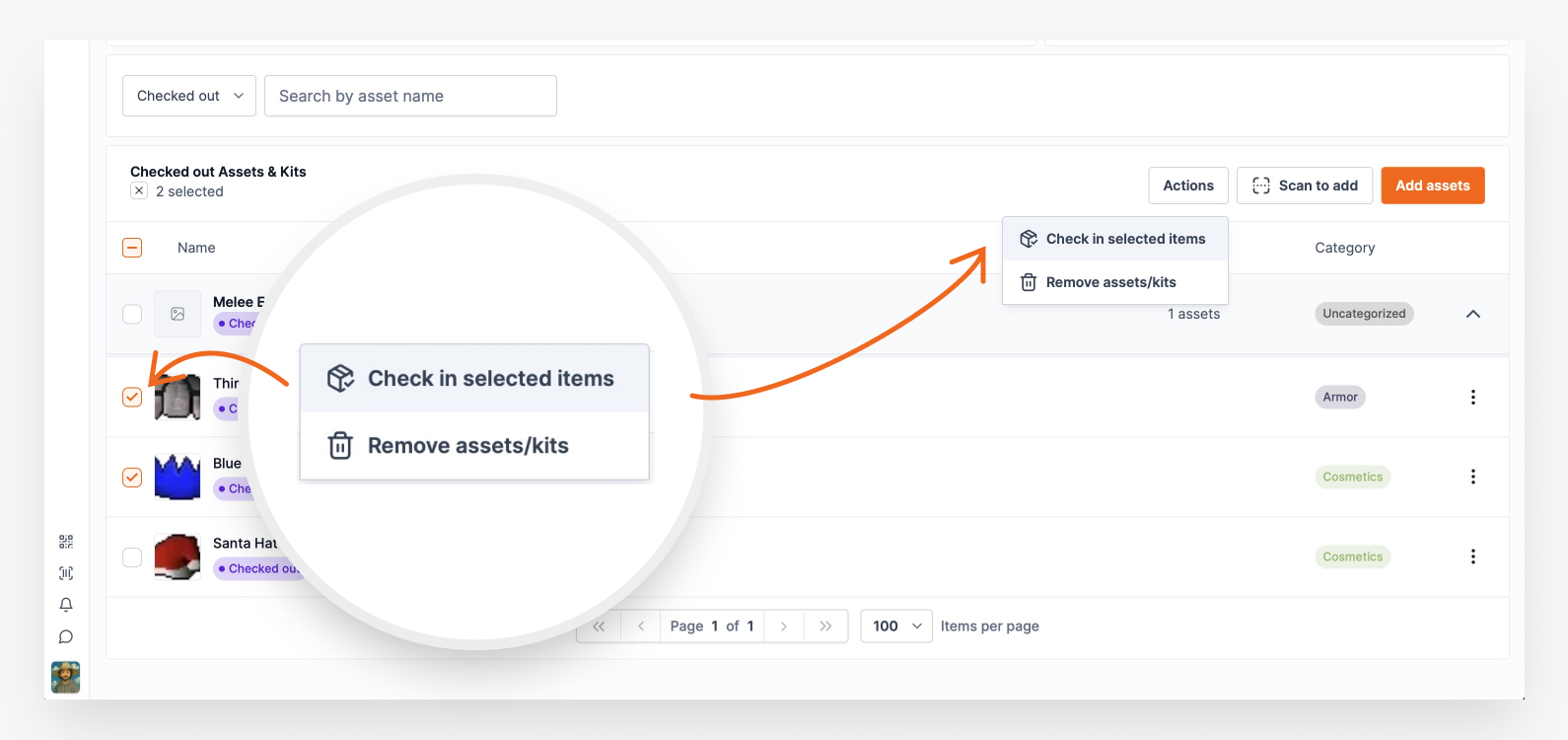
Bulk Selection (Actions Menu)
- Select specific assets from the booking list using checkboxes
- Choose Actions > Check in to process only the selected items
- Ideal when you want to check in specific assets without scanning
- Supports both individual assets and entire kits
Using Explicit Check-in (Scanner Method)
- Access the scanner: Click "Explicit check-in" from the check-in dropdown
- Smart booking context: Scanner opens with booking details and progress bar at the top
- Scan returned assets: Use your device's camera to scan QR codes or barcodes
- Real-time validation: System validates each scan against booking contents and prevents conflicts
- Progress tracking: Watch the progress bar update with percentage completion
- Auto-completion: Booking automatically completes when last asset is scanned
Using Bulk Selection (Actions Method)
- View the booking: Navigate to the booking detail page
- Select assets: Check the boxes next to assets being returned
- Access Actions menu: Click the Actions dropdown in the toolbar
- Check in selected: Choose "Check in" from the Actions menu
- Confirm action: The selected assets will be checked in and marked as available
Bulk Selection Benefits:
- No scanning required -- perfect for damaged QR codes or when scanning is not practical
- Visual confirmation of exactly which assets you are processing
- Works with both individual assets and complete kits
- Instant processing without needing to navigate to scanner interface
Asset Status Intelligence
The system features context-aware status management that handles complex scenarios:
Multi-booking Asset States
- Assets can exist in multiple bookings simultaneously
- Status displays are context-aware based on which booking you are viewing
- An asset might be "Available" in one booking context but "Checked Out" in another
Smart Status Labels
- "Already checked in": Shows for assets that have been returned in active bookings
- "Available": Asset returned and ready for new bookings
- "Checked out": Asset currently in use in this booking context
An asset checked in early is free from that moment, and the Availability View on the Assets index shows it: the asset's bar on the booking stops at its check-in time and turns green, while the items still out keep their full bar. Quantity-tracked stock keeps its full bar until every booked unit is back.
The asset page does not wait for the booking to finish. On a quantity-tracked asset's Quantity Overview card, units you check in partway through a booking count as back on the shelf straight away. Send out 10 units of a pool of 20 with nothing else committed, check 4 back in, and the card reads Available 14, Checked out (bookings) 6, while the booking is still Ongoing. Units marked as used up leave the total and stop counting as checked out. The custody dialog uses the same figure, so you can assign returned units to someone right away.
How the Check-in Progress Bar Counts Kits
Once a booking has any progressive checkout or check-in activity, the simple check-in bar becomes a segmented Booked / Partial / Fully out / Returned lifecycle bar: gray for items still reserved, amber for a quantity-tracked line with some but not all of its units out, purple for items fully checked out, and green for items returned. Only quantity-tracked lines can sit in Partial, which is what the bar's own tooltip says. The headline reads "Check-out progress" while items are still being handed out, then switches to "Check-in progress" once everything has left and you're tracking returns. The kit-counting behavior below applies to this bar in either phase. See Progressive Checkout for the checkout side.
The Check-in progress bar on a booking shows how much of the booking has been returned. By default it counts at the asset level — every asset is one item, including each asset inside a kit. For a booking built mostly from kits, that can be confusing: a single 30-piece camera kit reads as 30 separate items to check in, so "2 / 32" can look alarming when really only one standalone item and part of one kit are still out.
To make the progress bar match how people actually think about returns, a workspace can choose to count each kit as a single unit instead.
Counting modes
- Assets (default): Every asset counts individually. A kit with 30 assets contributes 30 to the total. The progress label reads "assets" with the note "All assets inside kits are counted individually."
- Kit as one unit: Each standalone asset counts as one item, and each kit counts as one item. A kit only counts as checked in once every asset inside it has been returned — a kit with some (but not all) of its assets back still counts as outstanding. The progress label reads "items" with the note "Kits count as one item."
In both modes the underlying check-in is identical — you still check in individual assets, and the per-asset list, scanner drawer, and CSV export always count assets individually. The setting only changes how the progress bar on the booking page tallies and displays its total.
When a kit goes back to Available
A kit's own status is a separate question from the progress bar, and it follows one rule: a kit returns to Available once something of its own has come back in this session and nothing of its own is still out. Both halves are measured per item, so a kit is neither held open by another kit's outstanding item nor released by another kit's return. A quantity-tracked item still owing units counts as outstanding, so its kit keeps reading Checked Out until the last unit is logged.
"Its own" is measured on this kit's slices of the booking. A quantity-tracked member that is also in another kit, and out through that kit on a different booking, does not hold this kit back; until 6 October 2026 it did, and the kit stayed Checked Out after its booking completed. An individually tracked member that this check-in leaves out on another live booking still holds its kit. A kit that was in someone's custody when it went out comes back as In Custody rather than Available. See Kits.
Returning a kit across several sessions works the same way as returning it in one. Earlier sessions used to leave behind records that kept the kit reading Checked Out after everything had come back; the last session that settles the kit now releases it. See Kits.
Turning on kit-as-a-unit counting
This is a workspace-wide setting, so it applies to every booking. Only workspace Owners and Administrators can change it.
- Go to Settings > Bookings
- Find the Counting options card
- Turn on Count each kit as a single unit
The toggle saves automatically — there's no separate Save button. Switch it back off at any time to return to per-asset counting.
A Printed Record of a Partial Return
When a return happens in stages, you can print what has come back so far without waiting for the booking to finish. Open the booking and choose Actions → Generate check-in receipt. The receipt shows, item by item, what came back and what is still out, with the check-in time and the person who received it, and the stamp at the top reads Partial return · N still out until the last unit is back. See Print a Check-in Receipt for a Booking.
Best Practices
Choosing the Right Method
Use Explicit Check-in (Scanner) when:
- You need physical verification of each item
- Processing returns incrementally as they arrive
- Working with mixed kit returns
- QR codes are easily scannable
Use Bulk Selection (Actions) when:
- QR codes are damaged or hard to scan
- You prefer working from a visual list
- Processing specific items from paperwork or notes
- Quick selection of multiple items at once
Use Quick Check-in when:
- All remaining assets are being returned together
- Fast processing is priority
- You have verified all items are present
A workspace owner can require Administrators or Self-service users to use the explicit flow. For a covered role the check-in control becomes a single Check-in button that opens the scanner straight away — there is no quick check-in to pick. The same card has a twin for the other direction, so departures can be made explicit too. See Require Explicit Check-in and Check-out.
Continue Learning
Ready to dive deeper? Check out these related articles:
- Progressive Checkout — the checkout counterpart: hand booking items out one at a time as they're picked up.
- Require Explicit Check-in and Check-out — require scanning or selecting the assets instead of a one-click check-out or check-in, per role.
- Print a Check-in Receipt for a Booking: a paper record of what came back, with signature lines, including for a partial return.
- Availability View Complete Guide
- Bookings: How to Export Booking Information — the booking CSV export now includes per-asset check-in status, so you can report on exactly what's still out.
Need help getting started? Contact the support team or schedule a demo to see the complete partial check-in system in action with your specific use case and multi-booking scenarios.
Ready to try Shelf?
Put what you're learning into practice. Free plan available — no credit card required.