User Roles and Their Permissions
See what each Shelf user role can do — a full permissions matrix for Owner, Administrator, Self-service and Base, plus how to restrict who books equipment.

Shelf uses fixed roles (sometimes called user types): you assign each person one of four roles instead of building permissions from scratch. Here's the whole model in three lines — then a picker that tells you exactly which role to use.
- A role sets what a person can do. Base users request gear; Self-service users check it out themselves; Administrators manage everything. (Full breakdown in the matrix below.)
- Two toggles set what they can see. By default, Base and Self-service users only see custody and bookings for gear they're personally involved with. An admin can switch on custody visibility and booking visibility in Settings ▸ Workspace ▸ Permissions to let them see everyone's. Seeing is not doing: neither toggle widens what a person can assign, book, or edit. What the toggles do and don't reach.
- Separate workspaces are hard walls. Give each department its own workspace and one never sees another's inventory, people, or bookings.
Set up a person in 10 seconds
Answer two questions and we'll tell you the exact role and setting to use.
- Owner — the single account owner. Full control, and the only role that can create or delete workspaces. One per workspace.
- Administrator — your managers and coordinators. Full operational control: manage inventory, people, bookings, and settings.
- Self-service — trusted staff and power users who check gear out and back in themselves without waiting on an admin.
- Base — the broadest group (students, occasional users). They can browse gear and submit booking requests; an admin approves and hands it over.
- NRM — a name on record for custody/tracking, with no login.
Restricting who can see or book specific equipment
The most common question — especially for universities and multi-department teams — is "can I stop certain people from seeing or booking equipment that isn't theirs?" You have three levers, no custom setup required:
- Gate gear behind approval — give the group the Base role. They can only request equipment; an admin reviews and releases it. Nothing leaves without a yes.
- Hide other people's gear — leave custody visibility and booking visibility off (the default) and Base/Self-service users see only what they're involved with. Flip them on when you'd rather everyone see who has what. Both live in Settings ▸ Workspace ▸ Permissions — no need to leave this for another page, though there's a full walkthrough with screenshots if you want it.
- Separate departments entirely — give each department its own workspace. Assets, members, and roles are fully isolated between workspaces.
- Make the hand-over explicit — leave the roles as they are, but require Administrators or Self-service users to scan or select the assets instead of checking a whole booking out or in with one click. Two owner-only switches in Settings ▸ Workspace settings ▸ Bookings. See Require Explicit Check-in and Check-out.
Asset notes stay with Admins and Owners regardless of those toggles. Base and Self-service users can open an asset and see its details, including every custom field that has a value, read-only. Being unable to manage custom fields is about creating and editing definitions in Settings, not about reading what an asset records. What is not shown to them is the Activity tab, which holds the notes and the last-scan record. Audit activity is different: every role can read audit notes, so the Activity tab on an audit stays visible.
Shelf's roles are fixed rather than fully custom — there's no per-person role editor, and access is granted by role and workspace, not asset-by-asset. The three levers above cover the vast majority of "restrict who can touch what" setups. If you have a specific structure in mind, book a demo and we'll map it to the right mix of roles, toggles, and workspaces.
The roles in detail
Owner
The Account Owner has complete access to everything in the workspace. They are effectively an Administrator with two extra powers: the workspace's plan runs on the Owner's subscription, and only the Owner can create or delete workspaces. There is only ever one Owner at a time, and the Owner cannot be removed. Anyone in the workspace can see its plan and who pays for it in the Your workspaces' plans table on their Subscriptions page. See Which Plan Is a Workspace On?.
A handful of actions are the Owner's alone, and an Administrator cannot reach them from anywhere in Shelf:
- Transferring ownership. Only the Owner can hand the workspace to someone else. See Transferring Workspace Ownership.
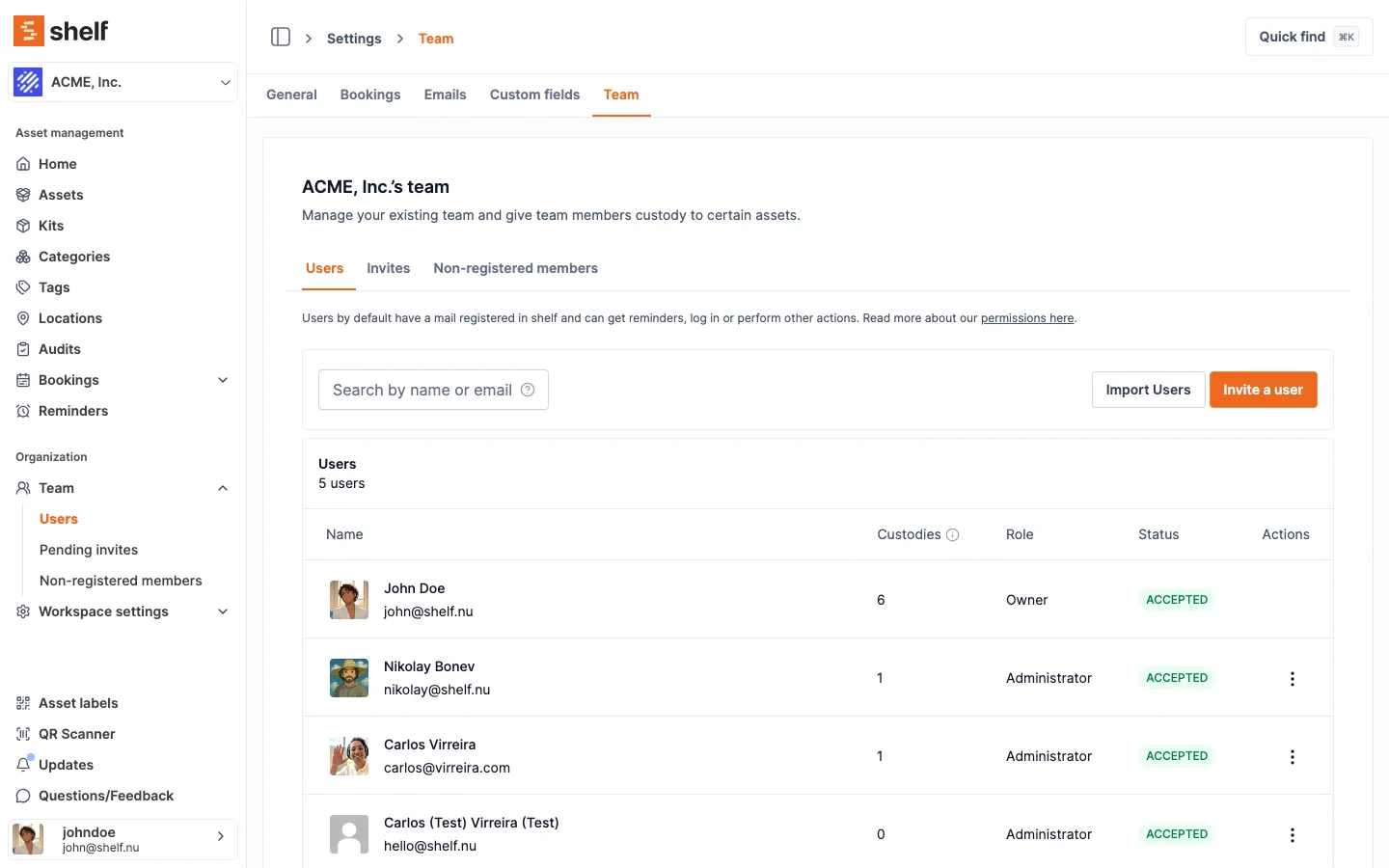
- Granting, changing or revoking the Administrator role. Only the Owner can invite someone as an Administrator, promote a member to Administrator, or demote or remove one. One Administrator cannot do any of these to another.
- Being removed. The Owner's access cannot be revoked while they own the workspace. Ownership has to move first.
There is exactly one way to become the Owner: an existing Owner transfers it. Ownership is not a role you can pick in the Change role dialog, and it cannot be granted by an invite or a CSV user import — those accept Administrator, Self-service, and Base only. That single path is what keeps the subscription, the ownership record, and the notification emails to both parties in step.
Administrator
Administrators have comprehensive access to the workspace across all locations. Their permissions include:
- Managing assets: create, update, archive and delete equipment; manage categories, tags, custom fields and locations; and oversee custody transfers.
- Managing users: invite people as Self-service or Base users and move members between those two roles. Inviting or promoting someone to Administrator is the Owner's alone: the invite and Change role dialogs do not offer it to an Administrator, and a CSV import containing an Administrator row is refused.
- Team member notes: add private, workspace-scoped notes to any team member's profile. Notes are only visible to Admins and Owners. See Admin Notes on Team Members.
- Managing bookings: create, update and fulfil (check in/out) bookings, including those started by other users, and delete, archive or cancel any of them in bulk. The workspace owner can require Administrators to scan or select the assets rather than check a booking out or in with one click; the owner is the only role that setting cannot reach. See Require Explicit Check-in and Check-out.
- Running audits: create, manage, archive and delete audits, in addition to performing them.
- Managing settings: full access to the workspace's settings and configuration, including the permission toggles that control what Self-service and Base users can see. A few settings stay with the workspace owner: SSO settings, transferring ownership, and the explicit check-in and check-out requirements.
- Reports: open the Reports area, run any of its reports, and export them to CSV or PDF. Reports aggregate bookings, custody and asset value across the whole workspace, so they are open to Administrators and Owners only.
Self-service
Self-service users sit between Base and Administrator. They have more autonomy than Base users — they can run their own check-outs and check-ins — without gaining control over the wider workspace:
- Assets: view equipment listings, but cannot create, update, or delete equipment, manage flags, change locations, or handle other people's custody.
- Custody: self-assign and self-remove custody of assets.
- Bookings: book assets for themselves and check them out and back in on their own, no admin needed. The workspace owner can require them to do it item by item rather than in one click — see Require Explicit Check-in and Check-out. The Custodian field on a booking they create holds their own name and nobody else's, on the web and in the Shelf Companion app alike. Their own bookings are also the limit of what they can change, even when a workspace setting lets them see everyone else's. The bookings list has no bulk-actions menu for this role. A Self-service user can delete a booking only while it is a Draft; after that, they cancel it instead. They can add items only while their booking is a Draft. Taking items back off goes one step further, to Reserved: they can trim their own reservation up to the point it goes out, but not after.
- Audits: can be assigned to audits and perform them — scanning items and adding audit notes — but cannot create, archive, or delete audits.
- Reports: not available. Reports is hidden from the sidebar for this role and the pages, CSV and PDF exports behind it are refused, including by direct link.
- Settings: view and edit their own account details only. They cannot invite or manage other team members.
Base
Base is the foundational role — ideal for the widest group of users, such as students or occasional borrowers:
- Assets: view equipment listings, but cannot create, update, or delete equipment, manage flags, change locations, or handle custody.
- Bookings: create booking requests for themselves — the Custodian field offers their own name only, on the web and in the Shelf Companion app alike. They cannot check out or check in gear themselves — only an Administrator can complete the hand-off on their behalf. This makes Base the right role when you want a person to reserve equipment but an admin to approve and release it. A Base user can delete their own booking while it is a Draft, and add or remove items only while it is a Draft. They cannot cancel or archive a booking, and the bookings list has no bulk-actions menu for this role. Once a request is reserved it is fixed from their side, so the way to change it is to ask an Administrator, who can edit or cancel it.
- Audits: can be assigned to audits and perform them — scanning items and adding audit notes — but cannot create, archive, or delete audits.
- Reports: not available, on the same terms as Self-service.
- Settings: limited to their own account details. They cannot invite or manage other team members.
NRM (Non Registered Member)
An NRM is a person recorded in Shelf without login credentials. They act as a placeholder to assign custody and keep tracking records accurate — useful when you need to attribute equipment to specific individuals who don't need access to the platform. This keeps accountability intact while limiting who can log in and see workspace data.
Full permissions reference
Every checkmark is what the role can actually do in Shelf today.
| Feature | Owner | Administrator | Self-service | Base |
|---|---|---|---|---|
| View and search assets | ||||
| Read the custom field values recorded on an asset | ||||
| View an asset's Activity tab (notes and scan history) | ||||
| Add, edit and delete assets | ||||
| Import and export asset data | ||||
| Open the Reports area and export a report to CSV or PDF | ||||
| Check out assets to themselves | ||||
| Create booking requests | ||||
| Name someone other than themselves as a booking's custodian | ||||
| Check out / check in their own bookings | ||||
| Delete their own booking while it is a Draft | ||||
| Delete a booking once it is Reserved or later | ||||
| Cancel or archive their own booking | ||||
| Add items to their own booking while it is a Draft | ||||
| Add items to their own booking once it is Reserved | ||||
| Take items off their own booking while it is a Draft | ||||
| Take items off their own booking once it is Reserved | ||||
| Take items off a booking that is Ongoing or Overdue | ||||
| Manage everyone's bookings | ||||
| Bulk actions on the bookings list | ||||
| View and book Kits | ||||
| Create and edit Kits | ||||
| Manage categories, tags and locations | ||||
| Manage custom fields | ||||
| Perform any audit in the workspace (scan items, add notes, complete) | ||||
| Perform audits they are assigned to | ||||
| Create and manage audits | ||||
| Set asset reminders | ||||
| Invite people as Self-service or Base | ||||
| Invite or promote someone to Administrator | ||||
| Change or revoke another Administrator | ||||
| Transfer workspace ownership | ||||
| Access workspace settings and permission toggles | ||||
| Create and delete workspaces |
Related articles
- Changing User Roles in Shelf
- Configure What Self-service and Base Users Can See
- Admin Notes on Team Members
- Require Explicit Check-in and Check-out
Note: Inviting team members is a Team plan feature.
Ready to try Shelf?
Put what you're learning into practice. Free plan available — no credit card required.