

Adding Assets and Kits to a Booking
This guide explains how to add equipment to a booking in Shelf, covering the process for adding both individual assets and pre-configured kits to time-based check-outs.

After configuring the name, booking period and custodian for a booking you can start adding assets and/or kits. Configuring the booking period prior to adding assets or kits is required because the system needs to know if the selected assets will be available for booking during that period. It could be that certain assets are already part of a booking during the selected period.
Adding assets to a booking
Clicking Add assets will open an asset manager modal that allows you to browse assets available during the specified booking period. Use the filters and search bar to quickly find the assets you would like to add.
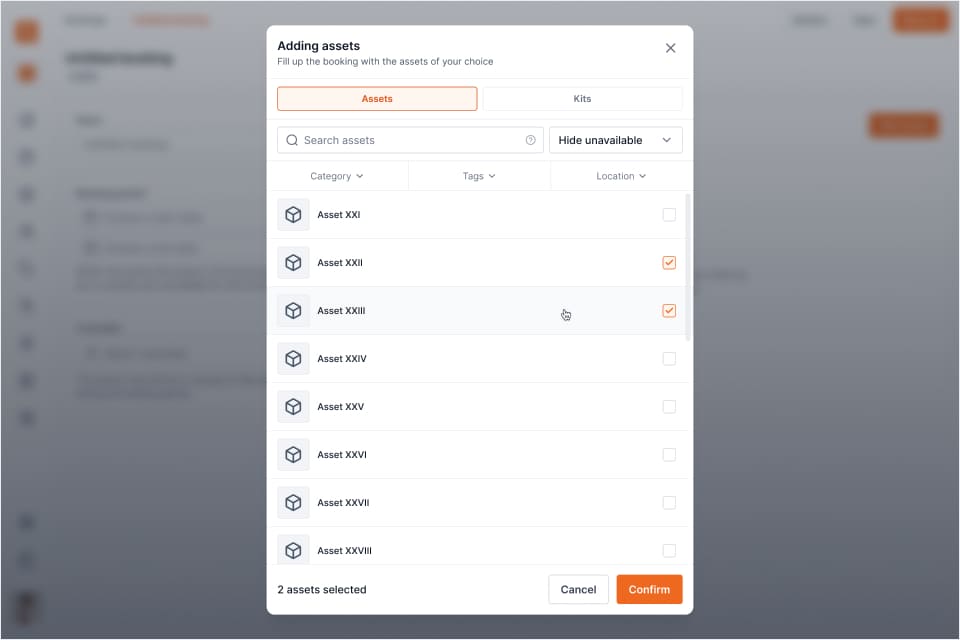
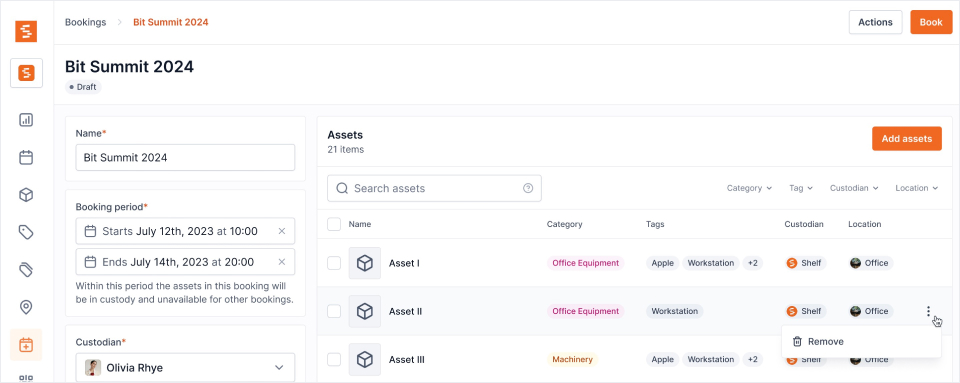
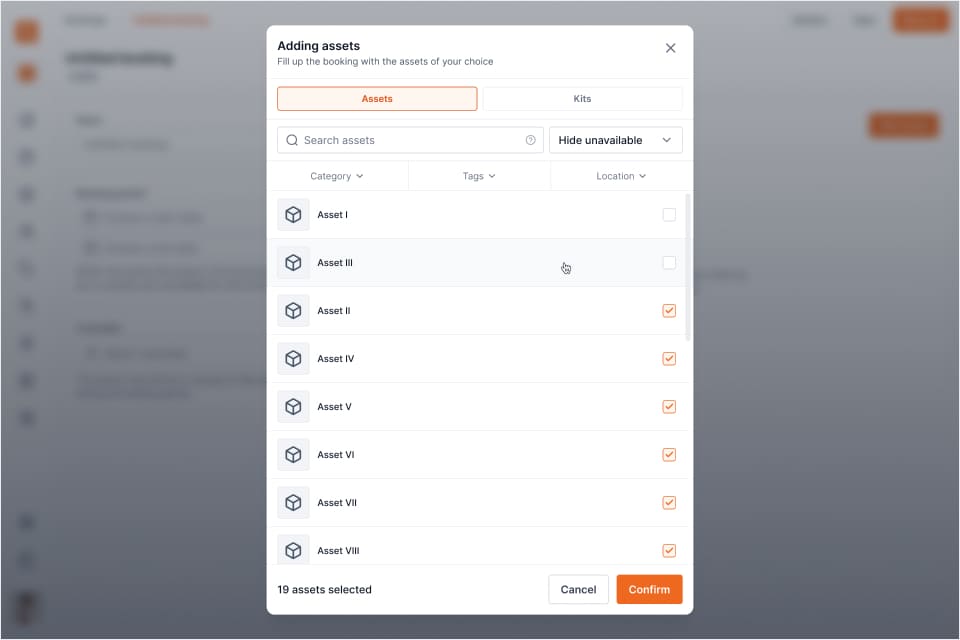

- Click Manage assets
- Select the Assets you would like to add by checking them
- Use the filters or search bar to quickly find assets
- Click Confirm to add your selection of assets to the booking
Removing assets from a booking
- Find the asset(s) you would like to remove in the index
- Click the dropdown icon and click Remove
- Alternatively, click Manage assets, uncheck the asset(s) you would like to remove and Confirm
You can also select several rows and remove them in one action, mixing loose assets and kits in the same selection. Removing a kit takes the units it carries and leaves any copy of the same asset that was added to the booking separately, so a selection only ever removes what you picked.
A Reserved booking has to keep at least one asset or one model reservation. Take the last one off and Shelf refuses, because a reserved booking holding nothing reserves nothing and can never be checked out. Add the replacement first, or cancel the booking instead. Draft bookings are unaffected, and so are Ongoing and Overdue ones, where pulling an item off a live booking is a normal correction.
How far removal stays open, by role
Removing an item is not only a question of the booking's status. It is also a question of what your role is allowed to do at that status.
| Role | Can remove items while the booking is |
|---|---|
| Owner, Administrator | Draft, Reserved, Ongoing or Overdue |
| Self-service | Draft or Reserved, on their own booking |
| Base | Draft only, on their own booking |
Nobody edits the contents of a Complete, Archived or Cancelled booking. Those are closed records and have to stay as they went out.
The reason Self-service and Base stop where they do is the same reason they cannot check a booking in. Taking an item off a booking that is already Ongoing or Overdue reconciles that asset back to available, which is a return, and a return is check-in. For Base the line sits one status earlier because a Base user is already refused the adding half once a booking is reserved: the way to change a reserved request is to cancel it and create a new one.
When your role holds none of the bulk actions for the booking in front of you, the Actions button is not shown at all, rather than opening a menu with nothing usable in it.
Adding kits to a booking
If you or other users have configured one or more kits you'll be able to utilize this when creating a booking. By adding a kit to a booking you are simply adding assets that are grouped together at once.
- Click Manage assets
- Switch from Assets to Kits using the tabs
- Select one or multiple kits
- Click Confirm to add your selection of kits to the booking
Settling a model reservation
If the booking reserves gear by Asset Model rather than by specific unit, those reservations are listed in their own Unassigned model reservations section above the assets table. A long list shows ten models at a time, with Showing 1-10 of 40 models and page arrows underneath, so the assets table stays within reach. The heading reads "4 of 6 units still to assign, across 2 models", and each row states its own share the same way, such as "1 of 2 units still to assign". The rows always name both numbers, what is left and what was promised, so a lone figure can never be misread as the other one.
A reservation is settled by putting a matching asset on the booking. Every route counts:
- Ticking it in the Manage assets modal
- Scanning it with Scan to add assets
- Adding it in bulk from the asset index with Add to booking
- Adding a kit that carries a unit of the reserved model
- Scanning it in the Shelf Companion app
Whichever door the asset comes through, Shelf matches it against an outstanding reservation for its model and ticks the reservation down. Only genuinely new rows count, so re-saving the Manage assets dialog with the same selection never discharges a reservation twice.
A unit that was already on the booking can still count, if you scan it. Sometimes the right unit is on the booking, as a loose item, before the reservation it should answer: it was added before anyone reserved its model, or its model was changed after it was added. Scan it in Scan to assign or in Fulfil reservations & check out and it answers the reservation. The row gets a green badge, "Already here, now counts toward Dell Latitude 5550", and the progress count moves. This only works if the unit is not already counting toward a reservation and its model still has reserved units outstanding. A unit that is on the booking only inside a kit is not affected. A scan that matches no open reservation behaves as before. Re-saving Manage assets never does this: opening and saving a dialog is not a sign that someone meant to count a unit.
Scan to assign shows what is left to pull
Scan to assign, in the header of the Unassigned model reservations section, opens the booking's scanner (the same one Scan to add opens). On a booking with open reservations, the scanner shows how far along you are before you scan anything:
- A summary line such as 2 models reserved with 3 / 6 and a progress bar. Click it to fold out one bar per model, each with its own count.
- Below it, one Pending row per unit still to pull, named after its model.
Each scan that answers a reservation moves the count and takes a Pending row away, so the list in front of you is what is still missing. You do not have to finish it: submitting a scan that covers part of the reservation still saves what you scanned, and the rest stays open for later. The counts include units assigned in earlier sessions, so coming back to a half-done booking starts from where you left off.
This is the same display the Fulfil reservations & check out scanner has. Use Scan to assign to pull and assign units ahead of time without starting a check-out, and the fulfil scanner when the gear is leaving.
A unit inside a kit counts too
A camera inside a kit is the same camera as a loose one, so it answers a reservation the same way. Add a kit that carries a unit of a reserved model and the reservation ticks down, whichever door the kit came through: the Kits tab in Manage assets, the kit page's Add to booking, the kit picker on a new booking, or scanning the kit.
Until now only a unit picked on its own could settle a reservation. A kit was excluded deliberately, and the result read wrong on both sides: the booking said "2 of 3 still to assign" with the third camera physically on it inside a kit, while every other booking on those dates saw one fewer unit of that model than the workspace owns.
Each physical unit answers at most one reserved unit per booking. A unit already on the booking as a loose row does not answer a second reservation when its kit is added as well.
Rows that answered a reservation now say so. A booking asset row that discharged one carries a blue Fulfils model name chip, so the unit on the row explains the number that moved in the reservations section above it. The chip's tooltip reads "This booking reserved units of Dell Latitude 5550 without naming them. This asset is one of the units that answered that reservation, so it counts toward it instead of adding to the booking on its own."
Kits already on a booking are not settled retroactively. Only a kit that arrives from now on answers a reservation. If a booking has been sitting with a kit on it and a reservation still open, take the kit off and add it again.
Only individually tracked units answer a model reservation. Quantity-tracked stock carried in a kit is a pool rather than a named unit, and Asset Models group individually tracked assets only.
Scanning kits in Fulfil reservations & check out
A Reserved booking with units still to assign routes its Check out through the Fulfil reservations & check out scanner. That scanner takes kits now. Scan one and it goes on the booking whole, its matching members assign outstanding reserved units on the way, and the kit's row in the list says how much it settles — for example Assigns 2 reserved units. A kit whose members assign nothing still goes out; it is simply listed as something the check-out adds on top. The scanner used to turn every kit away with "Kits can't be checked out from the reservation scanner. Use Scan to check out for kits."
A unit that belongs to a kit is committed to that kit, so that scanner will not send it out alone. Scan one without scanning its kit and the submit is refused:
"Canon EOS R5 #0042" belongs to a kit, so it can't go out on its own. Scan the kit to take all of it, or scan another unit of the same model.
Scan the kit instead and the whole case goes out. The refusal only covers a unit the scan would take out for the first time: a unit already on this booking is not being taken anywhere new, so it is left alone. Scanning a unit and the kit it lives in, in the same pass, books the unit once, not twice.
When you scan onto a booking with Scan to add or Scan to assign, the same rule reads as the Part of kit badge on the unit, whose tooltip now names both ways out — "Scan the kit's QR to take the whole kit, or remove the asset from the kit to use it on its own."
Reserving by model is counted the same way a pool is. Shelf works out how many units of that model are free for your dates at the moment you reserve, and holds the model still while it does, so two people reserving the last units of the same model at the same second cannot both be told yes.
A Draft booking is a plan, so its model reservations hold nothing yet, and two drafts can each plan the same units. Shelf counts again when a draft is reserved, or checked out straight from Draft. If the reservations no longer fit those dates, the booking stays a draft and the refusal names every short model with the arithmetic, for example "Dell Latitude 5550": 4 units still to assign, but only 2 can be booked. Reduce the reservation or change the dates, then reserve again. See A draft's model reservations no longer fit.
Reservations that are still outstanding show as an amber N units unassigned pill on the bookings index, next to the asset count. A booking made entirely of reservations therefore reads "0 assets" with the pill beside it, rather than looking empty. Those units are genuinely held and unavailable to anyone else, so the pill is the list telling you there is still gear to find.
An outstanding reservation does not hold the booking back. You can check out what is ready and leave the rest of the reservation open, and you can adjust or release the units you are not going to find.
Adjusting or releasing a reservation
A reservation is a promise to supply a number of units, and promises change. A unit turns out to be damaged, one never gets collected, or the job simply needs fewer than you booked. You can correct the number while the booking is Draft, Reserved, Ongoing or Overdue — including after the booking has gone out.
- Find the reservation's row in the Unassigned model reservations section
- Open the row's menu and click Adjust quantity
- Enter the new number of reserved units, then click Save
The Adjust reservation dialog states where the row stands — "1 of 3 units assigned so far" — and, when there is anything still unassigned, offers a one-click Release the N units still unassigned. Units you release go straight back to the pool for other bookings in that window.
Two limits apply at every status:
- A reservation never drops below the units already assigned to it. Those units are on the booking; the reservation is the record of how they got there. Setting the quantity to exactly the assigned count closes the reservation out and releases everything still unassigned.
- A reservation with assigned units is reduced, not removed. Remove is only offered while nothing has been assigned yet.
Lowering a reservation is never refused for lack of availability. Giving units back cannot need headroom, and measuring anyway used to block the case that matters most: a booking holding more units than the pool still contains, because a unit was retired or taken into custody mid-booking, could not release anything at all.
The same numbers and the same floor apply on the Models tab inside Manage assets, where each row reads "3 reserved · 1 assigned · 12 total in workspace".
Adjusting a reservation on a live booking matters beyond the booking itself: outstanding reservations on Ongoing and Overdue bookings keep counting against every other booking whose window overlaps, so a unit you are never going to hand over stays unavailable to everyone else until the reservation is reduced.
Checking out while units are still unassigned
A check-out needs at least one item to go out, and nothing more. A reservation nobody has assigned yet no longer blocks it.
When you check the booking out, Shelf names what is still open and asks you to confirm it:
Some reserved units aren't assigned
2 × Dell Latitude and 1 × HP LaserJet are not assigned yet. They stay on the booking so you can scan them later or release them.
Confirm and the booking goes Ongoing with the items that are ready. The open reservations stay on the booking, where you can settle them later with Scan to assign, Assign from list, or release them with Adjust quantity. The same confirmation appears on Check out selected items, and it carries the early-check-out question in the same dialog when both apply, rather than stacking two prompts.
What is refused is a check-out that would send nothing out. A booking made entirely of reservations cannot go Ongoing empty.
A Reserved booking with outstanding reservations routes its Check out through the fulfil scanner, which lists what is still to pull and counts the unassigned units in its footer. Once the booking is underway, its remaining items go out through Scan to check out like any other booking, and the reservations stay open for Scan to assign.
Reserved units stay reserved when someone books by name
A model reservation holds a number of units, not particular ones, so the risk is another booking on the same dates picking one of those units by name. Shelf counts that too. As long as the model has units to spare beyond what other bookings reserved, you can add one by name as usual. Once the reservations take up every free unit, the rest of that model is off limits for those dates:
- In Manage assets, each remaining unit of the model shows a Reserved by model badge and its checkbox can't be ticked. The tooltip reads "Other bookings reserved every free unit of this asset's model for the selected dates. Change the dates, or pick an asset of another model."
- Every other way in is refused as well: scanning the unit onto the booking (on the web or in the Shelf Companion app), reserving a draft that already holds one, and extending a booking into dates where the model is spoken for. When you reserve, the refusal names the model and does the arithmetic for you. The website's scan drawer does not show a message yet: the scanned unit is simply not added.
If your own booking reserves the model, naming units of it fills that reservation first, so those units are never counted twice against you. See Troubleshooting: Booking Conflicts for the message and what to do about it.
Reading the counts on a booking
The header above the assets table names what it counts: "18 assets and 2 kits", or plainly "7 assets" when there are no kits. A kit is one row holding several assets, so a row count can never match the bookings index's asset count on its own. Naming both kinds makes the difference self-evident, and each kit row states its own member count.
Model reservations are counted separately, in their own section, and are never folded into the assets figure. That is deliberate: reserved units have no physical asset behind them yet, so blending them in would make a half-assigned booking look identical to a finished one.
Adjusting the quantity on a pooled asset
Quantity-tracked assets join a booking as a number of units rather than as a specific item, and that number can be changed at any time before the units go out.
- Find the asset's row on the booking
- Open the row's dropdown and click Adjust quantity
- Enter the number of units to reserve, then click Save
The Adjust booked quantity dialog tells you what you have to work with, written plainly as "4 of 12 sandbags available" with the date range underneath. That figure is about these dates: a booking that ends before this one begins isn't competing for the same units, so it's often higher than the stock sitting free at this exact moment. If other bookings are holding units inside your dates, the dialog says how many, and roles that can see other people's bookings get a View bookings link to go and look.
Ask for more than the dates allow and Shelf refuses, naming the shortfall. Lowering a quantity always works. See Troubleshooting: Booking Conflicts if a booking is showing a Stock conflict pill or an Insufficient stock badge.
Adding items to a booking that's already active
You don't have to finalize the whole list before checkout begins. You can add assets and kits to a booking that's already Ongoing or Overdue using the same Manage assets modal, the Add to booking option on an asset or kit page, the bulk Add to booking panel, or by scanning.
Items added to an active booking join it as line items and stay Available until you check them out. They aren't force-checked-out just because the booking is already underway, which fits the progressive checkout flow where gear leaves in stages.
Two things are refused rather than added. An individually tracked item that's already checked out on another active booking is turned away, since that would double-book it. And a quantity-tracked item is turned away when the units the booking would then hold, the ones already on it plus the ones you're adding, are more than the pool can supply on these dates. That applies however the item arrives, including by scanning, so a scan can't quietly push a pool past what it has. Units carried in by a kit are counted on the kit's own terms, not against the loose pool.
A pooled asset with some units out is still addable. The "already checked out" rule is about individually tracked items, where one unit is the whole asset. A quantity-tracked pool is a count, so 18 of 27 sandbags being out on other bookings says nothing about the 9 that are free. Those 9 can go onto your Ongoing or Overdue booking, and only the pool's own capacity for your dates can stop them. Until recently the guard read the asset's single status flag instead of counting units, so the picker offered the asset, labelled it "9 available", and then refused the save with "The following assets are already checked out and cannot be added to the booking".
When an add is refused, the Manage assets dialog now prints the reason in its own footer and stays open, so you can act on it without hunting for a toast.
Which bookings the Add to booking picker offers follows the workspace's booking-visibility setting, the same rule the Bookings index and the command palette use. Self-service and Base users are shown their own bookings by default, and every booking in the workspace except other people's Drafts once an admin switches the setting on in Settings ▸ Workspace ▸ Permissions. A booking still in Draft is only ever visible to the person who created it, whatever the setting says. The list stays the same whether you scroll it or type to search it. See Configure What Self-service and Base Users Can See.
Checking a late addition out works the same three ways as anything else on the booking: Check out remaining from the checkout button, scanning it with Scan to check out, or ticking its row and using Actions → Check out selected items. That holds whether the booking was originally checked out item by item or all at once with the Check out button, and it applies to quantity-tracked lines as well as individual assets. If your workspace requires the explicit check-out flow for your role, Check out remaining is not offered and the other two routes are how you hand the addition over.
Finding and sorting assets on a booking
Once assets are on a booking, the asset list on the booking page has its own search and a Location column so you can find items quickly — useful on large bookings where scrolling isn't practical.
- Search the list by typing in the search bar. It matches across an asset's name, asset ID, category, location, tags, and its QR and barcode values. Separate multiple terms with a comma to match any of them (for example,
studio a, lensreturns items in Studio A and anything named "lens"). If a match falls inside a kit, the whole kit is shown so you keep the full bundle in view. - Location column: each row shows where the asset (or kit) is stored. Click the Location column header to sort the list by location — handy for grouping a pull list by room or shelf before checkout.
Sort options
Click any sortable column header, or use the sort control, to reorder the list. A tooltip next to the control explains the two booking-specific options:
- Item type groups kits first and then standalone assets, so you can work through a bundle in one pass.
- Status sinks fully checked-out items to the bottom and keeps the items you still need to hand out on top. This is especially useful during progressive checkout, when a booking holds a mix of Available and Checked out items at the same time.
When you sort by any other field, kits and standalone assets are interleaved by that field instead of kits always sitting on top, while each kit's members stay grouped together.
The search you apply here also carries through to the Generate PDF overview, so you can print a focused list of just the matching items. See How to Generate a PDF Overview.
Related articles
Ready to try Shelf?
Put what you're learning into practice. Free plan available — no credit card required.