

Bulk Updating Assets via CSV
Use the Update Existing Assets workflow to edit asset records in bulk — export to CSV, make changes in Excel or Google Sheets, preview every diff, then apply.

The Update Existing Assets feature lets you edit up to 1,000 asset records per file using a CSV. The workflow has three stages: upload your edited CSV, preview every change in a spreadsheet-style diff, and confirm to apply.
This is useful when you need to reassign dozens of assets to a new location, correct category assignments across your inventory, group a fleet under an asset model, reset low-stock thresholds on your consumables, or update custom field values for a large group of assets without editing them one by one.
The round trip is Export → edit → Import, and the Import-ready export format is built for it: it carries an id column so every row finds its asset, and it writes the quantity fields in the shape this workflow expects.
Before You Start
- You need Admin or Owner role to update assets in bulk.
- CSV import must be available on your plan (same requirement as creating new assets via CSV).
- You can update up to 1,000 assets per file. For larger inventories, split your CSV into multiple files.
Step 1: Export Your Assets
Start with a CSV export from your Asset Index — this ensures every row has the identifier columns Shelf needs to match records.
- Navigate to Assets in your workspace.
- (Optional) Apply filters to narrow down to the assets you want to update.
- Select the assets using the checkboxes, or click Select all.
- Click Export selection, choose the Import-ready format, and click Download CSV.
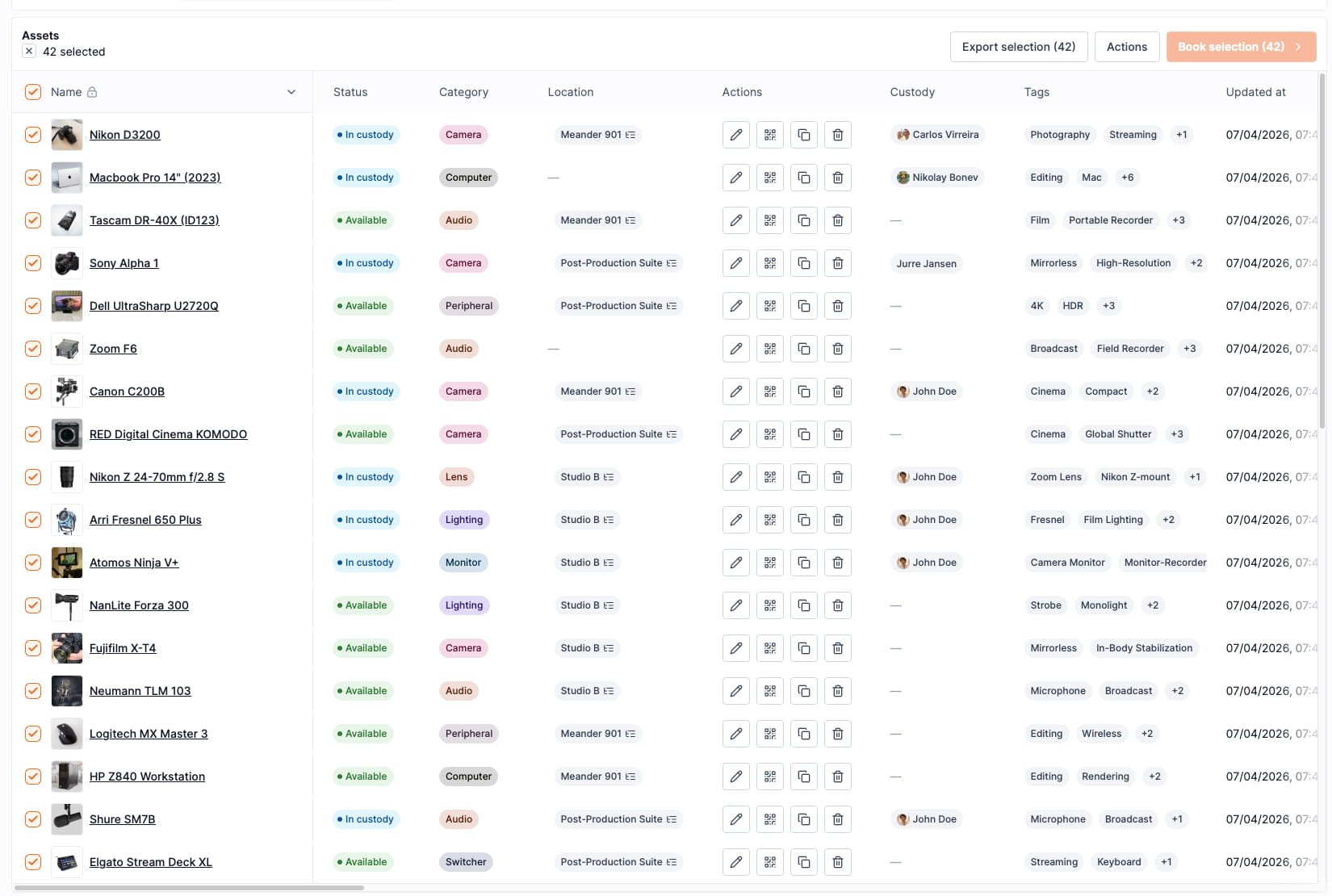
Import-ready is the format to pick. It always writes an
idcolumn as its first column, in either column scope, so every row can be matched back to the asset it came from. It also writes the quantity fields in the shape this workflow expects, which saves the manual pass a Standard export needs. The same file still works for creating assets in another workspace, so one format now covers both jobs.
Standard exports work too. If you already have one, or you prefer its readable labels, you can upload it as long as it carries an Asset ID or ID column. Standard only includes ID when that column is visible in your index or you pick the All columns scope, so check before you edit. Both header styles are accepted in the same file, and header matching ignores capitalization, so Asset model, asset model, and assetModel all land on the same field. See Choosing an export format.
Never use the Workspace Backup CSV. Its category, tags, and asset model cells hold raw stored data rather than plain names. Shelf now recognizes a backup file and stops with an explanation instead of proposing nonsense changes, but the fix is the same either way: export again from the Asset Index.
Step 2: Edit in Excel or Google Sheets
Open the exported CSV in your preferred spreadsheet application and make your changes.
What you can update
Keep the headers as exported. Shelf reads both header styles, the readable labels a Standard export writes and the lowercase keys an Import-ready export writes, and matching ignores capitalization. A header Shelf doesn't recognize is listed as an unrecognized column and ignored, it does not stop the file.
| Standard header | Import-ready header | Applies to | Notes |
|---|---|---|---|
Name | title | All assets | Cannot be cleared |
Description | description | All assets | Plain text, line breaks allowed inside the quoted cell. Cannot be cleared |
Category | category | All assets | Created automatically if the name is new |
Location | location | All assets | Created automatically if the name is new |
Tags | tags | All assets | Comma-separated inside one cell. A tag name that contains a comma must be quoted inside the cell (how); an Import-ready export writes it that way. Created automatically if new |
Value | valuation | All assets | Plain number. Currency symbols and thousands separators are stripped for you |
Available to book | bookable | All assets | Yes or No only |
Asset model | assetModel | Individually tracked only | Matched by name, case-insensitive, created automatically if new |
Quantity | quantity | Quantity-tracked only | Whole number, no unit in the cell |
Min quantity | minQuantity | Quantity-tracked only | Whole number, the low-stock threshold |
Unit of measure | unitOfMeasure | Quantity-tracked only | Free text, for example boxes |
Consumption type | consumptionType | Quantity-tracked only | ONE_WAY or TWO_WAY |
| Your custom fields | cf:Name,type:TYPE | All assets | Text, Boolean, Date, Option, Number, Currency |
A column that doesn't apply to a row's tracking method is skipped and the rest of the row still applies. On an individually tracked asset the four quantity columns are ignored silently, since they come along for the ride in an export. On a quantity-tracked asset an Asset model cell is flagged in the preview with a warning so you can see the model didn't take, and every other cell on that row still updates.
A custom field column names a field that must already exist in your workspace. If the preview lists one as unrecognized, create it under Settings → Custom fields first and re-analyze. Only the field's own name needs creating, not the whole cf:…,type:… header.
What you cannot update
- Status and Custody, which have their own workflows
- Kit, which has its own assignment flow
- Tracking method, which is fixed when an asset is created. Individually tracked cannot become quantity-tracked, or the reverse
These columns are safely skipped if present in your file. They will not cause errors or overwrite existing values. An Import-ready export carries kit, custodian, type, and the barcode_* columns for the sake of the create flow, and this workflow ignores every one of them. (qrId and imageUrl are left out of Import-ready exports entirely, since QR codes belong to the workspace that issued them and images are not carried across yet.)
If a file matches your assets but carries no column this workflow can write, Shelf says so rather than reporting "no changes detected", so a wrong file no longer reads as a file with nothing to change.
Quantity columns depend on the export format
- Import-ready needs no manual pass. It already carries
minQuantity,unitOfMeasure, andconsumptionType, and itsquantitycell is a plain number. - Standard needs two fixes.
Quantityis written with its unit attached, as10 boxes, and this workflow needs the number on its own. Leave10in the cell or the quantity change is flagged in the preview and skipped.Min quantity,Unit of measure, andConsumption typeare not in a Standard export at all, so add those columns yourself using exactly those header names.
Empty cells
An empty cell clears the value for Category, Location, Tags, Value, and most custom fields. If an asset currently has a category and you leave that cell blank, the category is removed when you apply. Fields that were already empty stay unchanged.
These are never cleared by an empty cell:
Name,Description, and boolean fields, which cannot be emptied at allAsset model,Quantity,Min quantity,Unit of measure, andConsumption type, which keep their current value when the cell is blank. Change these on the asset itself if you need to remove them
Assets with stock in more than one location
A quantity-tracked asset can have its units spread across several placements, and a CSV has only one Location cell per row to describe them. Rather than guess which placement you meant, Shelf flags the location change on those rows with "This asset has units in multiple locations, bulk location update isn't supported" and skips just that field. Every other change on the row still applies. Move those units from the asset's location panel instead, as described in Quantity-Tracked Assets and Consumables.
Tips
- Keep the identifier column (
id, ID, or Asset ID) exactly as exported, do not edit it. - A Standard export writes
Uncategorizedin the Category cell for an asset that has no category. Leaving that word in place keeps the asset uncategorized rather than creating a category called "Uncategorized". If your workspace genuinely has a category by that name, it is matched as normal. - Boolean fields, including Available to book, accept only
YesorNo(case-insensitive, whitespace-tolerant).true,false,1, and0are not recognized. - Date fields require
YYYY-MM-DDformat. - Categories, locations, tags, and asset models that do not yet exist in your workspace are created automatically when you apply.
Step 3: Upload and Preview
- Navigate to Assets → Import → Update existing.
- Upload your edited CSV file (or paste the CSV content directly).
- Click Analyze file.
The same rules are printed on that page, so you can check a column without leaving Shelf.
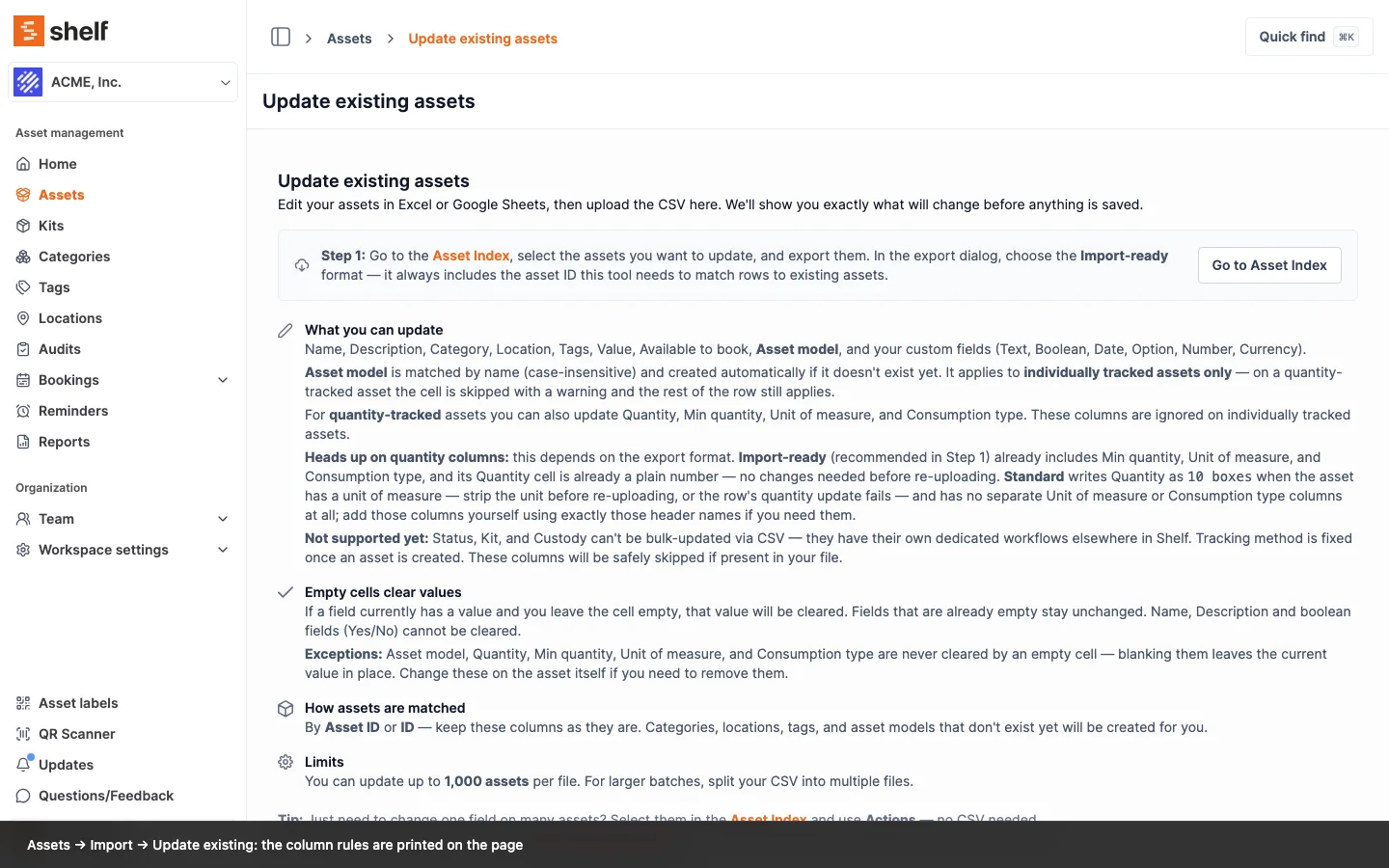
What the upload check reports
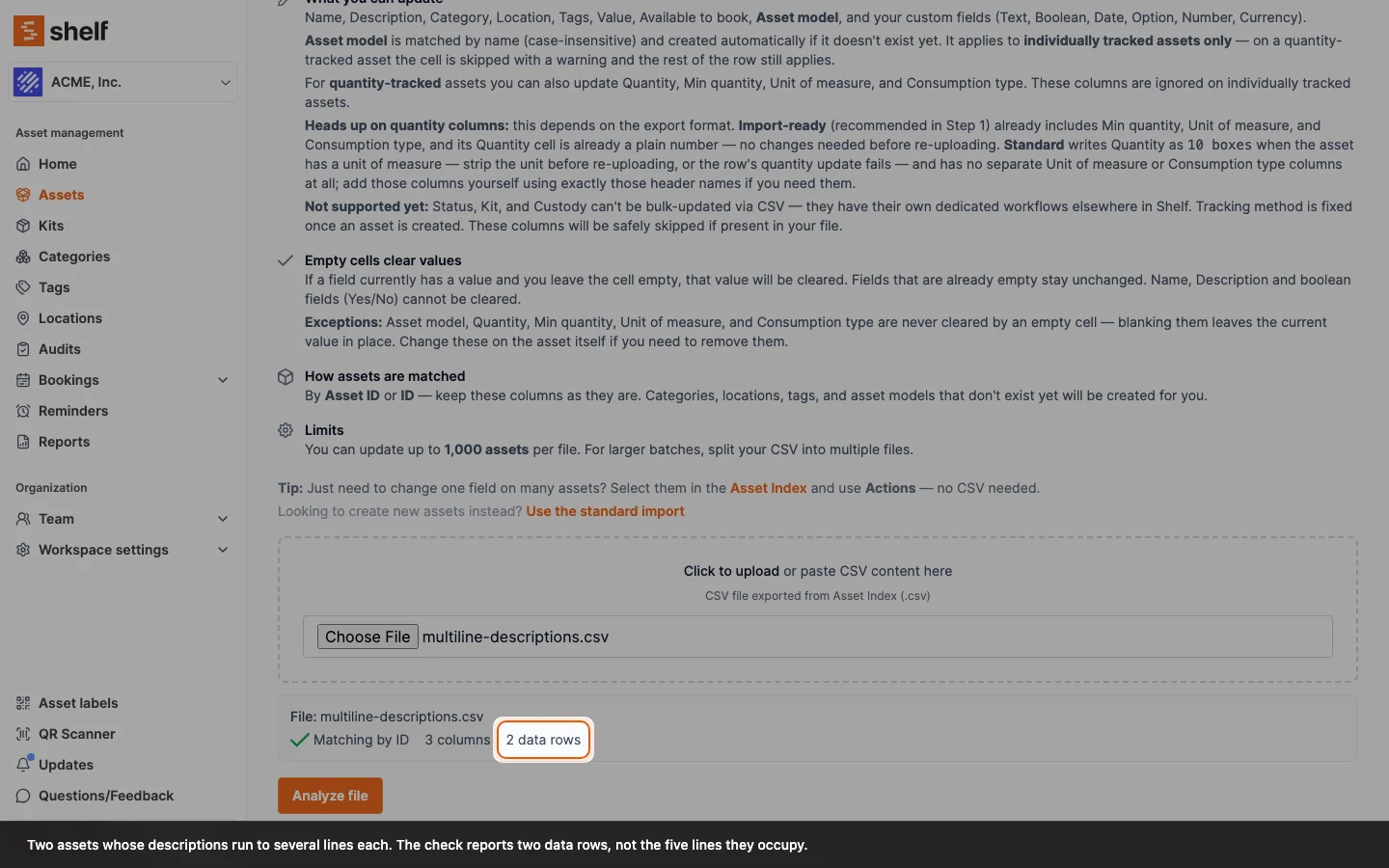
As soon as Shelf has the file, and before you click Analyze file, a small panel under the upload area names the file, says which identifier column it found, and counts the columns and data rows.
The row count counts assets, not lines. A description typed with paragraph breaks is written into one quoted cell, and its line breaks belong to the value rather than separating records. A file of 174 assets whose descriptions carry paragraph breaks reports 174 data rows, not the several hundred lines they occupy. The count is read from the whole file, so it does not change with file size.
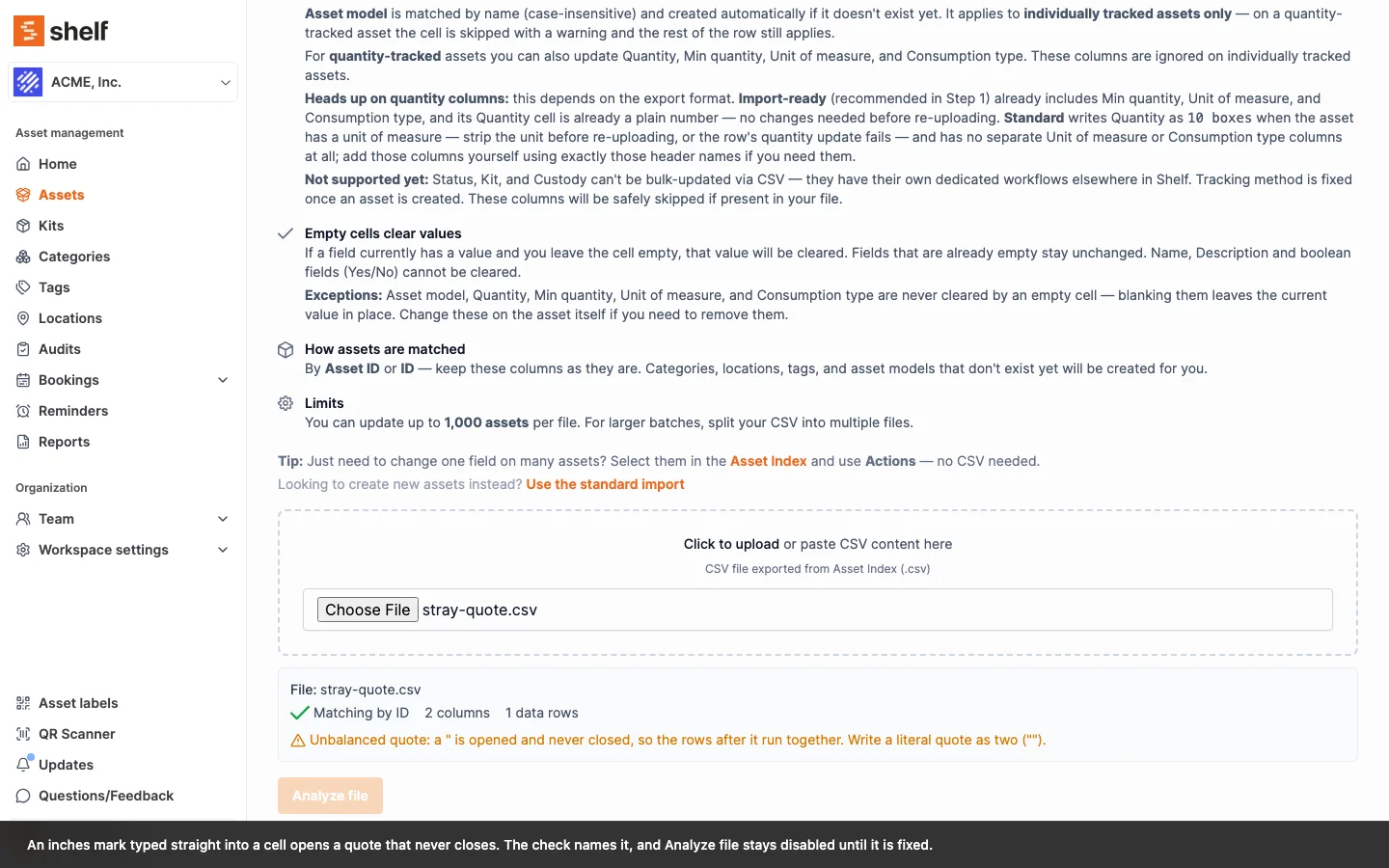
A stray quote is named. A double quote that is opened and never closed swallows every row after it, so the file that reaches Shelf is not the file you think you uploaded. The usual source is an inches mark typed straight into a cell, as in 24" Monitor. Shelf refuses the file and says what is wrong:
Unbalanced quote: a
"is opened and never closed, so the rows after it run together. Write a literal quote as two ("").
Analyze file stays disabled until you fix it. The fix is to wrap the cell in quotes and double the inner one, so 24" Monitor becomes "24"" Monitor". Easier still, let your spreadsheet application write the file: Excel, Numbers, LibreOffice and Google Sheets all quote and escape for you when you save as CSV.
Shelf analyzes your file and shows a spreadsheet-style preview of every change before anything is saved:
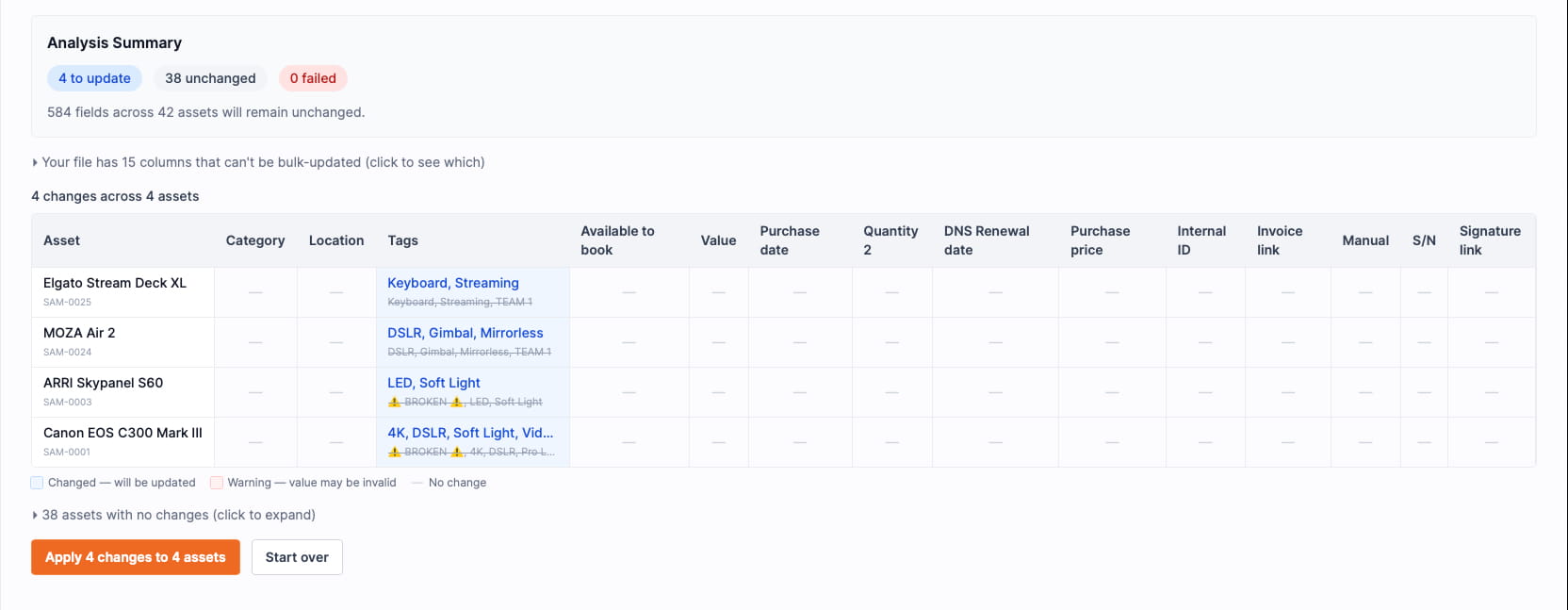
- Each row shows the asset name alongside every field that will change, with the old and new values side by side.
- Validation warnings are shown for fields with bad date formats, invalid numbers, or unrecognized values. A warned field is the only thing skipped: the row's other changes still apply. This is where a
10 boxesquantity cell, anAsset modelcell on a quantity-tracked asset, or a location change on a multi-placement asset shows up. - Unrecognized columns (ones that do not map to any known field or custom field) are listed separately, they will be ignored, not rejected. A custom field column is shown by its field name, so the name in the list is the one to create under Settings → Custom fields.
- The change count matches what will actually be written. Rows whose only changes are warned are not counted toward it.
- You can click Re-analyze to re-process the file after adjusting it.
If the file has no identifier column, contains no data rows, carries nothing this workflow can update, or turns out to be a workspace backup export, Shelf shows an error before reaching the preview stage.
Step 4: Confirm and Apply
- Review the preview carefully.
- Type I AGREE in the confirmation field.
- Click Apply changes.
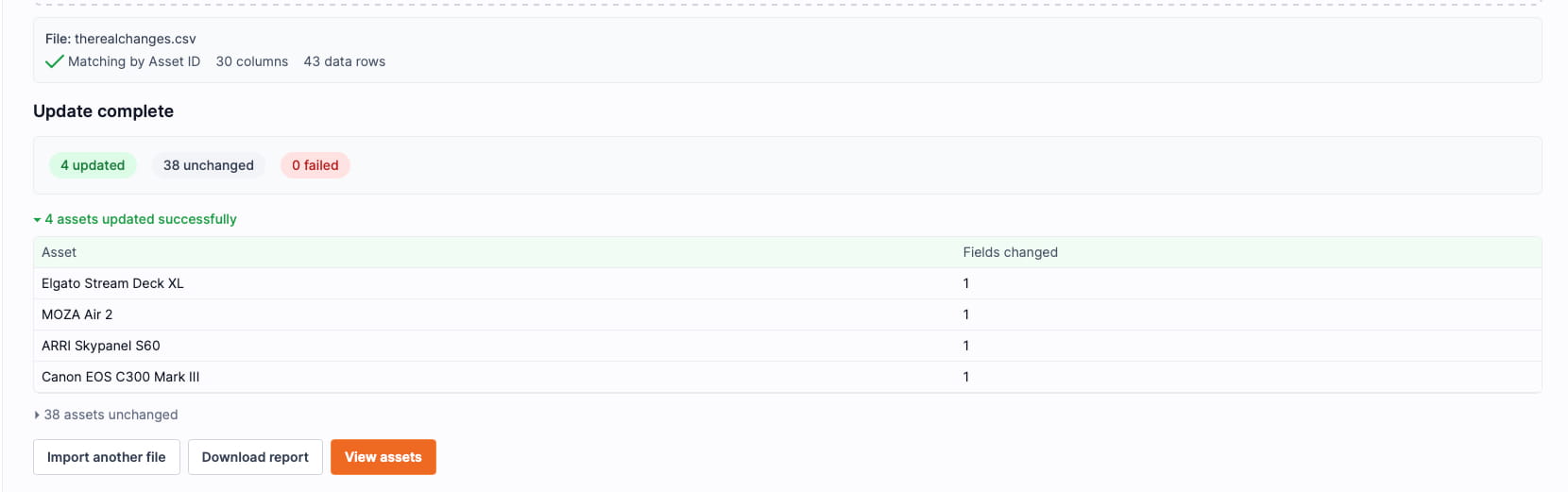
Shelf applies the changes and shows a results page with a summary of what succeeded and what failed (if any rows encountered errors, they are listed individually and the rest still apply). You can download a CSV report of the results.
Frequently Asked Questions
What happens if a row has an unrecognized asset ID?
Rows that cannot be matched to an existing asset are skipped and listed in the results report as unmatched.
Can I use the same export file to create assets somewhere else and update them here?
Yes. An Import-ready export serves both. Upload it to another workspace through Assets → Import and it creates assets there, ignoring the id column, since those ids belong to the workspace that issued them. Upload the same file here and it updates the assets it came from.
Which columns can I safely delete from the file?
Any of them except the identifier column. Deleting a column means "leave this field alone", which is different from leaving the column in place with an empty cell. See Empty cells.
Can I update assets across multiple locations or categories in one file?
Yes. There is no restriction on how many different locations, categories, or tags appear in a single file.
What if I only want to update one field on hundreds of assets?
Include only the identifier column and the one field you want to change. Omit all other columns entirely. Do not include them with blank cells, because for a clearable field a present column with a blank cell removes the existing value. The exceptions are listed under Empty cells above.
Can I change an asset from individually tracked to quantity-tracked here?
No. Tracking method is fixed when an asset is created, so a Tracking method column is ignored no matter what it contains. To move stock onto a different tracking method, create the new asset and retire the old one.
How do I assign an asset model to a whole fleet at once?
If the model is the only thing you are changing, you do not need a CSV at all: select the units in the asset index and use Actions → Update asset model, which also has a Remove from asset model counterpart. See Using Batch Actions in Shelf.
Use this workflow when the model rides along with other edits. Add an Asset model column and put the model name in every row. Names are matched case-insensitively and a model that doesn't exist yet is created for you, so you can name a new fleet in the same file that assigns it. Models apply to individually tracked assets only, see Asset Models.
Can I restock a quantity-tracked asset through this workflow?
You can set its Quantity to a new absolute number. The column replaces the count rather than adding to it, so put the new total in the cell, without the unit. For a single asset, the restock action on the asset page is the more direct route: see Quantity-Tracked Assets and Consumables.
What if an apply partially fails?
Shelf uses partial failure handling — if one asset hits a constraint error (for example, a kit location conflict), the other assets in the file still update successfully.
Related
- Importing Assets to Shelf: CSV Guide — for adding new assets via CSV
- Export / Exporting Workspace Data from Shelf — for creating the export that feeds this workflow
- Using Batch Actions in Shelf — for bulk-updating a single field without CSV
- Quantity-Tracked Assets and Consumables: what the quantity columns mean
- Asset Models: what the
Asset modelcolumn groups - Troubleshooting: CSV Import Issues: when a column doesn't apply
Ready to try Shelf?
Put what you're learning into practice. Free plan available — no credit card required.