

Kits
Kits are a powerful feature in Shelf that allows you to group assets together, making it easier to manage and track your inventory.

Overview
Kits represent a unified management approach in Shelf for handling related equipment as a single unit. This feature proves beneficial when multiple items need to move and be tracked collectively.
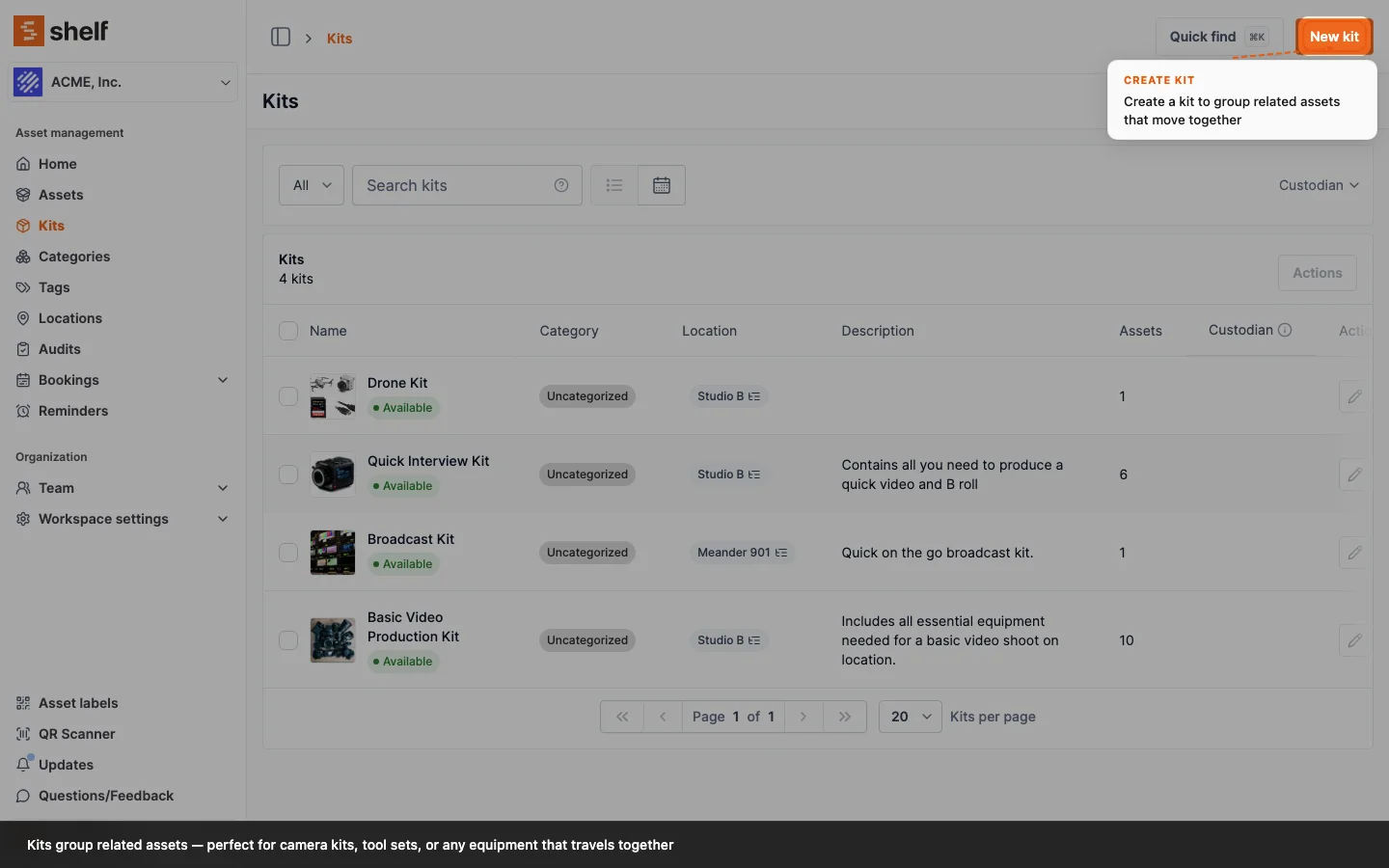
Kits vs Tags: Two Grouping Approaches
The platform offers distinct methods for asset organization. Kits group assets as a single unit with one QR code, while Tags allow flexible labeling without that constraint.
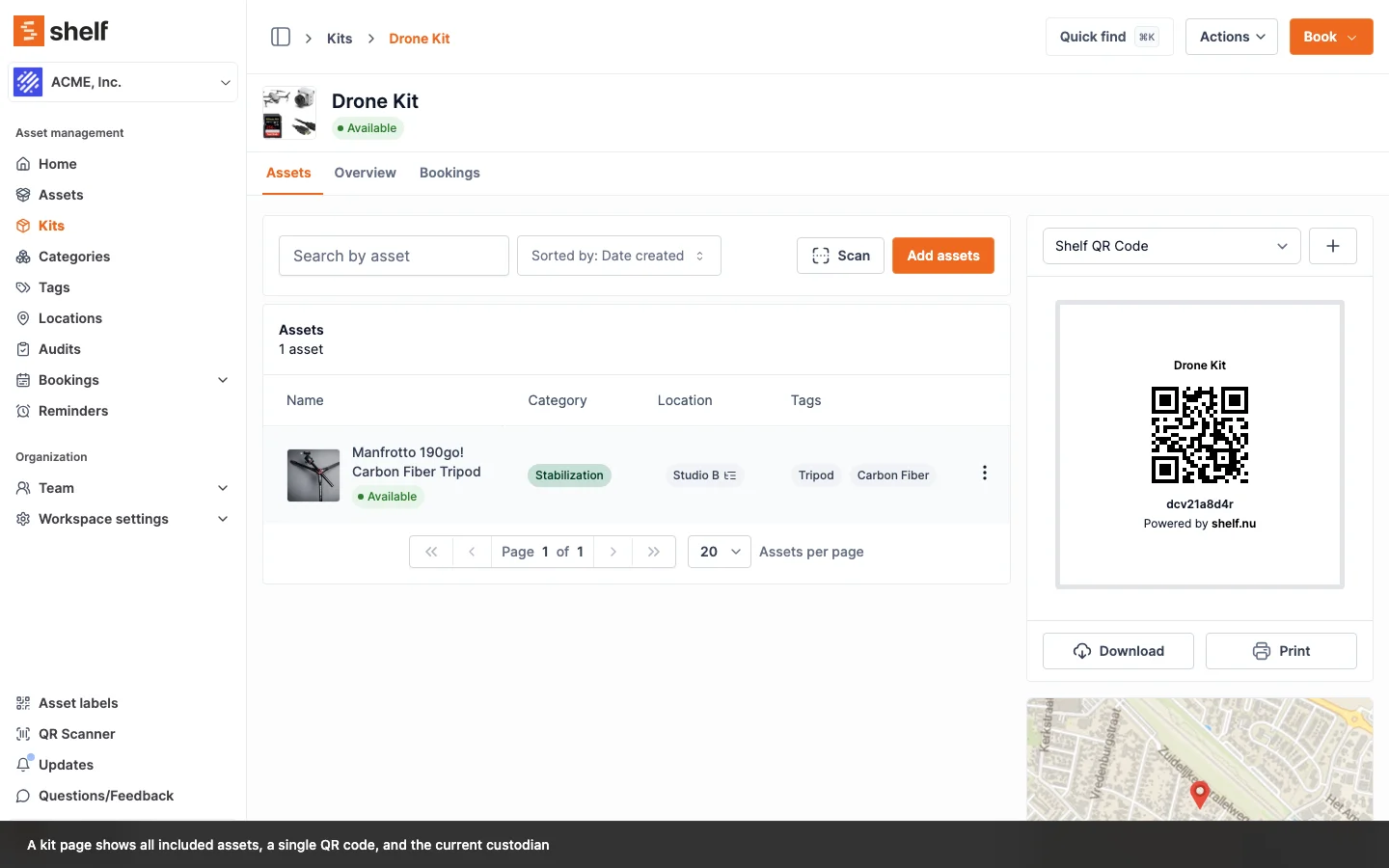
Kits function best for:
- Managing assets as one consolidated unit
- Single QR code covering the entire kit
- Unified custody assignments where all items move together
- Collective booking management
Tags work better when you need:
- Individual asset management within groups
- Ability to book or assign custody to single items
- Dynamic grouping without custody restrictions
Creating a Kit
Navigate to the Kits page and select New Kit. Complete the setup by entering a name, image, description, category, and location, then add desired assets. You can also assign a custodian during creation.
Kit Statuses
Kits can exist in three states:
- Available: Ready for assignment to a person or booking
- In Custody: Currently held by a person; unavailable for reassignment until released, and it cannot be checked out on a booking until then (see A kit in custody stays home)
- Checked Out: Assigned to a booking and unavailable for reassignment, including custody. It clears when the bookings holding it end and nothing of the kit's own is still out
Kit Assets
Assets can be added regardless of individual availability status. Even items marked as unavailable for bookings can be included. However, kits cannot be assigned until all contained assets become available.
Quantity-Tracked Stock in Kits
A quantity-tracked asset is a pool of identical units rather than a single item, so the same asset can sit in several kits at once. Each kit holds its own slice: 3 sandbags in Grip A, 3 in Grip B, and the rest of the pool free on the shelf.
On the asset's Quantity Overview card, every kit's slice adds into the In kits row. Those units are counted there once, whether the kit is sitting on the shelf or out on a booking, and they are not part of Available. The Checked out (bookings) row is a different measure: it counts every unit physically out right now, the loose ones and the kit-held ones together. The two rows overlap on purpose, so don't add them up.
A single booking can hold the same pool from more than one direction, some units booked loose and more carried in by the kits you added. Checking the booking out hands over every slice it holds, and the pull-list PDF prints one row per source so the packer can see which kit each portion belongs to.
A kit member's row inside a booking carries no stock badge. The red Insufficient stock and amber Checked out elsewhere badges both measure the loose pool — the part no kit has claimed — and a row a kit supplied does not come from there. A projector case whose clamps are all spoken for by kits used to light up every pooled member in red while reserving and checking the booking out worked fine. Those rows are now left alone, on the same rule the check-out guard has always used. A member removed from the kit is a standalone slice again, and is measured against the loose pool like anything else.
Units used up out of a kit leave the kit. When a kit's slice of a pool goes out on a booking and comes back with units marked consumed, lost or damaged, those units leave the kit's membership in the same check-in, and the kit's placement of them goes with them. A membership that reaches zero is removed the way a member is removed, and bookings that have not started yet are capped at what the kit now holds, with a note on each. Before 6 October 2026 the kit kept claiming the units, which blocked every later edit of that membership with "You're trying to assign more of this asset than are available." A pool that goes out inside a kit records the kit's location as where its units left from, so a kit slice is never asked about at check-out.
How Many Units a Kit Can Take
When you add a quantity-tracked asset to a kit, the quantity box has a ceiling, and the ceiling is what is genuinely free for a kit to hold indefinitely. Starting from the asset's total, Shelf sets aside:
- the slices other kits already hold
- units in someone's custody directly (a kit's own custody is not counted twice)
- units standalone reservations are relying on — measured per line, not per booking, so a booking that carries some units loose and some through this kit only has its loose units counted here (this kit's own contribution is already set aside on the line above)
That third one is the point. A kit slice has no dates on it — the kit keeps those units until you take them out — so it has to be free at every future instant, which means it competes with the busiest moment on the calendar rather than with today. Two reservations three weeks apart never hold the same units at once, so Shelf takes the highest number held at any one time, not the sum of every booking. Ten of a hundred cables booked in March and ten more in May costs the kit ten, not twenty.
The ceiling is a reading of the pool as it stands today, and for used-up consumables today's total keeps falling: every booking that consumes stock at check-in takes those units out permanently, so bookings that never overlap still eat the pool one after another. The peak rule is about what is reserved at a moment in time; it does not hold the total still.
So a kit can end up holding more than the ceiling — the total was reduced, consumables were used up, or the calendar filled in after the kit was built. The box does not lock you out when that happens. It keeps your current figure so you can lower it.
A note if these numbers used to be higher. Reservations were previously left out of this arithmetic, so a kit could be offered units that a future booking was already counting on, and that booking could then never be checked out. The smaller number is the correct one, not a new restriction.
Booking the Free Units Directly
Being in a kit does not take a pooled asset off the table. Book on a quantity-tracked asset's own page works normally even when the asset belongs to one kit or several, because what you are booking is the free part of the pool — the units no kit has claimed. Book 2 sandbags on their own while Grip A and Grip B keep their 3 each, and the same availability check that runs everywhere else keeps you from over-committing the pool for those dates.
Checking those 2 loose sandbags out leaves both kits alone. A kit reads Checked Out only when a booking holds the kit itself, and it is released by that booking's return. The Kits index and the kit page name the custodian of the booking that holds this kit, and only while its items are still out, so a person with loose units from a shared pool is never shown as holding every kit that pool belongs to. Before 9 September 2026 a loose booking of shared stock could mark a kit it never touched as Checked Out and show that booking's custodian against it. A kit still stuck that way needs support to correct the record.
A second way a kit could stay Checked Out closed on 6 October 2026. When a quantity-tracked member is shared between kits, say one pool of tripods spread over several camera kits, and another kit holding units of it was out on its own booking, checking this kit's booking in released everything except the kit itself: the shared member still read Checked out through the other kit, and the release treated that as this kit still being out. The booking completed, the kit stayed Checked Out, and nothing could clear it. The release now judges a kit by its own slices on the booking, so a shared pooled member never holds a kit back; an individually tracked member still does, when this check-in leaves it out on another live booking. A kit left stuck by this heals itself on its next trip: a Checked Out kit can still be added to a draft or reserved booking, and checking that booking in releases it. Until it goes out again it keeps reading Checked out, so ask support if you would rather have it reset now.
Individually tracked assets are the ones that must go out with their kit. One of those lives entirely inside a single kit, so booking it on its own would double-book the very same physical item. The Book button on such an asset stays disabled and links you to the kit instead.
Both rules are the same wherever you start from: the asset's own page, a multi-select on the assets index, or the asset picker inside a booking.
One Booking at a Time
A kit is one physical case, so it can only be on one booking at a time for a given period. That is the same exclusivity an individually tracked asset has, with the kit as the thing being claimed. A second booking whose dates overlap is refused when it tries to reserve, check out, extend, or scan the kit onto itself:
Cannot reserve booking. Some kits are already booked or checked out for an overlapping period: Projector case A. Please remove them and try again.
Before you reach that, the kit shows an "Already booked" badge in the Manage kits picker and on the kit's row inside a booking.
Two details decide whether a kit counts as held:
- A booking holds the kit while it is Reserved, or while it is Ongoing or Overdue and its share of the kit is still out. A booking that has handed everything back no longer holds it.
- A kit still out on an Overdue booking is held for every date, not only the dates that booking was made for. Nobody knows when a late kit is coming back, so no other booking can reserve, check out or scan it until it is checked in, and the kit picker's Hide unavailable filter leaves it out. Pooled stock already worked this way; kits do too since 7 October 2026.
- An asset removed from the kit after a booking was made does not hold the kit. It carries on as a standalone item on that booking — see Changing Kit Contents and Existing Bookings below.
Why this is worth knowing
Kits that mix in even one individually tracked asset were always exclusive, because that asset blocked the second booking. A kit built entirely from quantity-tracked stock — clamps, sandbags, cabling, with no individually tracked item in it — had nothing to trip that check, so until 15 September 2026 two overlapping bookings could each reserve and check out the same case. Nothing on screen said so. The kit-level rule covers every kit now, whatever it holds.
One gap remains. Adding a kit to a booking that is already Reserved does not run the check. The clash shows up later, at check-out, fulfil, extend or scan, rather than when the kit went on. Single assets behave the same way when they are added to a reserved booking.
A kit's units settle model reservations
If the booking reserves gear by Asset Model — "4 × Canon EOS R5" with no units named — the individually tracked members of a kit you add count toward it. A camera in a case is the same camera as a loose one, so adding the case ticks the reservation down, and each physical unit answers at most one reserved unit per booking.
That holds however the kit arrives: the Kits tab in Manage assets, the kit page's Add to booking, the kit picker on a new booking, or a scan. Kits that were already on a booking before this are not settled retroactively — take the kit off and add it again to have its units counted.
See Settling a model reservation.
It does not stop you booking the loose units
Exclusivity is about the kit, not about the pool a member draws from. Booking 2 loose sandbags while Grip A keeps its 3 is unaffected, exactly as described above — the kit is not on your booking, so there is nothing to clash with.
A Kit in Custody Stays Home
A kit is one physical unit with one holder. Since 6 October 2026 that holds for custody and bookings together, whatever the kit is made of: a kit in someone's custody cannot be checked out on a booking, and a kit that is checked out cannot be given a custodian. Location is the one thing that may overlap either: a kit can be somewhere and with someone at the same time, but it cannot be with a custodian and out on a booking at once.
You can still add a kit in custody to a booking and reserve it; the kit is assumed back by the time the booking goes out. The refusal comes at check-out:
- The Check out button is disabled, with "Some kits in this booking are currently in custody. Release their custody before you can check-out".
- Scan to check out lists the kit under a blocker, "1 kit is currently in custody", with the advice Release the kit's custody before checking it out on a booking. The button stays off until you remove the kit from the list or release the custody.
- If a request gets through anyway, including from the Shelf Companion app, which has no blocker of its own for this yet, the server refuses it under the heading Kits in custody: "Cannot check out booking. Some kits are in custody: Camera Kit A. Release their custody first or remove them from the booking." Up to three kits are named and the rest counted.
The same check refuses a kit that another Ongoing or Overdue booking still has out, with "Cannot check out booking. Some kits are still checked out on another booking: Camera Kit A. Check them in there first or remove them from this booking." Unlike the date-based clash check, this one also catches an overdue booking that has run past its end date.
In the other direction, Assign custody on a kit page is refused while the kit is checked out or still out on a live booking: "Cannot assign custody. Some kits are checked out on a booking: Camera Kit A. Check them in first." The bulk custody action on the Kits index already refused any kit that was not Available, and still does.
Before this, check-out looked at the member assets rather than the kit. A quantity-tracked member reading In custody only means some of its units are held, so that check let it pass, and a kit built only from quantity-tracked stock could go out on a booking while its custodian still held it. The kit then read Checked out with its custody row still attached. A kit holding an individually tracked member in custody was always refused, through that member.
Loose units of a quantity-tracked pool are unaffected by any of this: they come from the free part of the pool, and a pool with some units in custody and others out on a booking is a normal state (see Quantity-Tracked Pools Can Be Both at Once).
Kit Location
A kit has its own location, and that location owns where its assets are. Move the kit and every asset inside it moves with it, so you don't have to relocate the contents one by one.
Three ways to move a kit
| Where | How |
|---|---|
| Kit page | Open the kit, then Actions → Update location and pick the new location |
| Kits index | Tick one or more kits, then Actions → Update location to move them in one go |
| Scanner | Set the scanner action to Update location, scan the kit's QR code, and choose the destination |
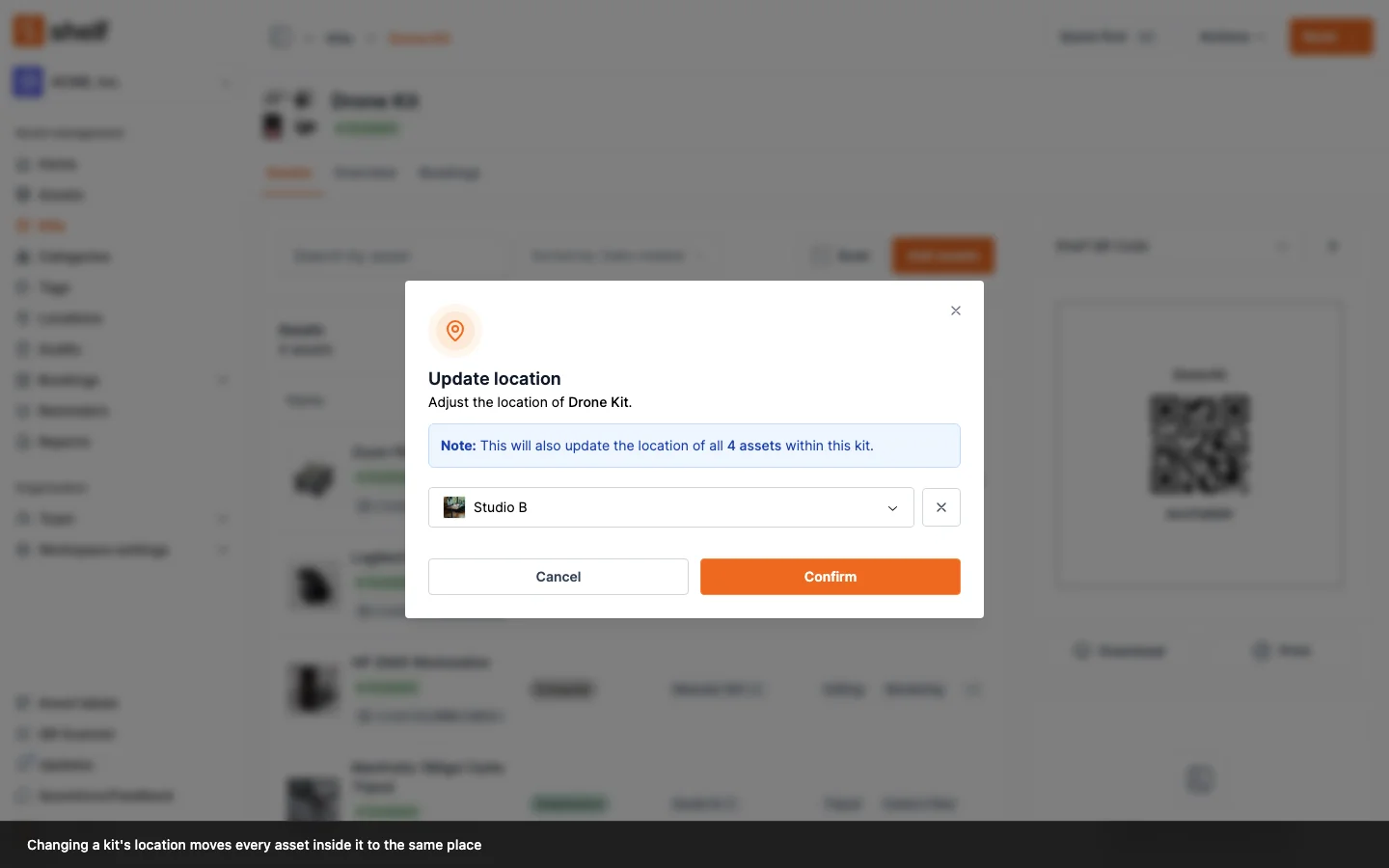
The dialog tells you how many assets are coming along before you confirm.
You can also set or change the location from Actions → Edit on the kit page. The Location field there behaves the same way as the dedicated Update location action.
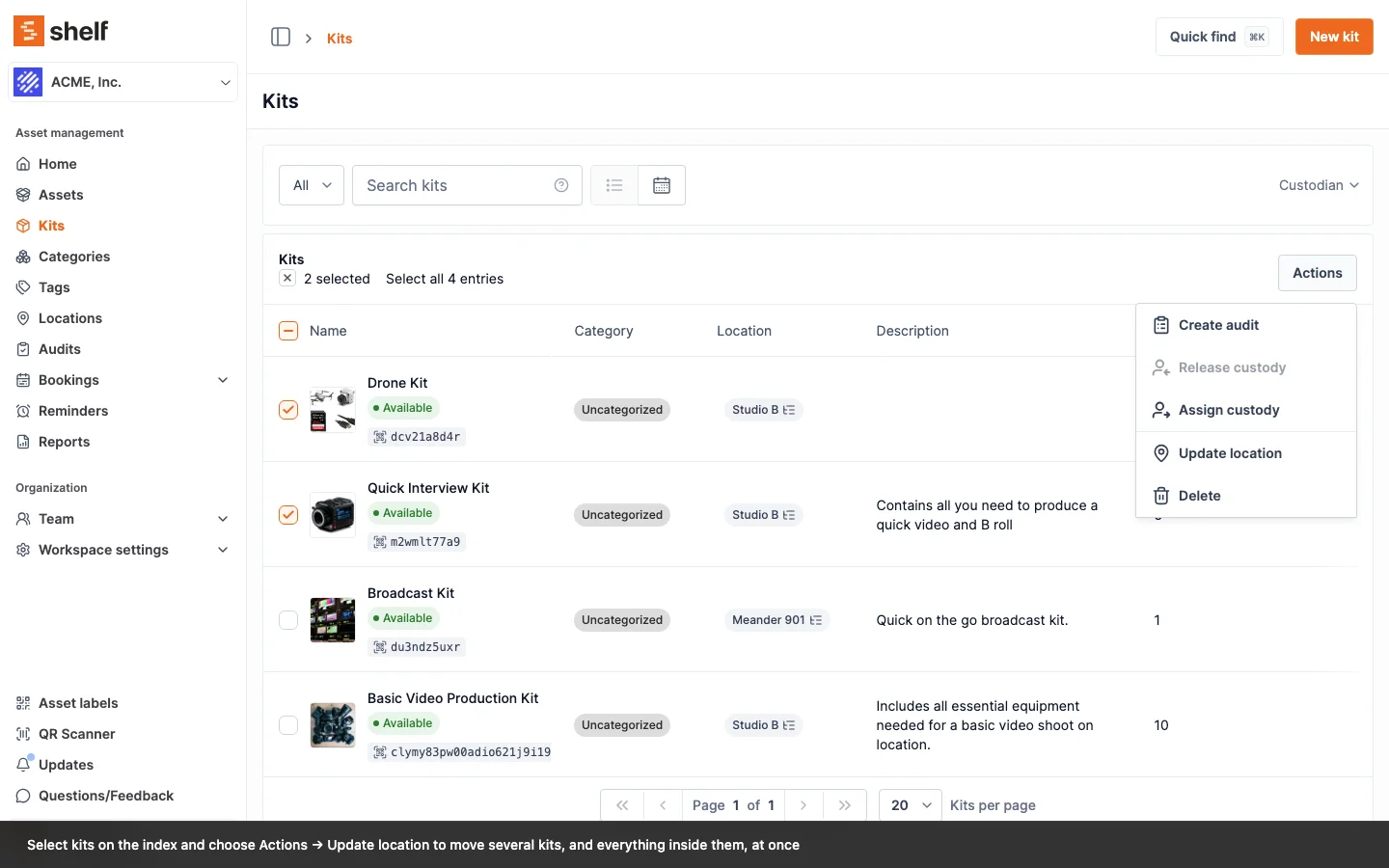
What happens to the assets
- Individually tracked assets are moved to the kit's location. Because each of these assets sits in exactly one place, the kit's location replaces whatever location the asset had before.
- Quantity-tracked assets only move the slice the kit holds. If a kit contains 20 cables out of a pool of 100, those 20 units show up at the kit's location and the remaining 80 stay wherever you placed them. On the asset page that slice is labeled via kit. To move it, change the kit's location rather than editing the placement directly.
- Every asset that moves records a location change in its own activity history, along with a note on its timeline, so the paper trail shows the move came from the kit. Assets that were already at the destination aren't logged again.
Adding and removing assets
- Adding an asset to a kit that has a location moves the asset (or the kit's slice of it) to that location straight away, so the kit never claims a member that's sitting somewhere else.
- Removing an individually tracked asset from a kit, or deleting the kit, leaves the asset at the location the kit gave it. It keeps the placement instead of becoming unplaced.
- Removing a quantity-tracked asset from a kit releases the kit's slice; those units become unplaced and can be placed again manually.
- Clearing a kit's location leaves individually tracked members where they are and releases the quantity-tracked slices.
Location is not custody. A kit's location says where the gear is; custody says who has it. The two are tracked separately and can be changed independently.
Changing Kit Contents and Existing Bookings
Swapping a member out of a kit, a network switch in a rack for example, affects bookings that already carry that kit. What happens depends on how far each booking has got.
Adding a member
A booking that carries a kit carries the kit as a unit, so an asset you add to the kit is added to the bookings that already hold that kit and are still Draft, Reserved, Ongoing or Overdue. It appears under the kit on those bookings, at the kit's own quantity for a quantity-tracked member, so a kit that gains a part does not leave its live bookings short of it. Completed, archived and cancelled bookings are left alone: they are a record of what went out.
Only the bookings holding this kit are touched. That matters when a quantity-tracked asset belongs to several kits at once, which is common for shared stock like banners, cabling and fixings. A booking that holds a different kit containing the same shared asset is a different booking's business and is not changed.
Removing a member
| Booking status | What happens to the asset on that booking |
|---|---|
| Draft, Reserved | It is removed from the booking. Nothing has physically left the store, so the booking follows the kit's contents. |
| Ongoing, Overdue | It stays, listed under its kit with a Removed from kit label. It is physically checked out, and taking it off would break custody and check-in. |
| Complete, Archived, Cancelled | It stays, listed under its kit with a Removed from kit label, as a record of what actually went out on that job. |
The rule in one line: the asset stays on the booking if the booking has ever left the planning stage.
The kit is still released when that booking ends. A member you pull out mid-job stays on the booking under its kit, so the booking keeps its own record of which kit sent the item. Ending that booking reads that record alongside the kit's current contents, so the kit returns to Available even though its membership changed while the job was running. This holds for every way a booking ends: checking it in, cancelling it, or deleting it, one at a time or several at once from the bookings index. A check-in split over several sessions releases the kit once its last outstanding item is back.
Before this, a kit in that position stayed Checked Out with nothing actually out. That is not a cosmetic badge: such a kit cannot be added to a live booking, is filtered out of the booking and add-to-kit pickers, and there is no button anywhere that clears it. A kit stuck that way before this shipped still needs support to correct the record, since the booking that would have released it has already finished.
This is why a finished booking no longer rewrites its own history. Taking an asset out of a kit used to make that asset appear as a loose item on every past booking that had used the kit, so a completed job retroactively looked like it had gone out with a stray asset rather than a complete kit.
Because a row carrying the Removed from kit label looks otherwise identical to a current kit member, and the kit header counts the rows shown, a booking can read "3 assets" beside a kit that now holds 2. The label is what explains the difference. It disappears by itself if you put the asset back in the same kit. The pull-list PDF carries the same information as printed text in the Kit cell, since a printout has nothing to hover over.
You are told before you confirm. Removing an asset from a kit names the bookings it affects, in two groups, because the outcomes differ: Reserved bookings, where the asset will be taken off, and bookings already in progress, where it stays and is marked as removed from the kit. Completed, archived, and cancelled bookings are left out of the warning, since nothing can be done about them and a popular kit could list dozens. The warning informs, it does not block. Blocking would make routine kit maintenance impossible whenever anything was reserved or out. Only people who can edit kits see it, because only they can do the removal.
Duplicating a booking matches what you see. Duplicating a draft copies its current contents exactly. Duplicating an older booking re-resolves each kit to its current members, and the confirmation lists both what has been added to the kit and what has been removed since the original.
Kit membership that was already deleted before this shipped cannot be recovered, because the record naming the kit is gone. Those rows stay standalone on their bookings. Everything from this release forward is tracked correctly.
Assigning Custody
Navigate to the kit page and select Assign Custody. Choose the team member to receive custody responsibility. The kit updates to reflect the new custodian.
Every member asset goes into that person's custody with the kit, and each of those holds belongs to the kit rather than to whoever clicked. That has a consequence worth knowing before you go looking for it on the asset:
- Release custody on a single member is refused, with "This asset is in custody because its kit is. Release the kit's custody instead." That answer is the same on the asset page, in the bulk Release custody action on the assets index, and in the Shelf Companion app.
- Handing one member to a different person is refused too, for the same reason.
- The two ways out both go through the kit. Release the kit's custody and every member hold clears with it. Or take the asset out of the kit, which takes the kit's hold with it and returns the asset to Available unless something else is still holding it.
Custody you assigned to an asset directly is separate and releases as it always did, even on an asset that also sits in a kit. See Custody a kit put there belongs to the kit.
Audit Trail
Each individual asset page documents kit custody changes to designated persons, creating a transparent record of modifications. A member's activity names the person whose custody started or ended and links the kit it came through, for example "Alex released Sarah's custody via kit assignment Camera Kit".
Releasing several kits at once names each kit's own holder. Select kits on the Kits index, or in the Shelf Companion app, and use Release custody, and every asset's note and every CUSTODY_RELEASED event carries the custodian of the kit that asset came through. Before 18 September 2026 a batch like this took the first selected kit's custodian and wrote that one name against every asset in the batch, so releasing Sarah's kit and Tom's kit together left Tom's gear claiming Sarah had been holding it, and any report grouped by the released custodian counted them all against Sarah. Notes and events written before that date can name the wrong person; releases from a single kit were never affected, and nothing about who actually held what was ever wrong, only the record of it.
Tracking Assignments
Kit assignments display on the kit page, enabling easy identification of current custodians.
Ready to try Shelf?
Put what you're learning into practice. Free plan available — no credit card required.